DP350 User's Manual
- 12 -
address of working PC is 192.168.0.1/255.255.255.0 (IP/Subnet Mask),then which of printer should
be set to 192.168.0.x/255.255.255.0(x=2~254 and should avoid the IP in used. It is not restricted
for NetFinder to search printers in the same network but different segment parts (can not stride
gateway). Relative glossary of IP address may refer to corresponding information.
2) Setting printer’s IP address
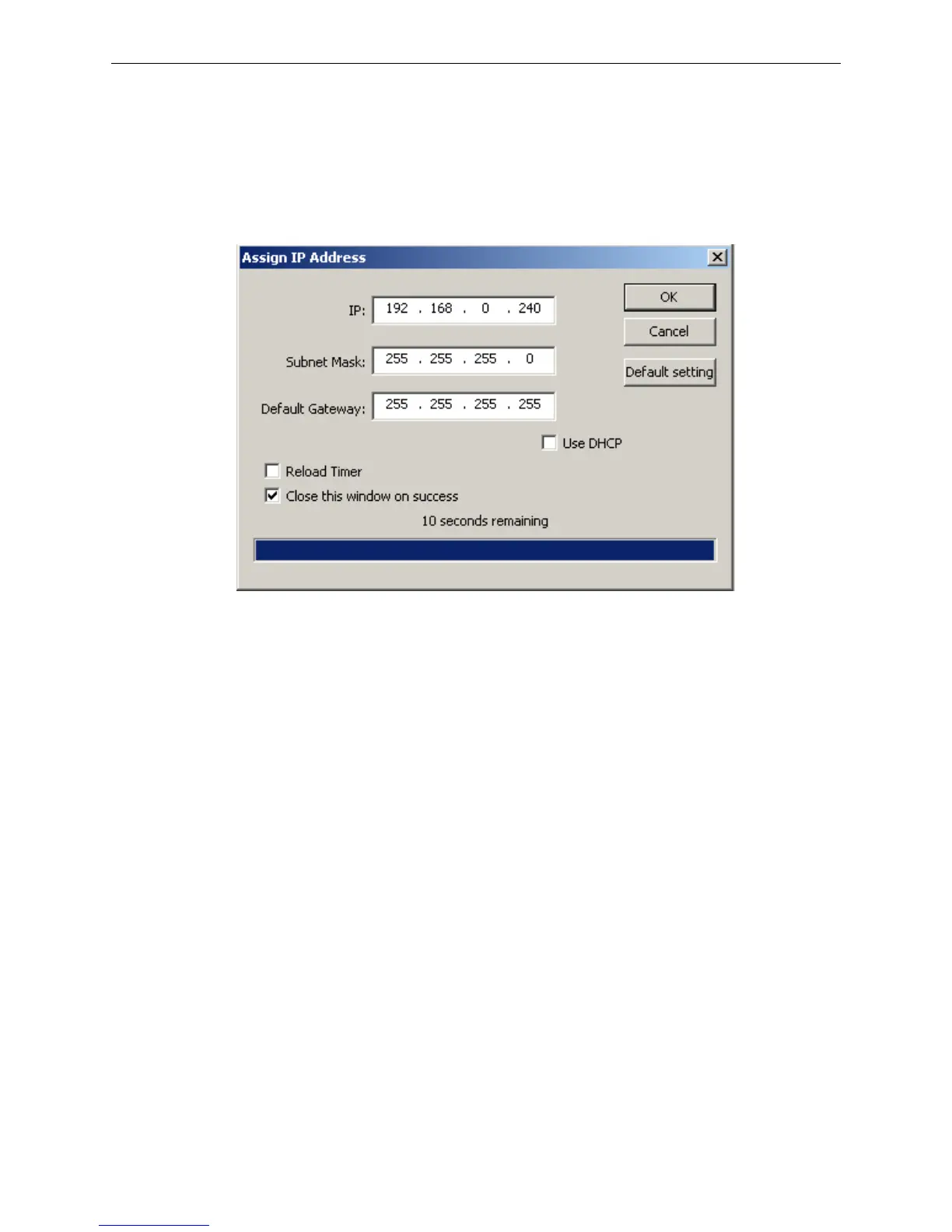
Select the printer information to be modified (black frame appears), click "Assign IP" key. Set the IP
in the dialog box appearing.
Check the “Use DHCP” if need to assign dynamic address, the settings above would be disabled
automatically. Please make sure there is a DHCP server in the network, or the printer can not
receive an effective IP address.
When to specify static address, uncheck “Use DHCP” and fill in “IP address”, “Subnet Mask” and
“Default Gateway”. If there is no gateway in the network, fill 255.255.255.255 in the “Default
gateway”. “IP address” and “Subnet Mask” should obey the assigning rules of local LAN (Ethernet),
please enquire the administrator of networks which the printer connects to for more details.
Click “OK” to send address setting information to the specified printer. Click “Cancel” if you abandon
the modification.
Click “Search” in the main interface again to update printer information after modifying the printer’s
IP address.
3) Report printer’s IP address
Report the printer’s IP address, which would be used in the section “Newly-install printer network
driver” or “Upgrade-install printer network driver (setting driver’s network port)”.
1.10.3 Installing Printer Network Driver
The ways of installing network driver are classified into Newly-install way and Upgrade-install way
according to whether the PC installs the printer driver or not.
If the printer driver hasn’t been installed on the PC, adopt newly-install way whose steps are shown in
“Newly-install printer network driver”.
If the printer driver has been installed on the PC, adopt Upgrade-install way whose steps are shown in
“Upgrade-install printer network driver”.
1. Newly-install printer network driver
1) Click “Start” → “Settings” → Select “Printers”.
2) Click “Add printer”, then a window of “Add Printer Wizard” pops up, click “next”, then please read


 To Next Page