DP350 User's Manual
- 2 -
Note: According to specific interface standards
1.4 Choosing a Place for the Printer
When selecting a place to set up your printer, choose a convenient location that provides the
following:
1. A flat, stable surface.
2. Adequate room around the printer to allow easy operation and maintenance. Make sure it’s close
enough to the computer for the printer cable to reach, and be sure you can easily unplug the power
cord.
3. Moderate environmental conditions. Select a cool, dry area and protect your printer from direct
sunlight, excessive heat, moisture, or dusty.
4. Appropriate power source. Make sure you use a grounded outlet; do not use an adapter plug. Avoid
electrical outlets controlled by timers or wall switches; an interruption in power can wipe out the
information in your computer or printer memory.
If you place the printer on a stand, follow these guidelines:
1. Use a stand that supports at least 9 kg (19 lb).
2. Never use a stand which is slant. Always keep it level.
3. Provide enough clearance below the stand and between the printer rack and the legs of the rack so
the tractor paper flows smoothly.
4. Place cables so they do not interfere with paper feeding; secure them to a leg of the stand if
possible.
1.5 Installing the Ribbon Cartridge
1. Before installing the ribbon cartridge, make sure the printer is turned off.
Note: Never replace the ribbon cartridge when the printer is connected with power. Printer may
start to work suddenly which may hurt you.
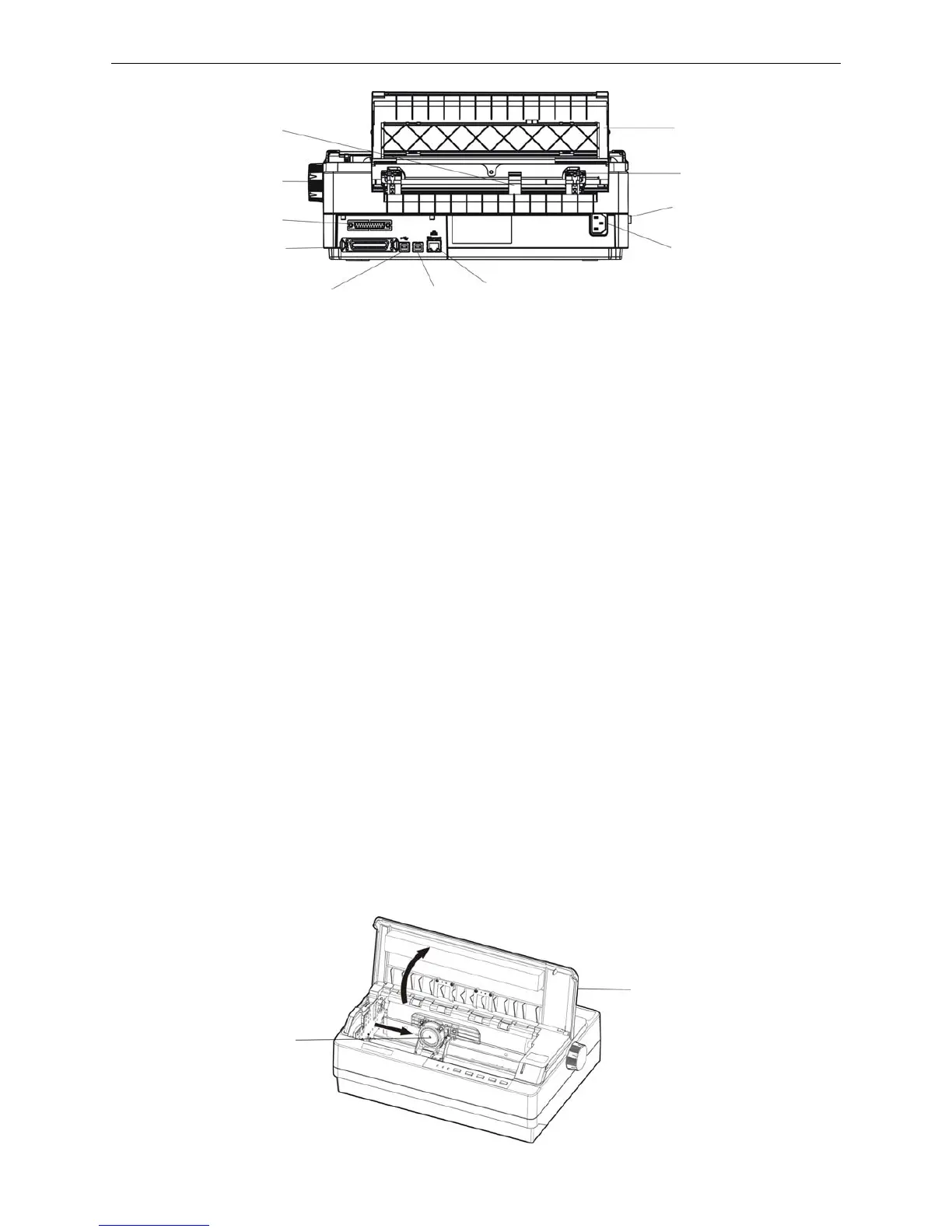
2. Open the printer window. (As shown below)
Printer window
Print head
Figure 1-4 Open the window
Figure 1-3 Main parts of the printer (rear view)
USB interface
Tractor
Power switch
Paper guide slider
Paper feed knob
Printer back cover
Power supply inlet
Serial interface
USB interface
Parallel interface
Ethernet interface


 To Next Page