English 41
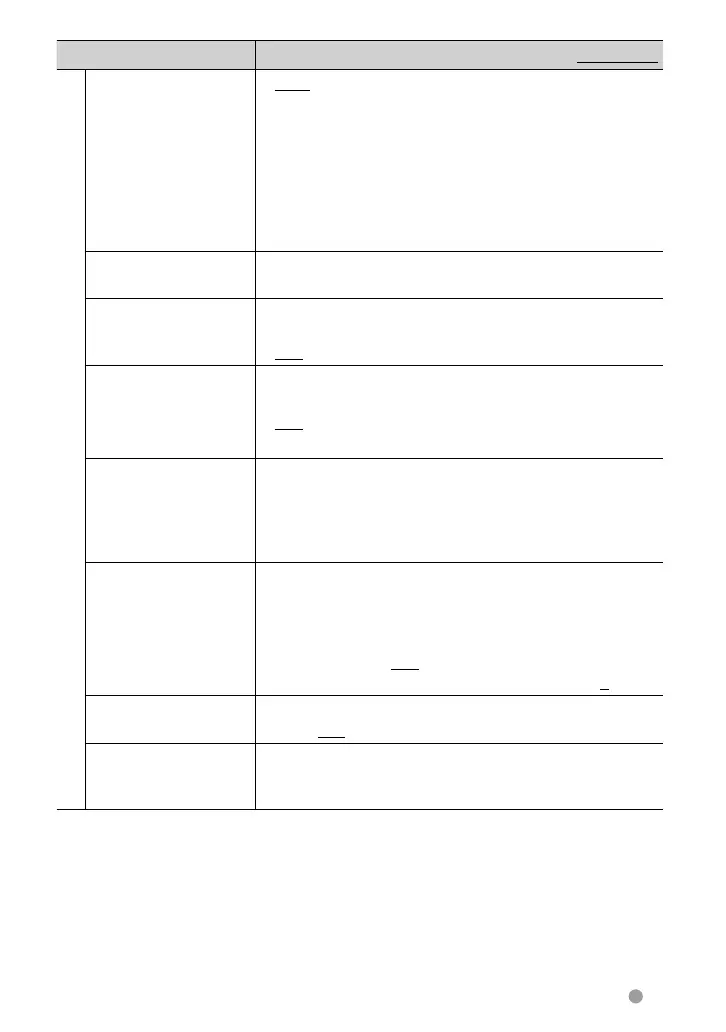
Menu item Selectable setting/item Initial: Underlined
Display
Dimmer ♦ Auto : Dims the screen and button illumination
when you turn on the headlights.
• The ILLUMI lead connection is required.
(☞ page 69)
♦ ON : Activates dimmer.
♦ OFF : Cancels.
♦ NAV : Activates or deactivates dimmer
according to the day/night display
setting of the connected navigation unit.
User Customize
Change the display design (background and panel color). (☞
page 35)
OSD Clock ♦ ON : Displays the clock while a video source is
played back.
♦ OFF : Cancels.
Scroll ♦ ON : Repeats scrolling.
♦ Once : Scrolls the displayed information once.
♦ OFF : Cancels.
• Pressing [<] scrolls the text regardless of this setting.
Menu Customize Select the large buttons to be displayed on the <Top Menu>
screen.
Press [Enter] to display the setting screen. Select the icon you
want to show as large button by pressing [<] or [>], then press
the target icon to confirm.
Screen Adjust Adjust the brightness and black color of the screen.
Select the dimmer mode (<DIM ON> or <DIM OFF>) for
adjustment, then change the following settings:
♦ Bright
: Adjusts brightness (–15 to +15; Initial
+15).
♦ Black
: Adjusts black (–15 to +15; Initial 0).
Video Output *
Select the color system of the external monitor.
♦ NTSC/PAL
Angle
Only for DDX6021BT/
DDX6051BT
Adjust the panel angle. (☞ page 5)
*
“Please power off” appears when the setting is changed. Turn off the power, then turn on to enable the
change.
EN_LVT2269-001A_EQ.indb 41EN_LVT2269-001A_EQ.indb 41 11/11/28 10:0811/11/28 10:08


 To Next Page