ENGLISH
Chapter 6: Mobile Device Access
DVR User’s Manual
107
Chapter 6: Using KView Series Soware
The KView Series surveillance soware provides real-me mul-channel viewing capabilies right on your smart
phones, tablet PCs or on your desktop computer. The KView Series surveillance soware includes:
• KViewQR: Use in Android Phones and iPhones (see below)
• KView Center: Use in Windows-based computers (see “6.2 KView Center” on page 108)
6.1 KViewQR
KViewQR is a soware applicaon specially designed for DVR with easy network setup funconality. You can instantly
view the connected DVR in real-me through your smart phone/pad by simply scanning the QR code, without the
hassle of complicated network conguraon.
1 Make sure your mobile phone is connected to WIFI, to the same Router as DVR.
2 Open the Play Store or App Store applicaon.
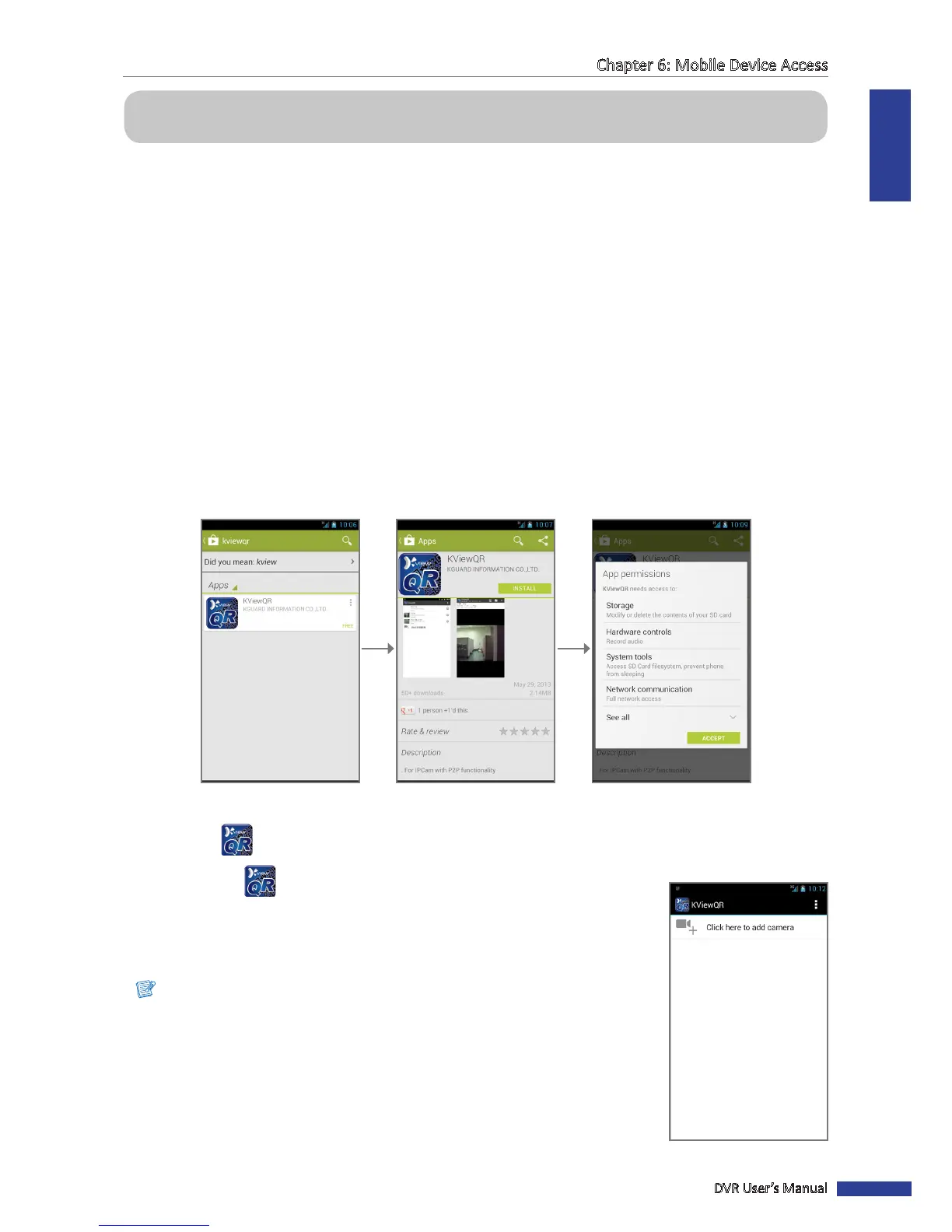
3 On the search bar, enter the keyword “kviewqr” to search and download KViewQR.
4 Select to download KViewQR.
Select the “KViewQR”
applicaon.
Click INSTALL. Click ACCEPT.
The KViewQR icon is displayed on the applicaon screen.
5 Tap the KViewQR icon to open the applicaon.
6 Tap + to add a DVR.
7 Tap Scan to scan the QR code scker on the top of the DVR. To manually enter the
QR code , enter the DVR ID as shown on scker.
Note:
To scan the QR code, place the barcode inside the viewnder rectangle.



 To Next Page