ENGLISH
Chapter 5: KGUARD Web Client
DVR User’s Manual
85
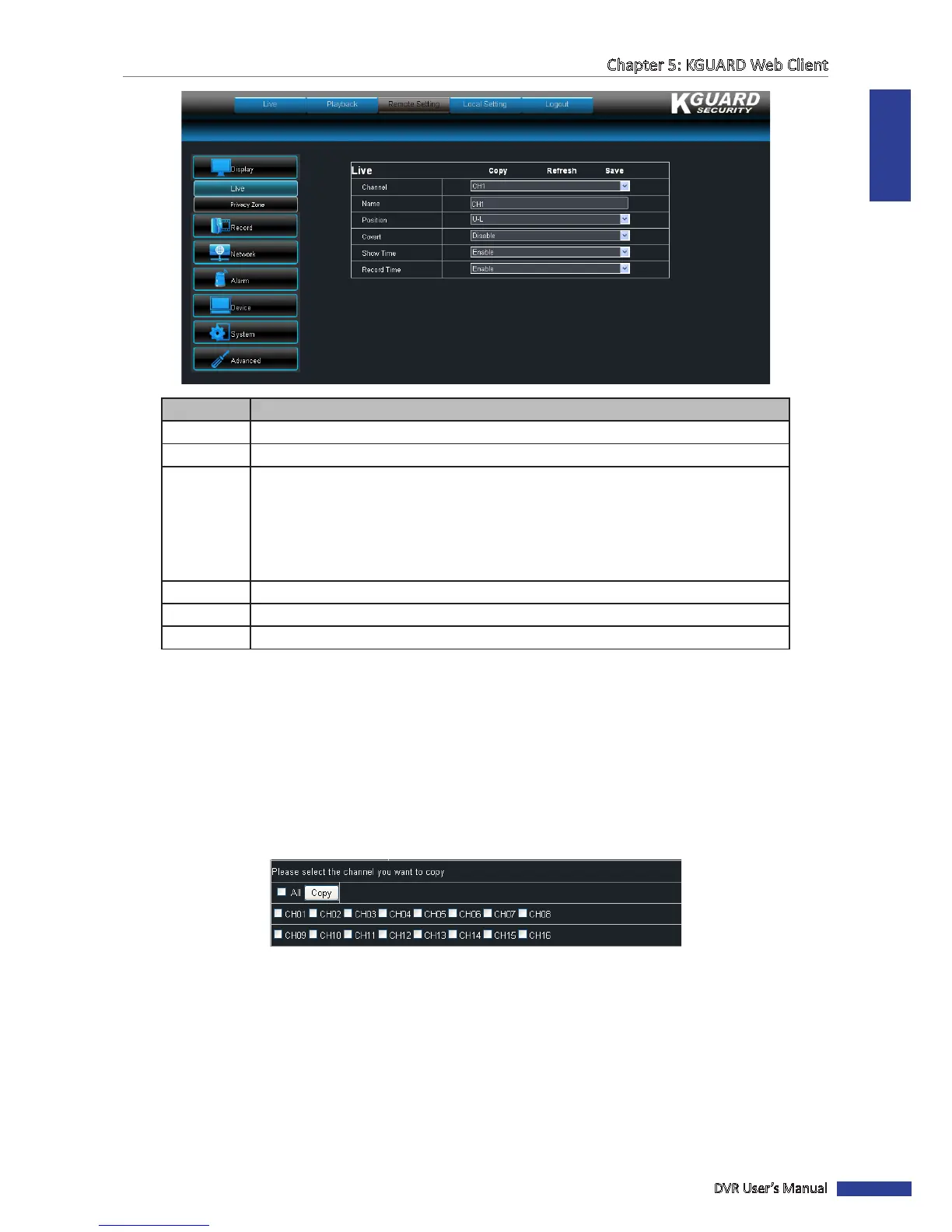
Item Descripon
Channel Select the channel that you want to congure.
Name Enter the desired channel name to be displayed on the screen.
Posion Set the channel name locaon on the screen. Opons are:
• U-L: Upper le
• D-L: Down le
• U-R: Upper right
• D-R : Down right
• Close: Select this opon to hide the channel name.
Covert Display or hide live view display of channel. Select Disable to view the channel.
Show Time Enable/Disable live view me display.
Record Time Enable/Disable record me display.
4 To save the sengs, click Save.
« TIP »
• To apply the same sengs to other channels (except the channel name), click Copy. See “Copying Sengs To
Other Channels” below.
• To cancel any modicaons and retain the exisng sengs, click Refresh at the boom of the screen.
Copying Sengs To Other Channels
The sengs of one channel can be copied to another or to all channels. To do this, perform the following:
1 Aer modifying the sengs, click Copy. The screen below appears.
2 Select the channels you want to copy the sengs to. To copy to all channels, click All.
3 Click Copy to copy.



 To Next Page