ENGLISH
Chapter 3: Geng Started
DVR User’s Manual
35
3.7.4 Rotate View
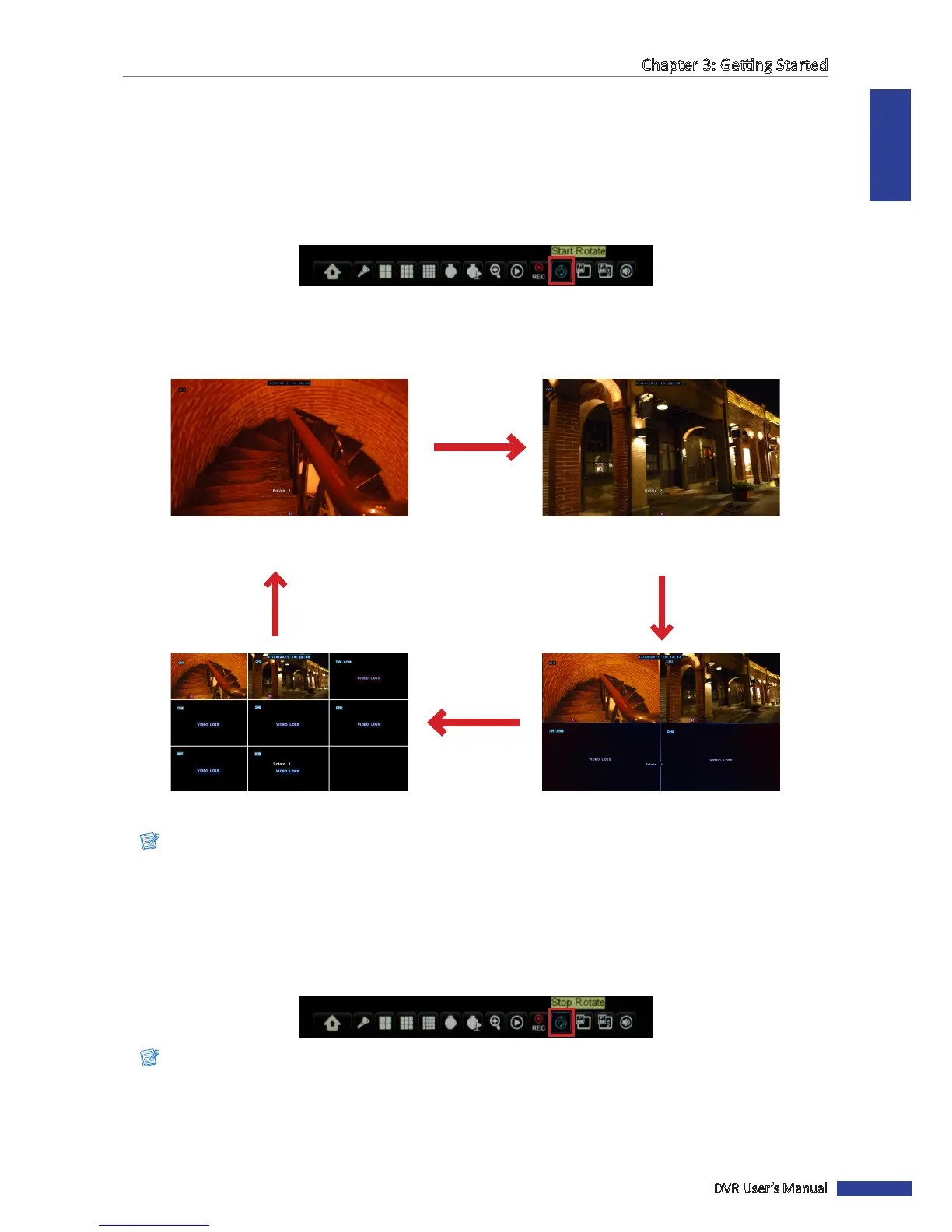
With this funcon, the system will automacally rotate the display through all the channels and split window display.
To enable rotate view:
1 In the preview mode, right-click on the mouse to display the Pop-up menu.
2 Select Start Rotate.
The rotang display starts. By default, each display switches at 5 seconds interval. You can change the switch rotate
me interval in Display menu (see “4.1.2 Output Sengs” on page 40).
An example of the screen display rotaon, as follows (8-channel DVR with 2 available channels):
Full screen
(First channel)
Full screen
(Second channel)
8-window display 4-window display
Note:
The displayed screens vary depending on the available channels.
To disable rotate view:
1 Right-click on the mouse to display the Pop-up menu.
2 Select Stop Rotate.
Note:
Rotate funcon is not available when View Setup is enabled (see “4.1.2 Output Sengs” on page 40).



 To Next Page