ENGLISH
Chapter 4: Using the DVR
DVR User’s Manual
47
Opons: 24 Hours, 2 Hours, 1 Hour, 30 Minutes, and Customize me frame (Click the icon ( ), and the icon turns
red ( ). Click on the me bar where you desire to start, and click on the me bar again where you desire to end.)
11 To stop the video playback, click X.
4.3.2 Trimming Videos
1 Plug a USB device into the USB port of the DVR.
2 In preview mode, right-click on the mouse to display the Pop-up menu.
3 Select Main Menu > SEARCH.
4 On CH, select the channel where you want to search the recorded video, or select All to search all channels.
5 Click the Search Date box and specify the date where you want to search the recorded video.
6 Click Search.
7 Select the channel(s) to play simultaneously and click Play to start playback.
8 To play in full screen, click a channel.
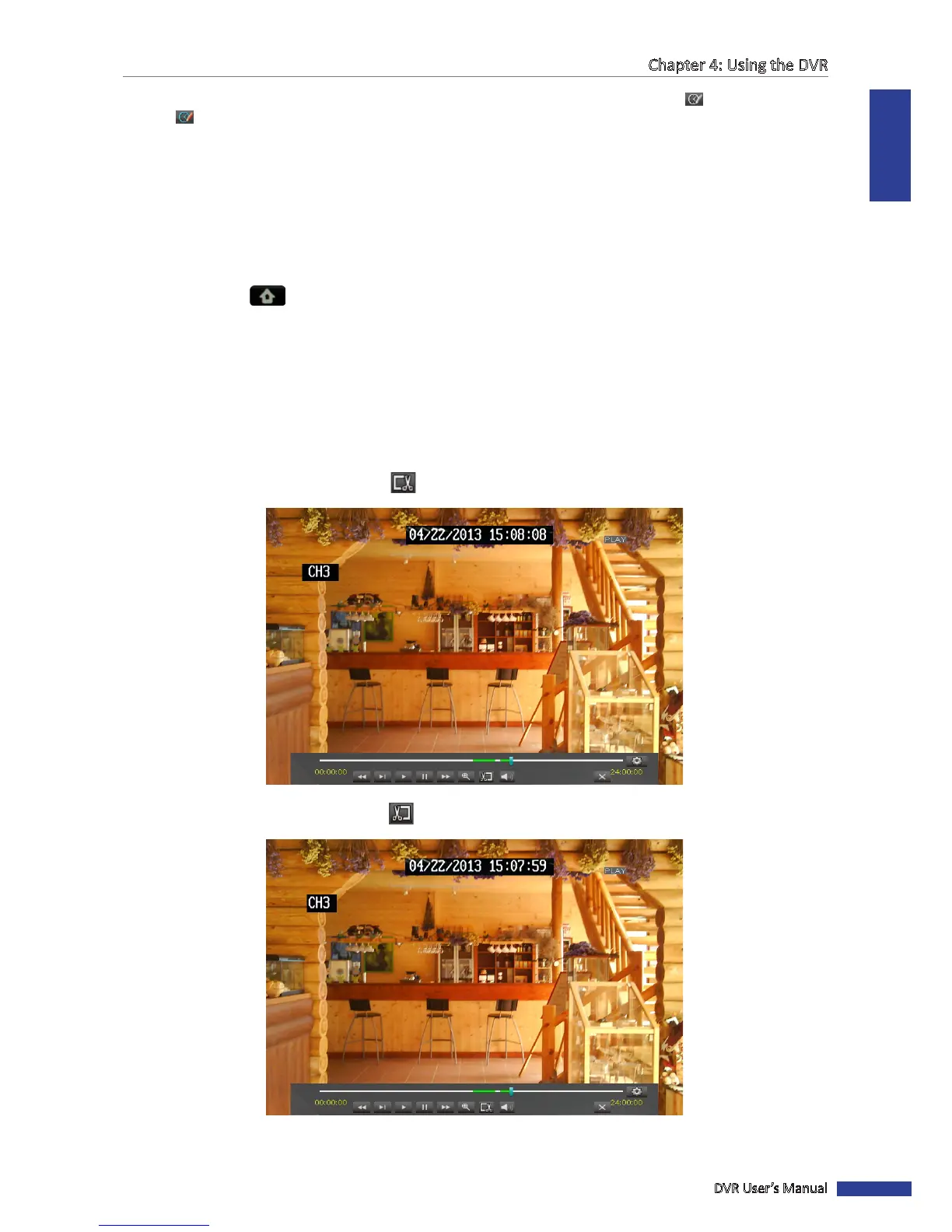
9 While playing video in full screen, click the icon to start trimming the video clip.
10 To stop trimming the video clip, click the icon.



 To Next Page