ENGLISH
Chapter 4: Using the DVR
DVR User’s Manual
55
Email Schedule Setup
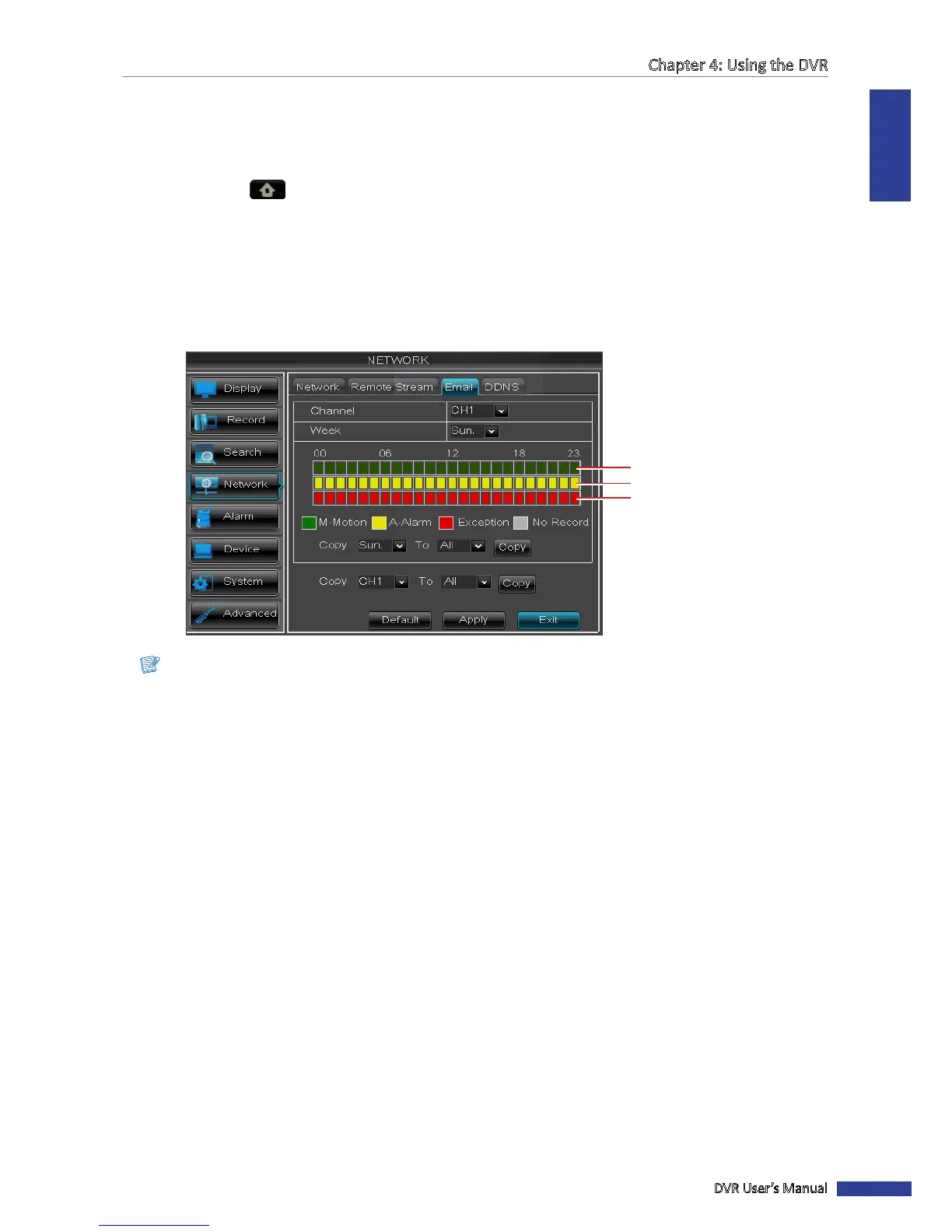
Set the email nocaon to be sent at the specied me.
1 In preview mode, right-click on the mouse to display the Pop-up menu.
2 Select Main Menu > NETWORK, select the Email tab.
3 Click Schedule.
4 On Channel, select the channel you want to set the schedule.
5 On Week, select the days of the week to implement the schedule.
6 The number labels on top of the grid indicates the me of the day. Click a box to mark the schedule.
Slot for Events
Slot for Alarm
Slot for Moon
Note:
Alarm is only available for 16-channel model.
7 To remove a marked schedule, click the box again. The box turns gray.
8 Aer all sengs are complete, click Apply.
« TIP »
• To copy the current sengs to other days, select the day, then click Copy.
• To copy the current sengs to other channels, select the channel, then click Copy.
9 When data saving is complete, click OK.



 To Next Page