ENGLISH
Chapter 4: Using the DVR
72
DVR User’s Manual
Disable Startup Wizard
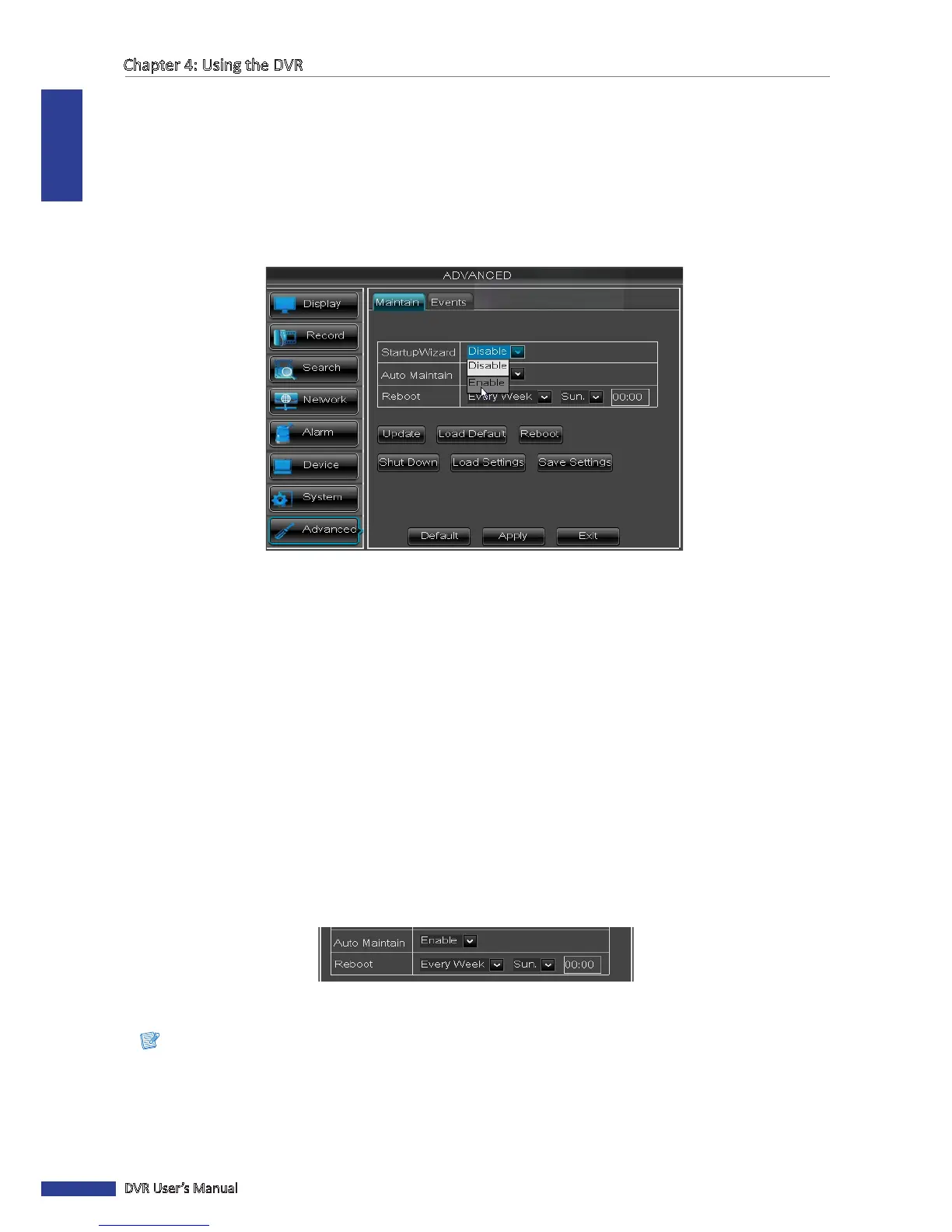
To prevent the Wizard Setup screen appears every me the system reboots, please disable StartupWizard here.
1 In preview mode, right-click on the mouse to display the Pop-up menu.
2 Select Main Menu > ADVANCED.
3 Click Maintain tab.
4 Set StartupWizard to Disable.
5 Click Apply.
6 Click OK.
Set Auto Maintenance
Use this feature to automacally reboot the DVR on a specied schedule. When the DVR reboots, all sengs and data
are refreshed from the memory, which opmizes the DVR performance.
1 In preview mode, right-click on the mouse to display the Pop-up menu.
2 Select Main Menu > SYSTEM > MAINTAIN.
3 Set Auto Maintain to Enable.
4 In Auto Reboot, select the frequency to reboot the DVR. Opons are:
• Everyday: Reboots the DVR on a daily basis. If this opon is selected, specify the me you want to reboot the
DVR.
• Every Week: Reboots the DVR on a weekly basis. If this opon is selected, specify the day of the week and the
me to reboot the DVR.
• Every Month: Reboots the DVR on a monthly basis. If this opon is selected, specify the date (1 to 31) and the
me to reboot the DVR.
Note:
The illustraon above is an example of Auto Reboot set to Every Week. The available elds vary depending on the
selected Auto Maintain and Auto Reboot opons.
5 Aer all sengs are complete, click Apply.
6 When data saving is complete, click OK.



 To Next Page