ENGLISH
Chapter 5: KGUARD Web Client
90
DVR User’s Manual
5.5.4 Seng the Network Conguraon
You can use the Network menu to setup how the DVR connects to the network. It provides 3 network connecon
opons: Stac IP, DHCP, and PPPoE.
Note:
Consult your network administrator or the Internet Service Provider (ISP) to determine the type of connecon you are
using and the required parameters to complete the setup.
Network Sengs
To congure the network sengs, do the following:
1 On the Main Menu, click Remote Seng.
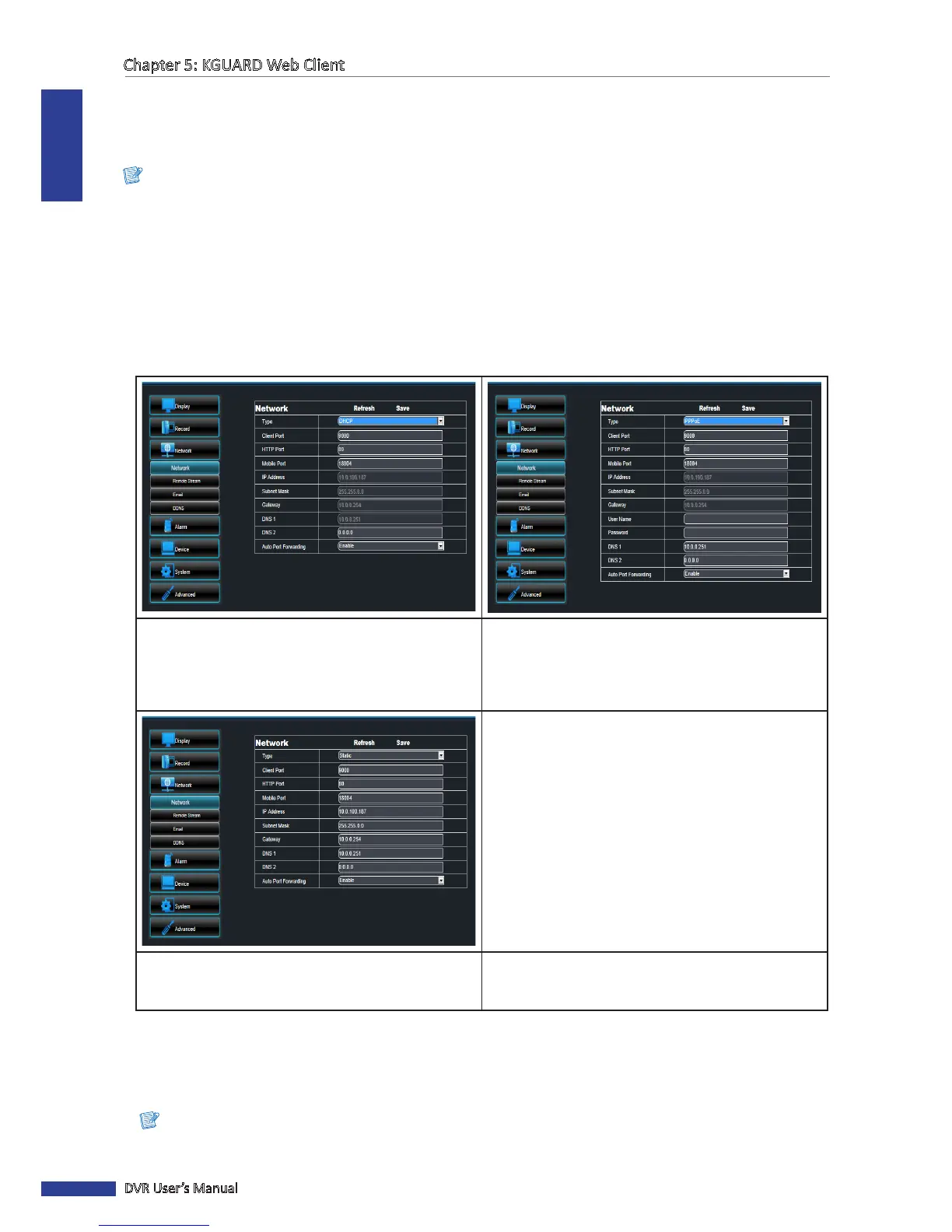
2 On the le panel, click Network > Network. The Network screen appears.
• DCHP: With Dynamic Host Conguraon Protocol
(DHCP) service, your router will automacally assign
an IP address to your computer connected to the
network.
• PPPoE: The Point-to-Point Protocol over Ethernet
(PPPoE) is a network protocol for encapsulang
Point-to-Point Protocol (PPP) frames inside Ethernet
frames. This network protocol allows the device to
be directly connected using a DSL modem.
• Stac IP: This network protocol allows you to
congure the network interface using a xed IP
address.
3 Specify the Client Port and HTTP Port numbers.
• Client Port: Specify the port number that the device will use to send DVR command and video stream.
• HTTP Port: Specify the port number that you will use to log in to the device.
Note:
• Obtain these informaon from your network administrator or your Internet Service Provider (ISP).



 To Next Page