If you are using our discontinued SIM card - purchased before Dec. 2016, please contact
us directly on: m2m@kintech-engineering.com
3 Quick start
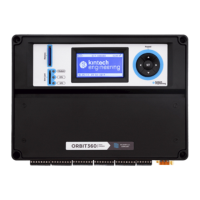
The following section describe the essential steps in order to configure an Orbit data
logger.
3.1 How to get an Atlas license / Atlas software
Please contact us on software@kintech-engineering.com to get the Atlas software and
valid license.
3.2 System requirements
Operating System: Atlas is supported on Windows 7, Windows 8 and Windows XP with
.NET Framework version 4.6.2 or later version installed.
MMC card reader: You need an MMC card reader for accessing the data on the MMC card
from your PC and for configuring your data loggers with their settings.
Telephone connection or Internet access: If you are planning to connect to the data
logger via a telephone MODEM or Internet*.
* We recommend connecting to the data logger via an internet connection. However,
you can connect via a modem as well.
3.3 How to setup your Orbit data logger
All the settings for Orbit data logger are stored in a file with .sit extension. This
configuration file is created by using Atlas. When the configuration is done, upload the
configuration file to the data logger.


 To Next Page