IC-601 6-35
6.8 About the Scan Settings Screen
6
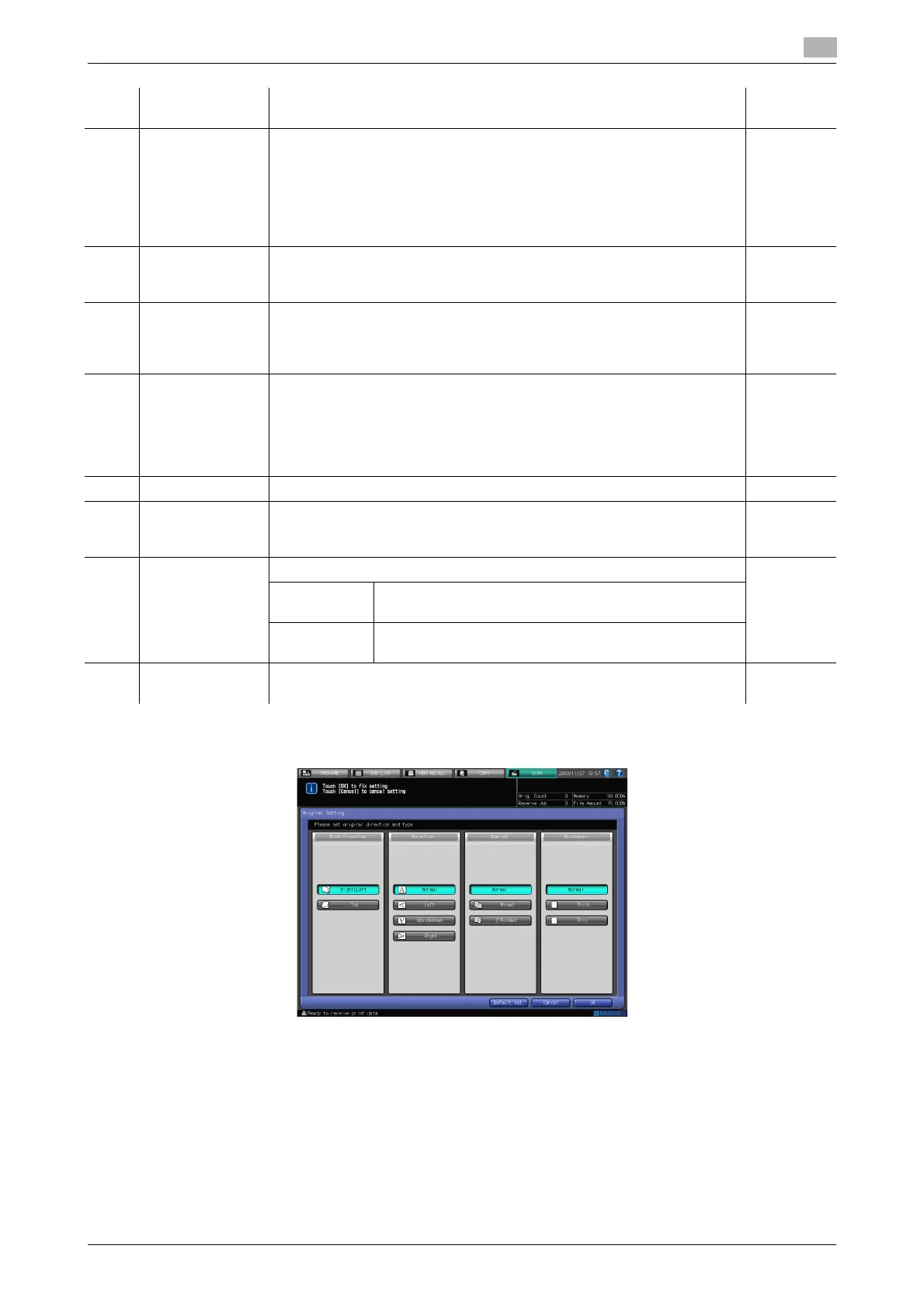
Original Setting
In [Original Setting], you can configure the following functions.
- Bind Direction
– Right & Left, Top
- Direction
– Normal, Left, Upside Down, Right
- Special
– Normal, Mixed, Z-Folded
- Thickness
8 [File Type] Specify the file type to scan.
• [Pack. PDF]/[Div. PDF]
• [Pack. TIFF]/[Div. TIFF]
• [Pack. XPS]/[Div. XPS]
• [JPEG]/[Encrypt]
You can specify a password by pressing [Encrypt] when PDF is selected
for the file type.
p. 6-39
9 [Color Compres-
sion]
You can select the compression method when scanning in the color or
gray scale color mode.
You cannot select it when scanning in the [Black] color mode.
p. 6-39
10 [Simplex/Duplex] You can scan both sides of the original when [ADF] is selected in [Scan In-
itial Setting].
To open [Scan Initial Setting], press [Utility/Counter] - [User Setting] - [Ini-
tial Setting].
p. 6-39
11 [File Name] You can input a Fine Name for data you are about to scan.
If you don't input the file name, the file name is automatically specified with
the combination of the specified string, year, month, day, hour, and min-
ute, and sequence number.
You can specify the string in [MACHINE] - [Controller] - [Scan Setting] -
[File Name].
12 [Resolution] You can specify the resolution for scanning. p. 6-38
13 [Address] The specified address is displayed.
Press [Address] to return to the Select Addresses screen for changing the
address.
14 [Scan Size] You can set the scan size. p. 6-37
[Standard
Size Setting]
Select this to specify [Custom Size] or [Tab Paper].
[Auto Size] Select this to scan by detecting the scan size automati-
cally.
[Default Set] Press this to return to the initial setting. It is displayed on the Original Set-
ting screen and the Quality Adjustment screen.
No. Item Description Refer-
ence page





 To Next Page