IC-601 6-34
6.8 About the Scan Settings Screen
6
6.8 About the Scan Settings Screen
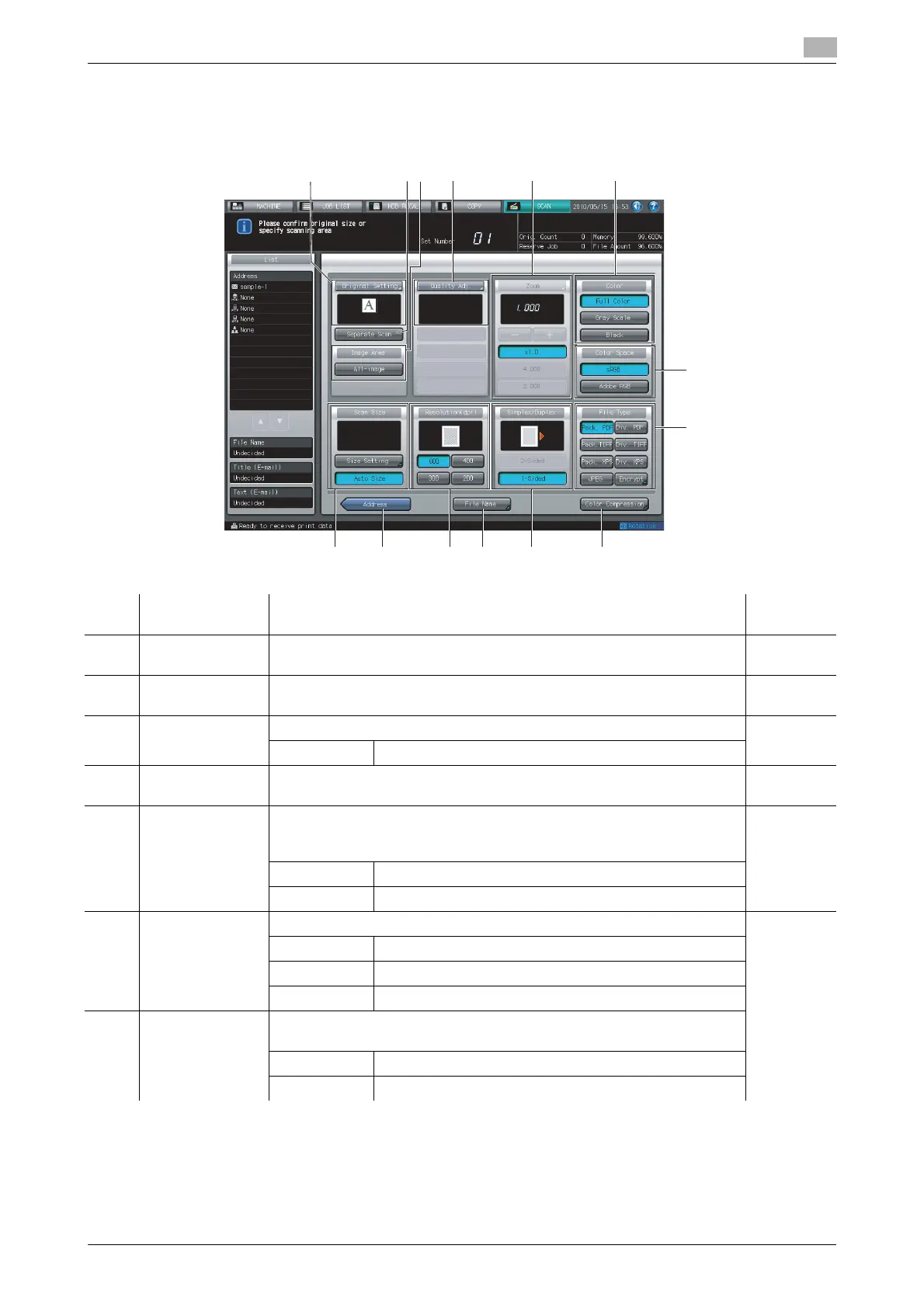
Pressing [Scan Settings] on the Select Addresses screen displays the Scan Settings screen. On the Scan Set-
tings screen, such settings as original settings and quality settings can be configured.
12345
7
6
8
9
1113 101214
No. Item Description Refer-
ence page
1 [Original Setting] You can set various settings on the original such as the original orientation,
bind direction, etc.
p. 6-35
2 [Separate Scan] Original on multiple sheets which cannot be transmitted by ADF can be
read using the original glass.
3 [Image Area] Enable/disable [All-image] for setting the scanned range.
[All-image] Set this to scan the page as an image.
4 [Quality Adj.] Specify the density or contrast for scanning.
It is disabled when [Black] is selected as the color mode.
p. 6-36
5 [Zoom] You can specify various settings on zooming for scanning.
To change a zoom level, a setting is required. For more information, con-
tact your service representative.
p. 6-37
[+][-] Specify a zoom level for scanning.
[4.00][2.00] You can specify the registered zoom level.
6 [Color] Specify a color mode for scanning. p. 6-37
[Full Color] Select this to scan in the full color mode.
[Gray Scale] Select this to scan in the gray scale mode.
[Black] Select this to scan in black and white color.
7 [Color Space] You can specify [sRGB] and [Adobe RGB] as the color space for scanning
when [Full Color] is selected as the color mode.
[sRGB] Specify sRGB as the color space for scanning.
[Adobe RGB] Specify Adobe RGB as the color space for scanning.





 To Next Page