5
Making Copies
5-16 Konica 7115/7118
5.5 Adjusting the Image Density
The image density setting can be adjusted in two broad modes, “Text” and “Photo.”
Image Density Setting
G
Text mode:
The image density can be adjusted either automatically (Auto) or manually in five steps.
❍
The image density is adjusted automatically according to the original from which a copy will
be made.
❍
When you want to make a copy from newspaper or magazine and you do not want the
backside image to be produced on the copy, use the [ ] key to select a lighter setting. To
reproduce a pale color of a bright image, use the [ ] key to select a darker setting.
Selecting a darker setting could result in a background image being reproduced on the copy,
while selecting a lighter setting could make the copy image itself too light: Select the
appropriate level according to your original.
G
Photo mode:
Select Photo when making a copy from an original having a large halftone image, such as
photos.
Setting the Image Density
1
Position the original.
❍
Original Loading (p.4-1)
2
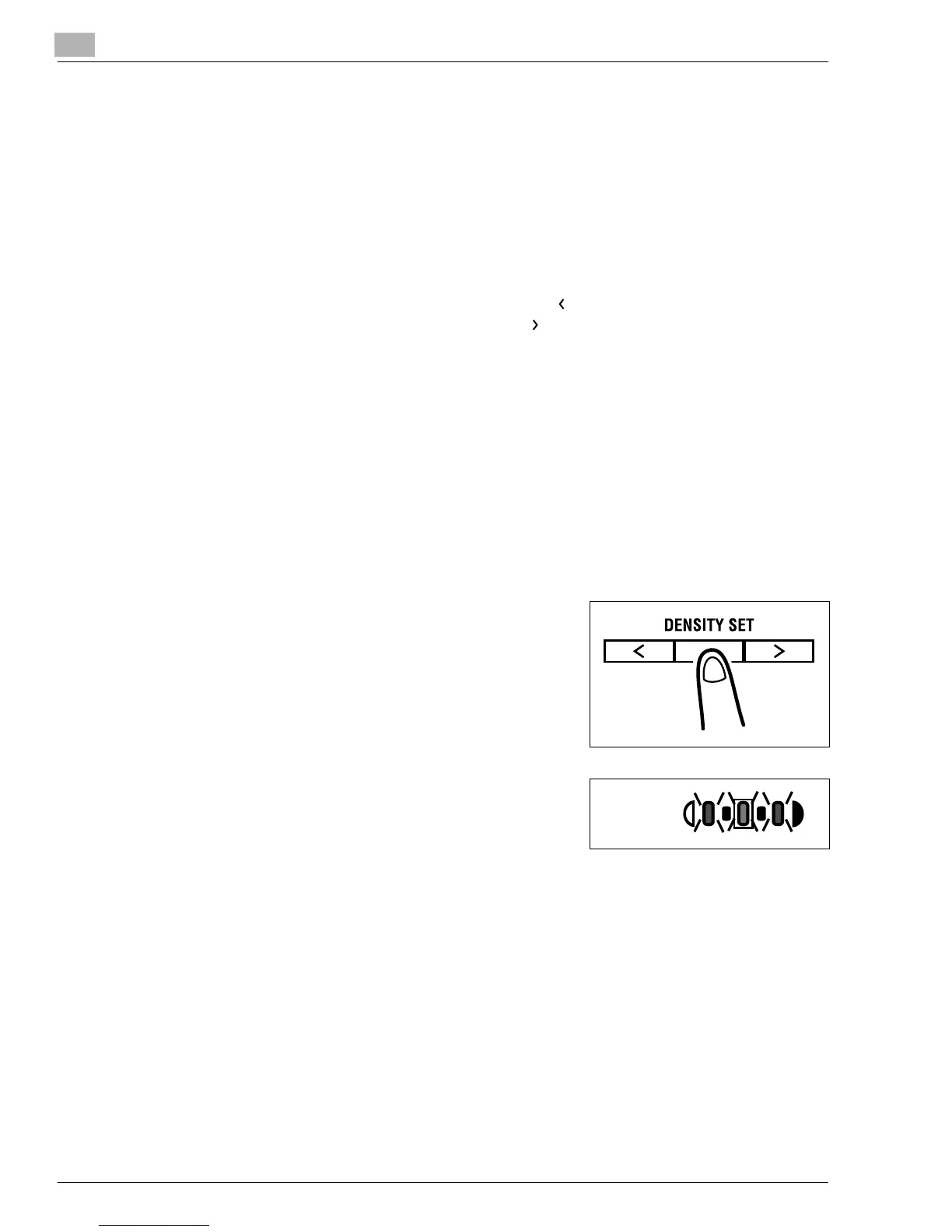
Press the [DENSITY SET] key on the control panel to
select the desired mode.
?
Do you know how to select Auto?
➜
Light the auto exposure indicator as shown on the
right.
Auto
Konica7115_7118.book Page 16 Friday, October 19, 2001 12:02 PM





 To Next Page