Controls and Indicators 53
This page contains a set of rectangles. Each of these rectangles is numbered and corresponds to a
specific function of the truck.
Colors are used to indicate whether the corresponding function is active or not:
a blue rectangle means the corresponding function is inactive
a green rectangle means the corresponding function is active
Also:
a red rectangle means there is a closed short-circuit
a yellow rectangle means there is an open circuit
A white-bordered rectangle means that this rectangle is selected. Use the directional arrows to select a
specific rectangle or function. When a rectangle is selected, a short description of the corresponding
function appears at the bottom of the screen.
After selecting a rectangle:
press “ON” to activate the corresponding function (rectangle turns from blue to green)
press “OFF” to deactivate the corresponding function (rectangle turns from green to blue)
press “RESET” to have the software control the status of the corresponding function
NOTE: To cancel changes made in this page and restore the default values, all you have to do is cut
power to the multiplexed system by turning the ignition key off.
NOTE: To go from a module to another (e.g. from module 10 to 50), the operator has to go back to the
Module I/O Status page (see Figure 3-8) and select module 50.
Press “Esc” to return to the preceding page.
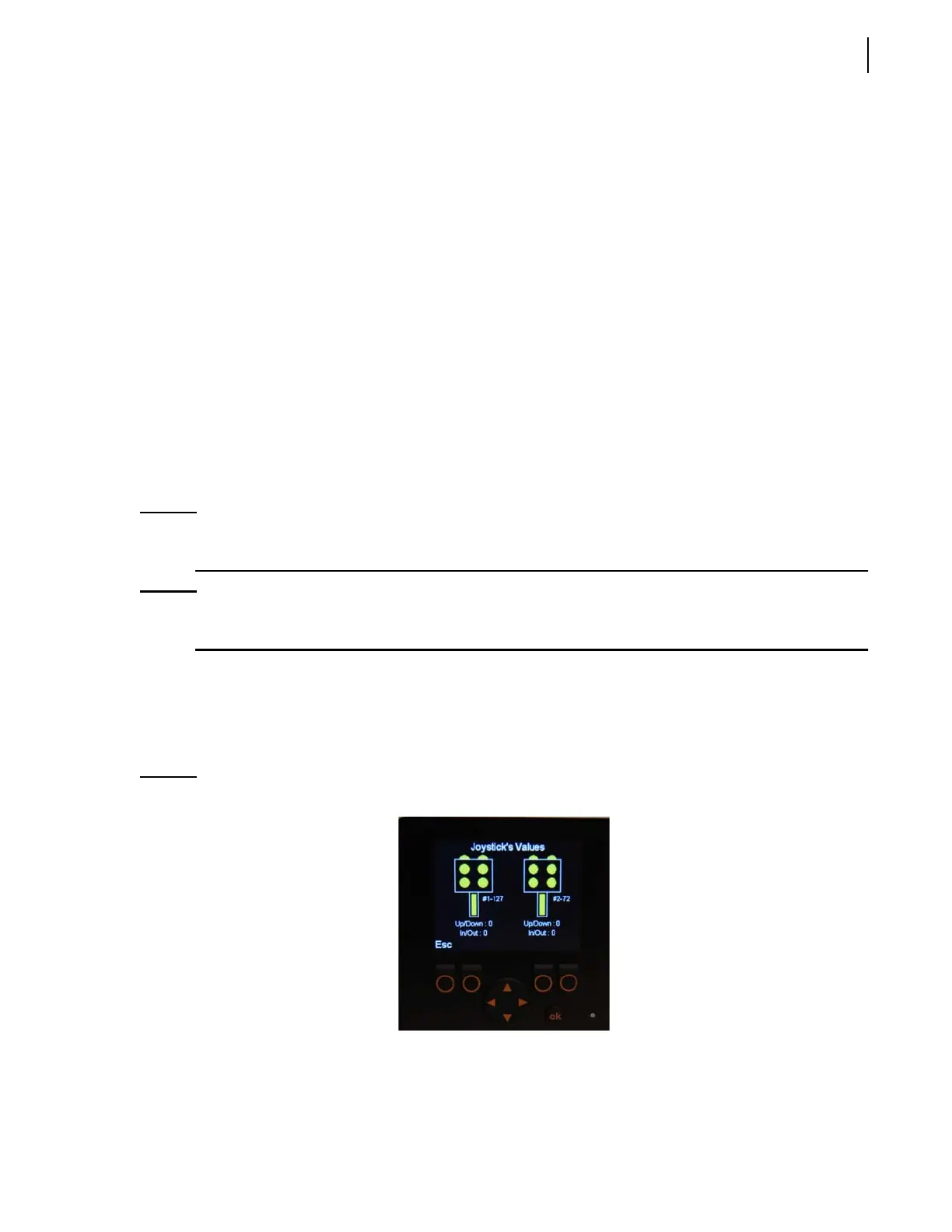
Joystick
The Joystick page is accessible from the Module I/O Status page (see Figure 3-8). From that page
select “Joystick” using up/down arrows and press “OK”. The Joystick page opens (see Figure 3-15).
Figure 3-15
Joystick page



 To Next Page