Starting up the device – webConfig tool
Leuze electronic GmbH + Co. KG BPS 307i 59
NOTICE
Alternatively, you can manually install the LEO_RNDIS.inf USB driver.
Contact your network administrator if the installation fails.
9.2 Start webConfig tool
Prerequisite: The Leuze USB driver for the webConfig tool is installed on the PC.
Ä Connect the operating voltage to the BPS.
Ä Connect the SERVICE USB interface of the BPS to the PC.
The connection to the SERVICE USB interface of the BPS is established via the PC-side USB inter-
face.
Use a standard USB cable with one TypeA plug and one Mini-Btype plug.
Ä Start the webConfig tool using your PC's Internet browser with IP address 192.168.61.100
This is the default Leuze service address for communication with barcode positioning systems of the
BPS300i series.
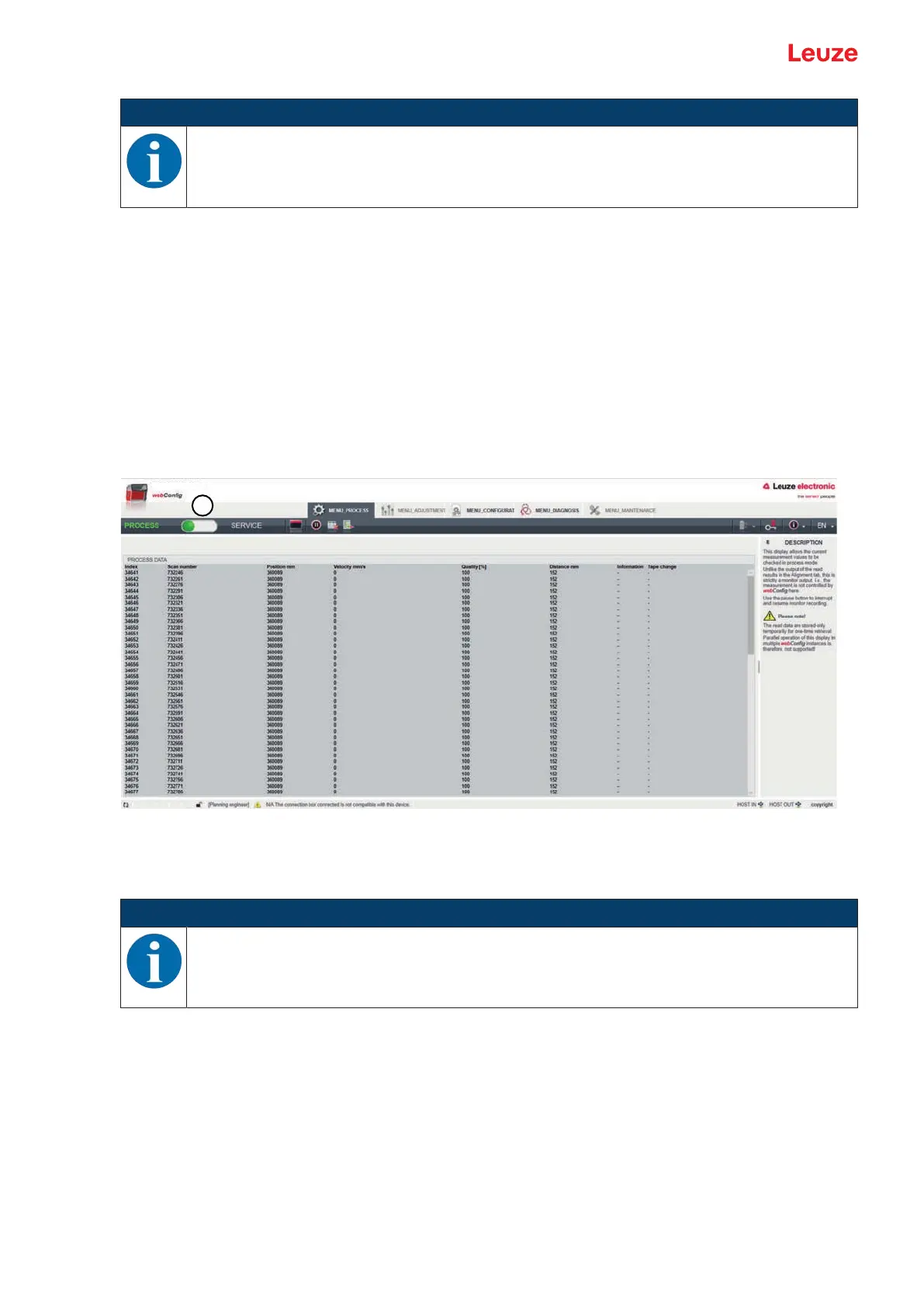
ð The webConfig start page appears on your PC.
1 Changing the operating mode Process – Service (upper left)
Fig.9.1: The start page of the webConfig tool
The user interface of the webConfigtool is largely self-explanatory.
NOTICE
The webConfig tool is completely contained in the firmware of the BPS.
The pages and functions of the webConfig tool may appear and be displayed differently depend-
ing on the firmware version.
Clear browser history
The cache of the Internet browser is to be cleared if different device types or devices with different firmware
were connected to the webConfig tool.
Ä Delete cookies and temporary Internet and website data from browser history before starting the web-
Config tool.
Note limit of Firefox sessions for version 30.0 and higher
If the limited number of Firefox sessions is exceeded, it may no longer be possible to address the BPS via
the webConfig tool.
Ä Do not use the Internet browser's refresh function:
[Shift] [F5] or [Shift] + mouse click


 To Next Page