Email / Internet / Apps
110
Downloading a New App (continued)
3. Sign in with your Google (Gmail) account by following the on-screen
prompts, if needed.
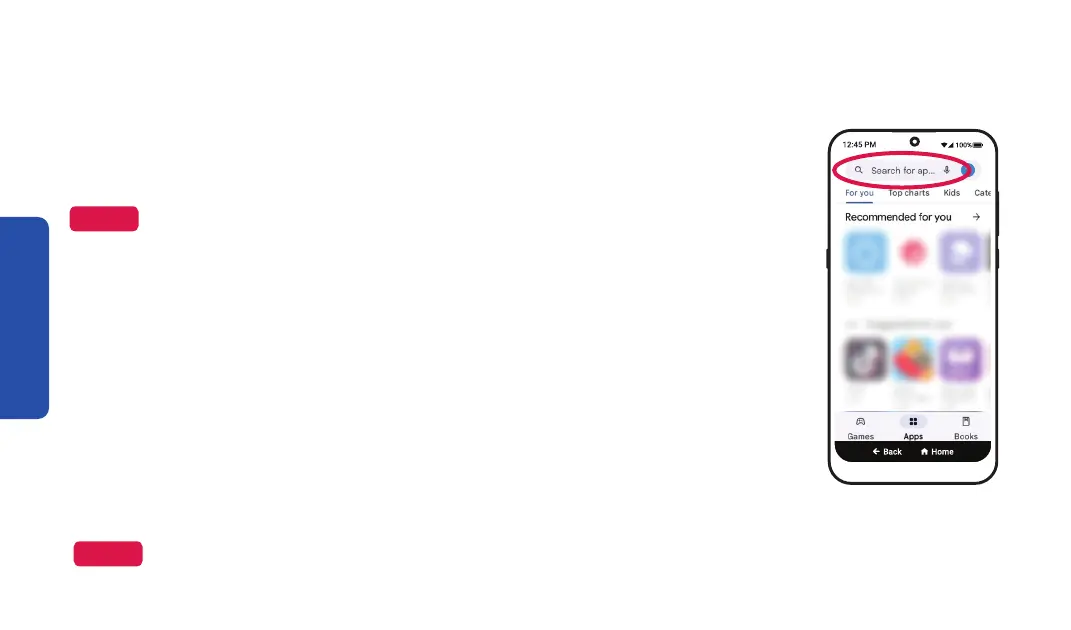
4. Enter the app name or search terms in the box at the top of the Play
Store app, and TAP search.
5. TAP an app from the list to view it.
6. TAP Install to add the app to your smartphone.
7. To open the app, TAP Open
the View All Apps list.
Step 5
NOTE
You can use your existing Google account, if you have one, or create a new
account. See "Creating an Email Account" on page 103 if you need help creating
a Google account.
NOTE
You must be connected to Wi-Fi or data to download new apps. If you're not connected to Wi-Fi, downloading
apps will use data from your monthly allowance.


 To Next Page