LUMIPro 2017
21
Projectors
LUMIPro Projectors deliver focused, directional, shadow-casting light that can really make your pictures pop. LUMIPro 2017 gives you the option of letting you or your model wear pro-
jectors, or lets you rez them in-world. ey are both controllable with the HUD, and have the exact same feature set, but there are distinct advantages to each method. Worn projectors are
attached to the avatar’s nose, and will move with the model so they’ll never be out of the spotlight—a perfect choice, or example, on the catwalk, or perhaps doing a theatrical production.
Wearable projectors are also very useful in no-rez sims, giving your on-location lighting some much-needed exibility. Rezzed projectors also begin life centered on the model. However,
when the model moves, the projector stays put. is gives you the exibility of placing a projector anywhere in the scene, and when it’s locked, it will stay put. It also requires a sim that
permits rezzing, in order to function properly.
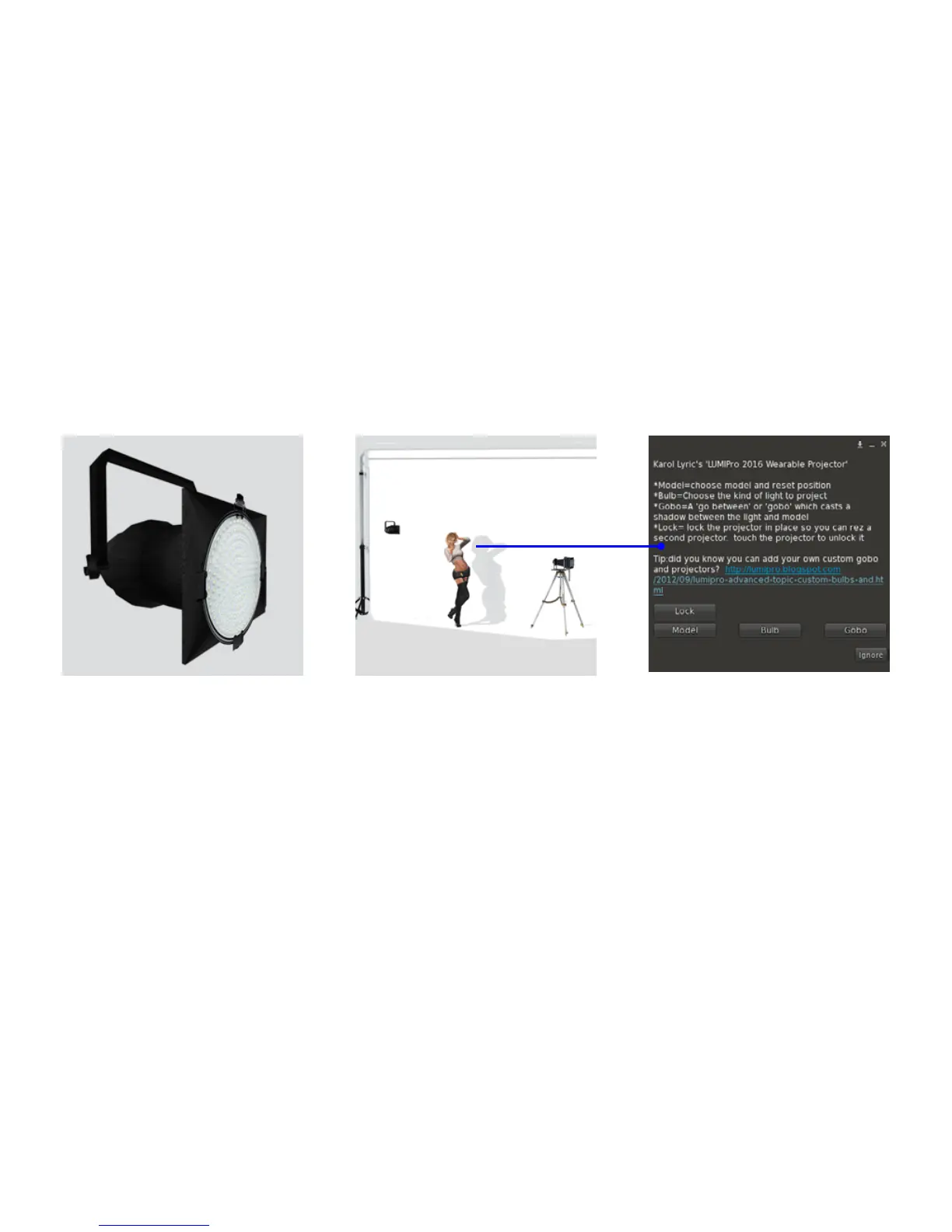
LUMIPro Projector Projector Control Panel Projector Menu
is is what the LUMIPro 2017 Projector looks like,
whether you wear it or rez it. Touching anywhere on
the body or lens of the projector will toggle the lock
state. If the projector is locked, a padlock will appear
below the lens, and none of the HUD controls will
have an eect on it. Clicking directly on the spotlight
is the only way to unlock it.
is is useful when you’ve created a spotlight setting
that you’re happy with, and are going to create or
modify existing spotlights.
To call up the Projector menu, click the projector
button on the HUD, or the control panel on the back
of the projector. Don’t worry about what to do with all
the buttons and LEDs; their only purpose in life is to
sit there and look good—which they do very well.
When you click the back of a projector (or the Spot-
light Edit button on the HUD), you’ll see this menu,
with four options:
Lock: locks the spotlight, preventing any edits or
HUD-controlled movements
Model: opens the model picker menu, letting you as-
sign the spotlight to a particular model. e spotlight
will reset its position to the default for that model.
Bulb: let’s you select the Bulb preset (see below)
Gobo: lets you select the gobo preset (see below)



 To Next Page