LUMIPro 2017
7
e LCD Panel - Overview
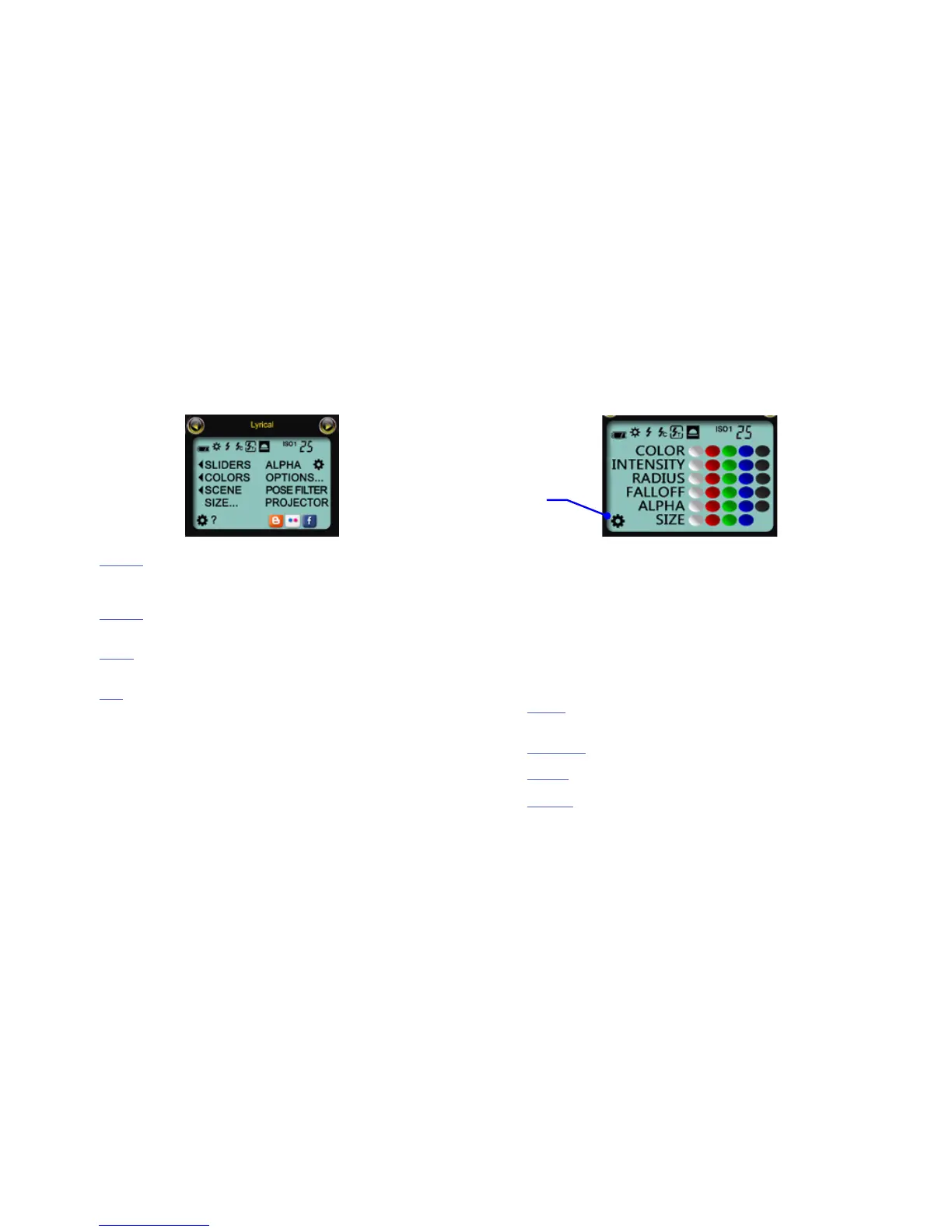
SLIDERS: this opens up a menu that gives you a bank of sliders that
gives you unprecedented control over Color, Intensity, Radius, Fallo,
and Alpha of your lights.
COLORS: as with the Legacy Panel, this opens up a color-selection panel
that lets you choose either preset light colors, or mix your own.
SCENE...: opens up the Scene Save/Restore panel that lets you store up
to 9 scenes, saving lights, camera position, and pose for later recall.
SIZE: opens a menu that lets you adjust the size of the light balls.
ALPHA: toggles the alpha state of balls and rezzables, as set using the
ALPHA GEAR button.
OPTIONS: opens a menu where you can adjust global HUD settings,
backup and restore your HUD, and more.
POSE FILTER: lets you enter keywords to focus on particular poses.
Note: using /43 {descriptor} still works.
GEAR ICON: ips to the Legacy Panel
?: sends you a help notecard for quick reference
SOCIAL MEDIA BUTTONS: opens a menu that contains links to our
blog, Flickr, and Facebook pages.
Each of the buttons above open a menu that lets you choose a preset val-
ue. is is great for quick setup or to rough in a lighting scene. You can
then ne-tune your lights using the tools in the Modern Panel.
Each colored button represents the following:
White = all the model’s lights
Red = only the red light ball
Green = only the green light ball
Blue = only the blue light ball
Black = all unlocked projectors
COLOR: opens a color-selection panel where you can choose preset light
colors, or create your own color.
INTENSITY: opens a menu with settings ranging from 0 (o) to 1 (full)
RADIUS: opens a menu to set the radius of the light, from .25m to 20m
FALLOFF; opens a menu to set the fallo amount, from 0 (natural fall-
o) to 3 (rapid fallo)
ALPHA: opens a menu to set the transparency of the lights, and when
the white button is clicked, of rezzed objects as well.
SIZE: opens a menu that lets you adjust the size of the light balls
GEAR ICON: ips to the Modern Panel
e LCD Panel is where you access the control features and some of the deeper tools inside LUMIPro 2017. ere are two LCD screens, and while there is some crossover, they each have
unique features and methods of managing LUMIPro’s tools. Let’s look at a side-by-side comparison to get a feel for what’s available. e functions will be covered in greater detail in later
sections (just click on “Sliders” for example, to jump to the Sliders section below). Note: the icons at the top of the LCD do not do anything other than sit there and look good, because
let’s face it: LUMIPro 2017 is all about lookin’ good!
Modern Panel Legacy Panel
e gear icon ips be-
tween the Modern and
Legacy panels.



 To Next Page