LUMIPro 2017
23
Locking Rezzables
Any time you have more than one rezzable object, including multiple Projectors or Projectors and Eye Gazers, you need a way to isolate and control only the items that need adjusting. By
default, the HUD will control anything rezzed for the selected model. In either the Projector mode or the Eye Gazer mode in the Toolbox, clicking the Joystick arrows will move every-
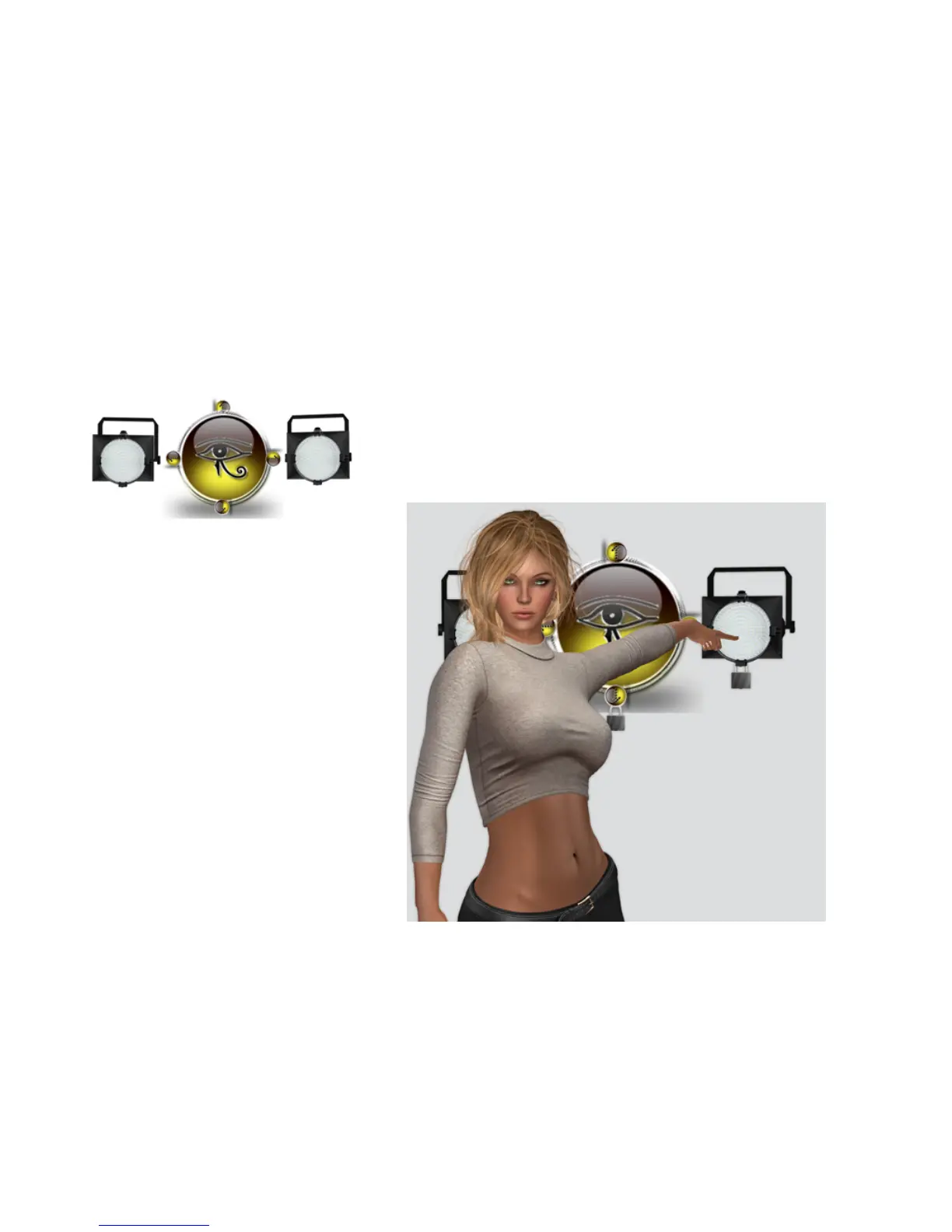
thing rezzed the same amount, in the same direction. To stop that from happening, LUMIPro uses a convenient locking mechanism: your mouse. For example, if you have two projectors
and an Eye Gazer rezzed, it might look something like this:
If you’ve directed your model to use the Eye Gazer, and then want to adjust the color of the
Projector on the le, you will need to lock both the Eye Gazer, and the Projector on the right.
To do this, click in the center of the object, and a lock will appear. Below, the Gazer and the
Projector are showing as locked, as indicated by the padlock.
Now, when you adjust the color of the remaining Projector, and change its
position, nothing else will be aected. To unlock a Gazer or a Projector,
click the object again, and the padlock will disappear.
Once you have your lights colored and positioned, you may want to adjust
your model’s eyes with the Eye Gazer. Simply lock both projectors, unlock
the Gazer, and adjust as necessary.
Note that clicking the DEREZ button on the HUD will remove only un-
locked items,



 To Next Page