LUMIPro 2017
iii
Tips and Hints - FAQs for Existing Users
Q: I bought LUMIPro, but I didn’t get a folder full of stu. Where is it?
A: When you receive LUMIPro either from the Marketplace or inworld, you receive the actual HUD. Unlike a dress or a pair of boots, there’s no folder with rezzers, notecards,
alpha layers, landmarks, more notecards, read-me les, and 17 dierent appliers. Just a pure, clean, unadulterated pack of pixelated perfection: e LUMIPro 2017 HUD. Because
it’s the most important thing in your entire 275,287-item inventory, what we recommend is that you make your own folder called *LUMIPro or something similar so it sits right
at the very top of your folder list, and put your HUD in that. We also recommend immediately making a copy of the HUD so that you always have the original when you want to
start fresh.
Do you have questions? Good! We have answers! LUMIPro has lots of parts and pieces, and if you had no questions, that means either you’re a complete expert and we’d have to hire you
(or already have), a genius with a photographic memory who’s read the manual front to back, or just blissed out on taking pictures and is happy with LUMIPro presets, poses, and col-
ors—and this is a wonderful place to be! If you’re like the rest of us, perfection is elusive, genius is overrated, and LUMIPro can sometimes leave you scratching your head or other conve-
niently-accessible body parts. But say what you will about us, we’re denitely here to help! Here are some answers to questions we are oen, even frequently, asked:
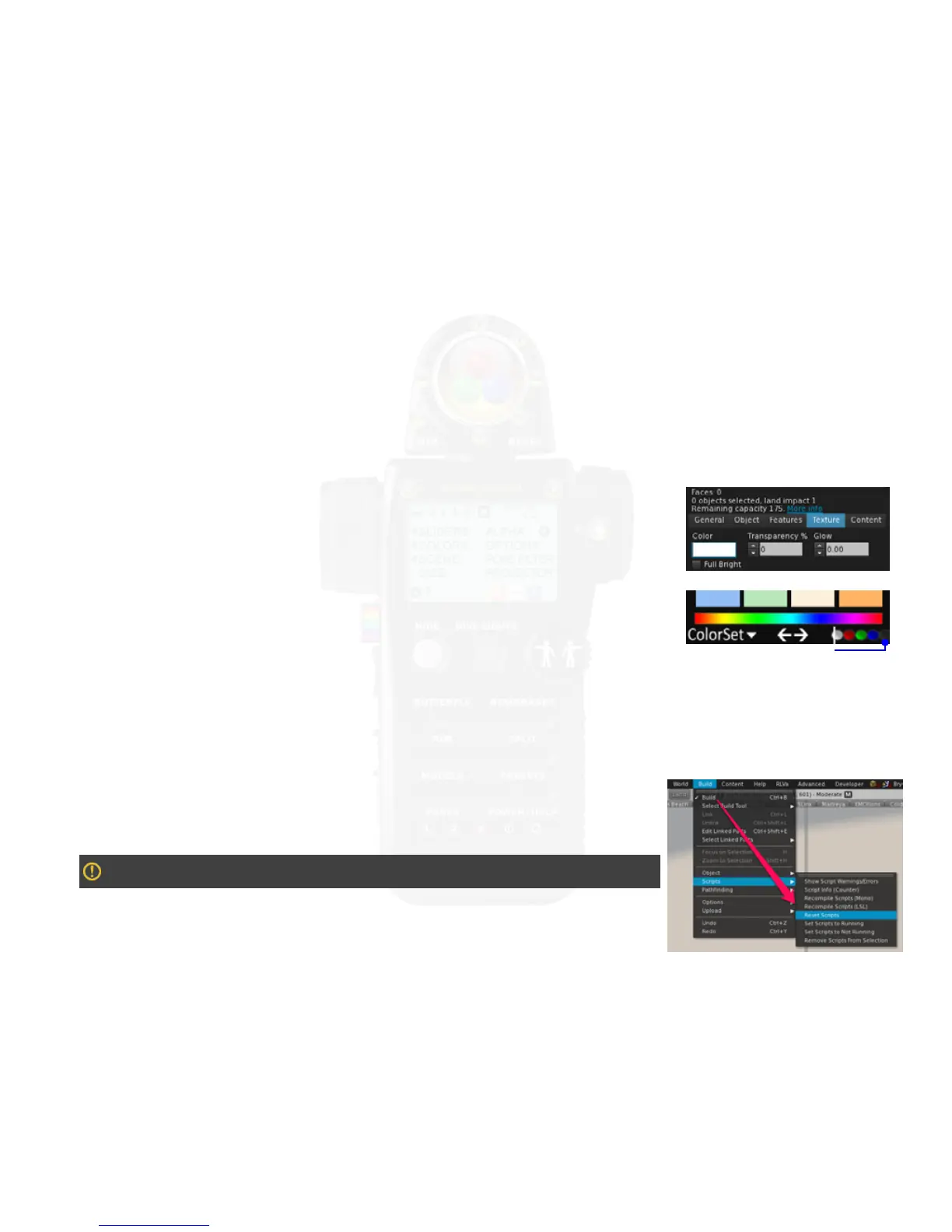
De-select Full Bright - Set Transparency to 0
Reset Scripts
Q: I can see shadows on my avatar, but I can’t see shadows on my background.
A: ere are 2 possibilities: the rst is that the background texture has been set to Full Bright. is might actually be desirable if the
shadow cast would give away the fact that you’re standing in front of a prim. If that’s not the case, turn it o! e other reason you may
not be casting a shadow is if the background you’re standing in front of has even 1% of transparency. Although the sun and moon will
shadowcast on anything that isn’t completely transparent, projectors—whether LUMIPro’s, or anybody else’s—cannot cast shadows on
anything that isn’t completely opaque.
Q: When I use the sliders it doesn’t aect the projector.
A: ere are a couple of possibilities here: the rst is that you haven’t selected the Projector button at the bottom of the Colors panel.
It’s small and black, so it’s easy to miss. Click on it so that the white line is in the middle of it. e other possibility is that your projec-
tor is locked. To test that, use the joystick to attempt to move the projector; if it doesn’t budge, that’s most likely the reason the sliders
don’t work: locking a projector locks everything. Click the side or back of the projector to unlock it, then edit to your heart’s content.
Enable the Projector here
Q: When I hide the projector the gobo stays. Why?
A: Gobos are like that, always overstaying their welcome. But that’s not why it’s staying visible when you hide the projector: in order to cast a shadow, a gobo must remain opaque. If
your scene needs to be shot in such a way that the gobo has to be in the picture, you can try making your own projector bulb. Click here to watch the tutorial video on this subject.
Q: Is there an easier way to locate an animation?
A: So glad you asked! Try typing /43 in local chat, followed by something descriptive. For example, if you have a HUD stued with a variety dierent pose maker’s anims, you might want to
limit your list to just Del May poses. When you type /43 DM (as she tags all her poses with), a menu will open up with only Del May poses listed. If you take the time to edit the names of all
your poses, like adding “sitting,” “standing,” “laying,” etc., you can search on a variety of tags.
Q: I click the buttons on my HUD and they don’t work. What is going on?
A: Your scripts got discombobulated somehow, and need to be reset. Try simply re-logging, as that can x a variety of problems. If
that doesn’t work, you can reset the scripts in the HUD. Enter Edit mode and click your HUD to enable it for editing. Go to the
Build menu, and select Build > Scripts > Reset Scripts. Give it a few seconds for the viewer to do its thing and when it’s nished,
your HUD should work ne.
Caution: resetting scripts has one downside: all your presets will be cleared, as well as the Alpha Button settings on the LCD
panel, so use this as a last resort.



 To Next Page