LUMIPro 2017
22
Projectors - Rotation
Projectors - Multiple Projectors
Rotation adds a new spin on your bulbs and gobos, by spinning it around at the speed of your choosing. is has a couple of clear advantages: when you’re trying to nd just the right
position for the light from a bulb to fall on the model the way you envision, and the stock projection isn’t where it needs to be, you can rotate it slowly until it’s in the perfect location. If
you’re making videos, adding rotation to your projectors adds a lot of dynamic motion to your scenes.
ere is no set limit to the number of Projectors you can rez, though each rezzed Projector has an LI of 14. ere are a few things to keep in mind when you’re rezzing and using Projec-
tors. First, only two projectors at any given time—the two closest to the camera, not the model—can cast shadows. All others will continue to cast directional light. Second, when lighting
the combination of mesh bodies with SL heads, projected light can behave unpredictably. e mesh and system textures seem to handle light dierently, and while neck/head blenders
can solve most problems with general SL lighting, using them can actually make things worse. You may need to adjust the position of the model, or you may end up just having to x it in
Photoshop (or the graphic editor of your preference). e third consideration is managing multiple rezzed object, and is covered in the next section, Locking Rezzables.
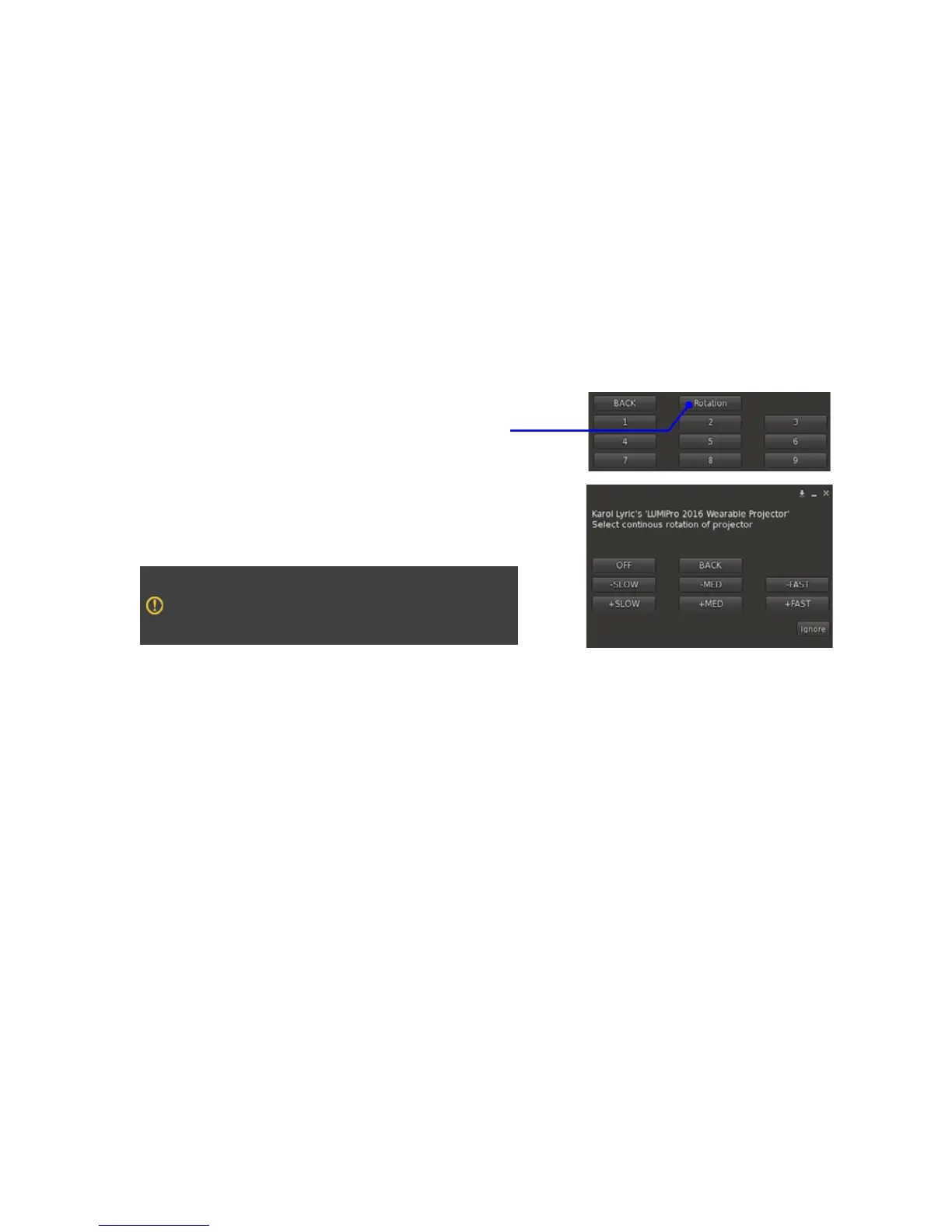
Start by rezzing a Projector as described above, and from the menu that lets you
pick which bulb or gobo you want to use, you’ll see the Rotation button. Click that
to bring up the Rotation menu.
Click the +SLOW button to rotate the bulb clockwise (from the Projector’s perspec-
tive), and -SLOW to rotate counter-clockwise. Each successive click will speed up
the rotation in the chosen direction. SLOW speeds it up a little, MED a little more,
and FAST a lot more. If you’re rotating on the + side, clicking on the – side will slow
things down.
Note: due to a quirk in the LL engine, clicking OFF no longer stops the
rotation where it is. Instead, it resets the bulb rotation to 0,0,0. Gobos are
not aected by this issue, and will stop in mid-rotation when you click
the OFF button.



 To Next Page