LUMIPro 2017
x
Tips and Hints - Zooming
One of the easiest things you can do to improve the look of your portraits is to get away from the default zoom level SL gives you. It’s designed for walking around and shopping, and is
guaranteed to make you look less than your best. When you zoom in, you are eectively creating a more natural lens. To zoom in, press Control-0; to zoom out, Control-8. Control-9 sets
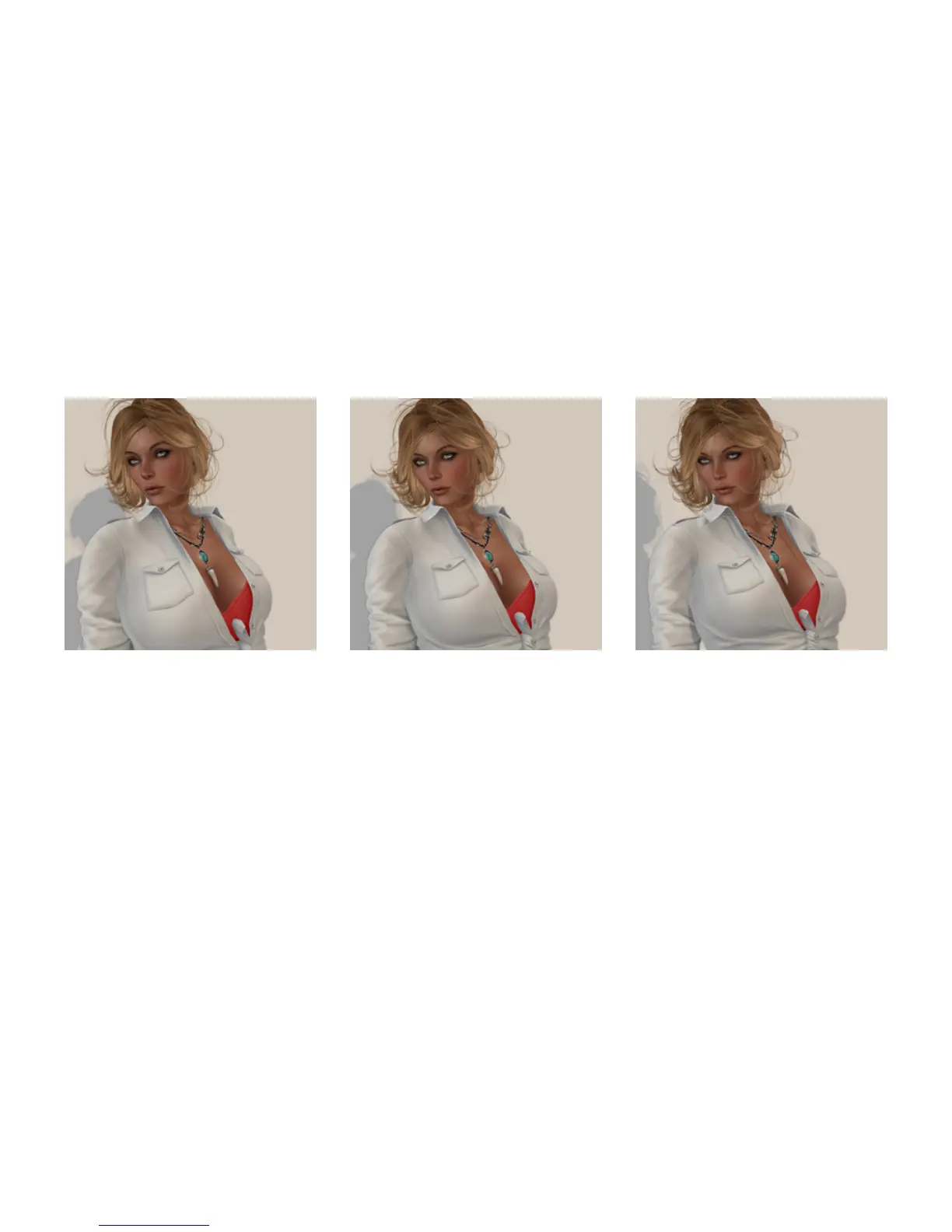
you back to the default zoom level. Compare the 3 images below: the rst is at the default zoom level; the second is 2x, and the 3rd is 6x.
Notice how in the rst image, the model’s face is kind of thin and pointy, and the bust is out of proportion to the head. Even zooming in a little bit will have an immediate impact on the
composition. e second image is taken at 2x the zoom of the default, and already her proportions are much improved. Her face is a bit fuller and less angular, and while still a little un-
balanced both le-to-right and top-to-bottom, the bust has a much more natural look. By the third image, zoomed at 6x the default, the appearance of the model is very balanced: her face
is signicantly fuller looking than in the rst; her bust is very normal looking from all perspectives.
Zooming is also a good way balance foreground and background. ink of that eect created by Alfred Hitchcock and is now practically a movie cliché: the actor is stationary while the
background stretches away (or towards) the moviegoer. at’s what we’re doing here. By default, the background can seem unnaturally far away. Even avis a couple meters away will seem
small in comparison to the avi in the foreground. Zooming can x that, which makes group shots much more manageable, and photos taken outside the studio much less like tourist
snapshots and more like portraits. You can also isolate interesting background elements, and pull them into the picture with your model.
6x Zoom (Default -> Control-0 x6) 2x Zoom (Control-0 x2)Default zoom (Control-9)



 To Next Page