LUMIPro 2017
28
Scene Options Menu
NEW!
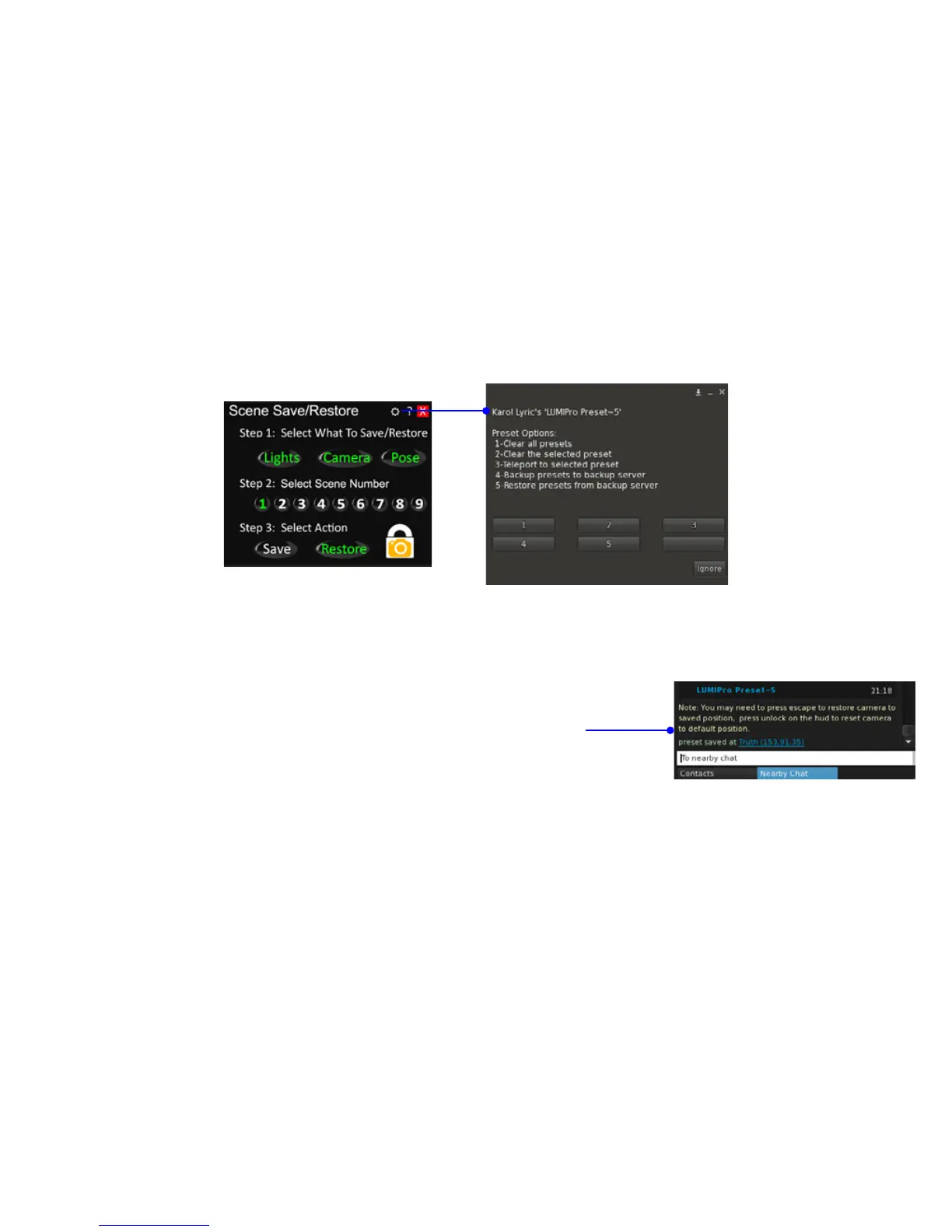
With as many features a panel like Scene Save/Restore oers, some way to mange those becomes very important. For this, we give you the Scene Options Menu that lets you perform a lot
of important and useful functions. To access this menu, click on the Gear icon as shown, and it will open the Scene Options menu below:
1. Clear all scenes; click on menu button 1 to reset all 9 scene locations, giving you a clean slate to begin
again.
2. Clear the selected scene; clicking on menu button 2 will clear only the currently-selected preset. In the
example show above, only Preset Number 1 would be cleared; all other presets would remain as they
were.
3. Teleport to the selected scene; this is a very powerful choice: it will let you return to where you were
when you saved the currently selected scene, regardless of where you were on the sim...or even what
sim you were on when you saved the scene! Click menu choice 3, and it will generate a link in open
chat that you can click on, and you’ll be back at your saved location (see above, right).
4. Backup scenes to backup server will back up just your scenes to your currently rezzed server. is
makes it easy to save countless setups for later recall. If you want to go back and re-shoot that gig from
last October, just load up that server, teleport to the original destination, and away you go!
5. Restore scenes from backup server will pull in all the scene information from your backup, and load
it into the current Scene Save/Restore panel.
Teleport to the selected scene
e Scene Options menu gives you the following choices:



 To Next Page