LUMIPro 2017
xi
Tips and Hints - Adjusting Lights
While the professionally-designed presets will denitely get you started, and will always be good go-to light setups when things are moving fast, there will be other times when you want
to set your own lighting positions. is is easy to do, as we described earlier in the manual. However, if your model is tied up in a twisted pose, the ball movement can be a little hard to
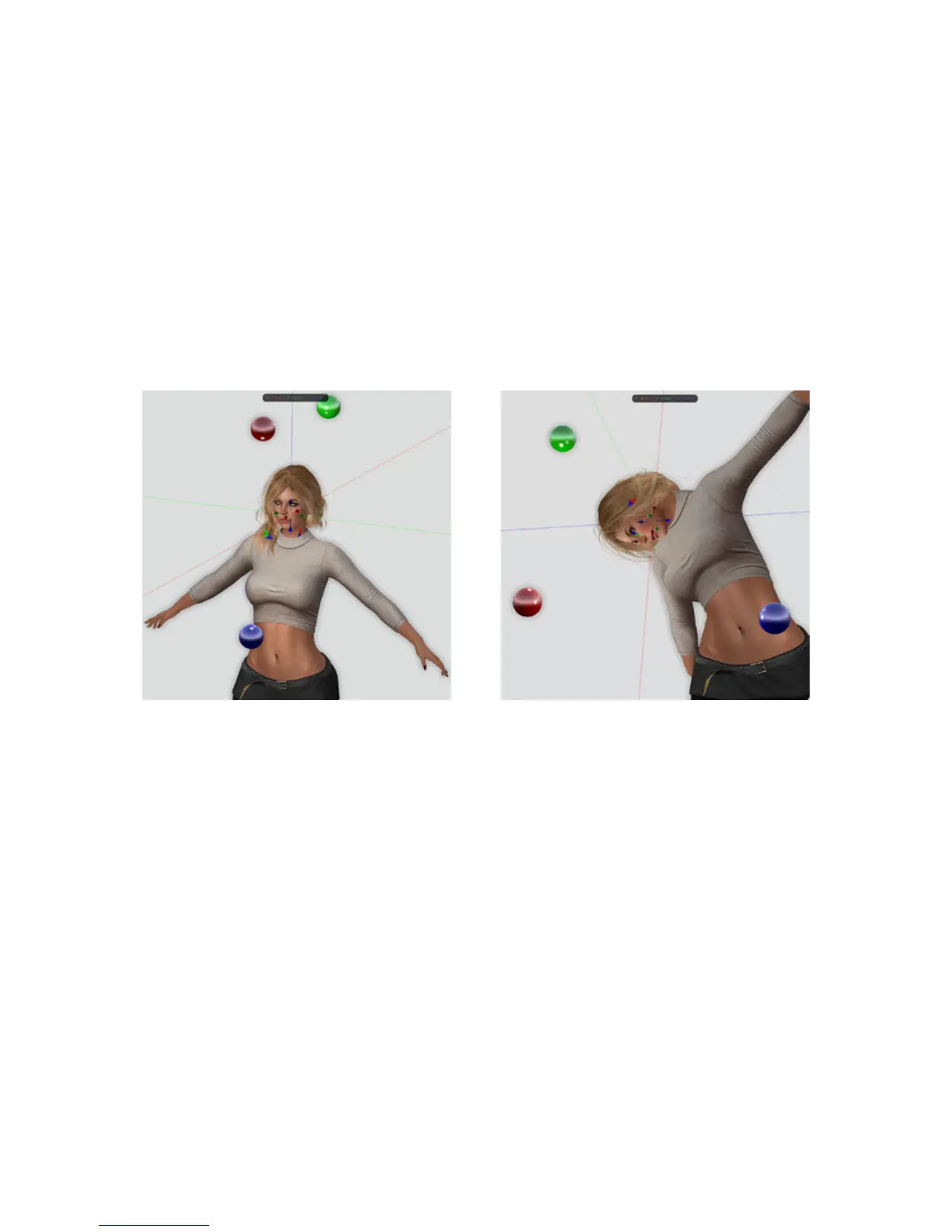
grasp intuitively. It is for this reason we include the **AdjLights animation (Preset 1). Compare the two images below, and you’ll see why:
While editing in place may be unintuitive, the beauty of LUMIPro 2017 is that the lights stay put relative to the model no matter how crazy the pose you’re in might get. Once you’ve set
your pose up using **AdjLights, return to your original pose, and your model will be lit perfectly.
In this image (the *AdjLights pose), you can see LUMIPro’s lights
are lined up horizontally, vertically, and front-to-back. is makes it
very easy to move, whether using Edit mode or the touch method,
because everything moves the way it feels like it should. Note espe-
cially that the Z axis (the blue line) is running straight up and down
through the model. If you click on the top of the blue ball, it will
move upwards; click on the right side, it will move to the right, etc.
Now compare it to Figure 2.
Here, the Z axis is running horizontally (mostly) instead of vertically,
while the X and Y axes (red and green, respectively), are kind of hori-
zontal. Unintuitively, touching the blue ball on the top moves it to the
le. Touching the red ball on the right moves it forward, and touch-
ing the green ball on the le moves it backwards. Sort of. e same is
true when using the Edit mode. Movement of the lights is completely
unintuitive.
Figure 2. DM Foot TouchFigure 1. AdjLights



 To Next Page