Chapter 10 Security
Page 10-8 MAN 0384
To edit a user:
1. To edit an existing user double-click their name in the Security Configura-
tion dialogue to display the User Properties dialogue.
2. Proceed as described above for adding a user.
When a user logs on
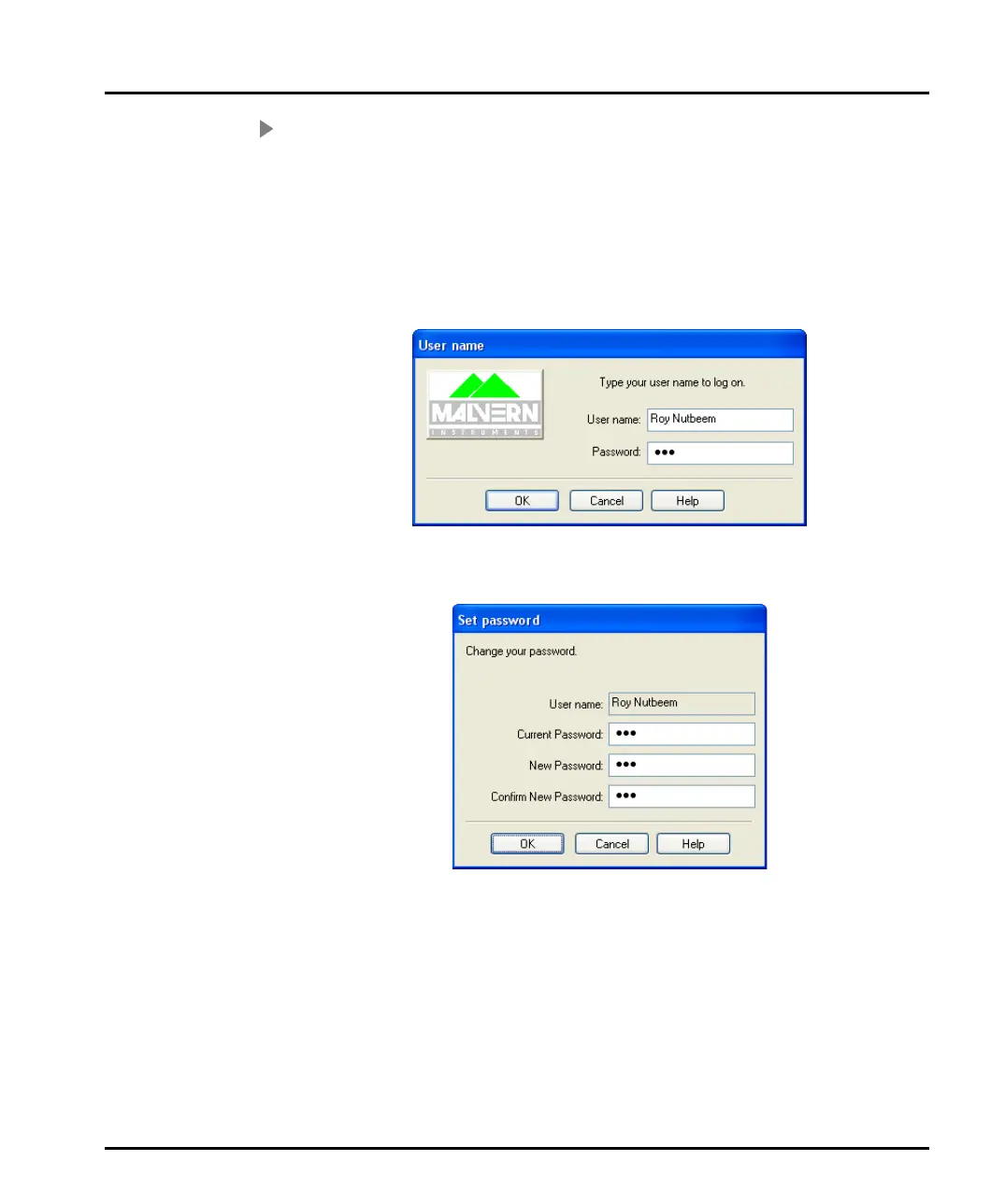
If security is configured users are prompted for a password when they try to log in:
If the administrator selected the User Must Change Password at Next Logon
check box (see above), the user sees this dialogue when they log in:
To change the user password, the user has to enter the current password and spec-
ify a new password with confirmation. Pressing OK changes the security settings.
If the administrator used the User cannot change password option, this prevents
a user from changing their password. Otherwise, once they have logged in a user
can change their own password by using Security-Change password.
To keep the system secure, users should change their passwords regularly to pre-
vent unauthorised access. The only possible exception is the security administra-
tor’s account as forgetting the password to this account could prevent further
configuration of the security system.
MAN0384-1.0 Mastersizer 2000.book Page 8 Tuesday, March 20, 2007 8:56 AM



 To Next Page