Stork Vitals+ Basic Setup and Use of Stork
Masimo Corporation 31 www.masimo.com
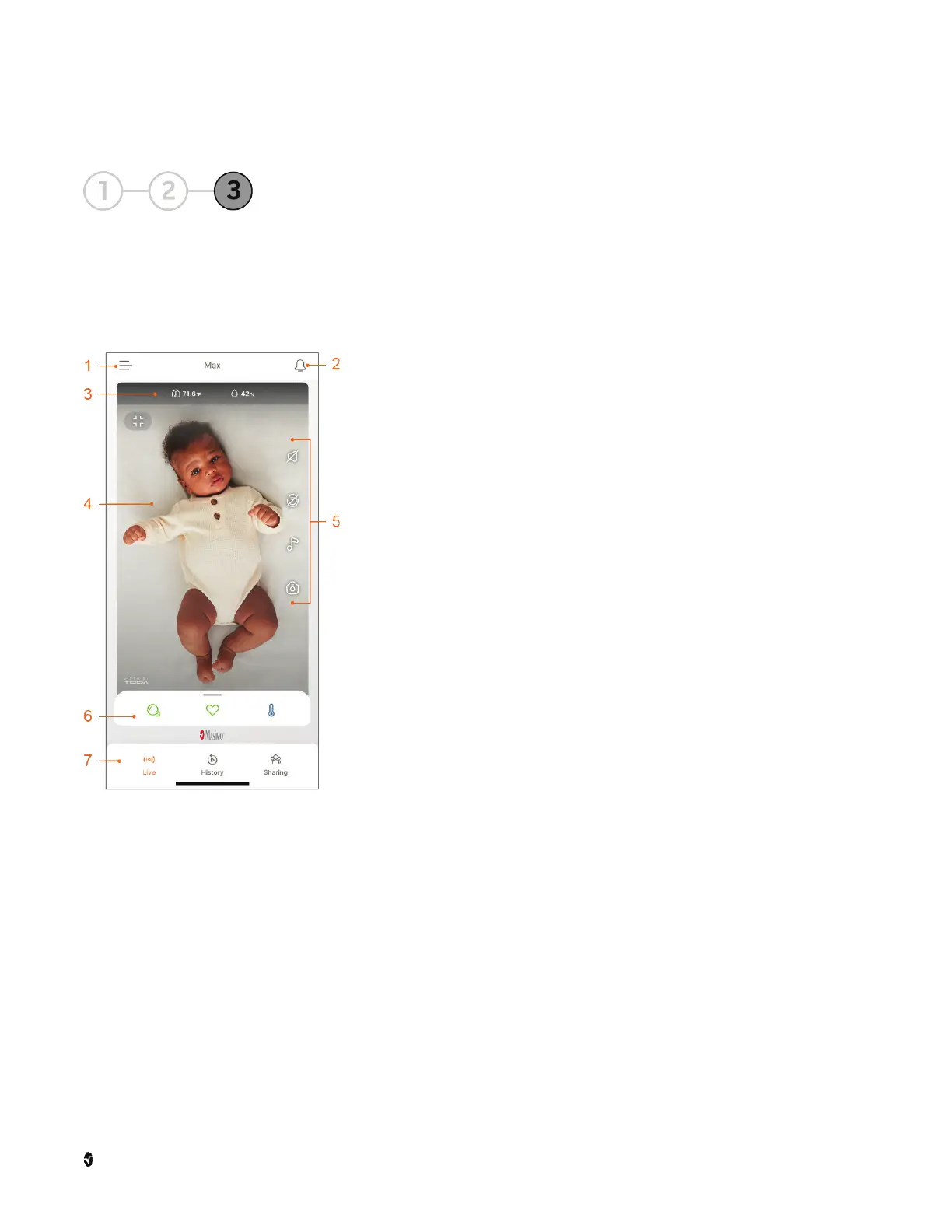
Step 3: View Live Data
After setting everything up, open the Stork app to view the
Live Dashboard
. The
Live
Dashboard
is also the Stork app home screen, with access to other app functions.
Disclaimer: The app screens shown in this document might differ from the actual ones
displayed in the app due to periodical app updates.
1 Side Menu - Displays the
Side Menu
with links to app
functions and features. See
Side Menu
on page 37.
2 Notifications - Provides device, account, and
environmental and physiological notifications. Notifications
are available when an Orange dot appears on the icon.
Alarms are active when the icon turn Red. Touch the icon to
open the
Notifications
screen. See
App Notifications
on
page 34.
3 Room Conditions - Displays the in-room temperature and
humidity.
4 Camera Display - Displays the camera live view. Adjust the
camera angle to get the best view of the baby.
5 Live Controls - Touch the screen and the
Live Controls
appear. See
Live Controls
on page 36.
6 Health Data Dashboard - Swipe up to view health data
readings. See
Health Data Dashboard
on page 31.
7 Bottom Menu - Shortcuts to additional app functions and
features. See
Bottom Menu
on page 39.



 To Next Page