Stork Vitals+ Advanced Use
Masimo Corporation 40 www.masimo.com
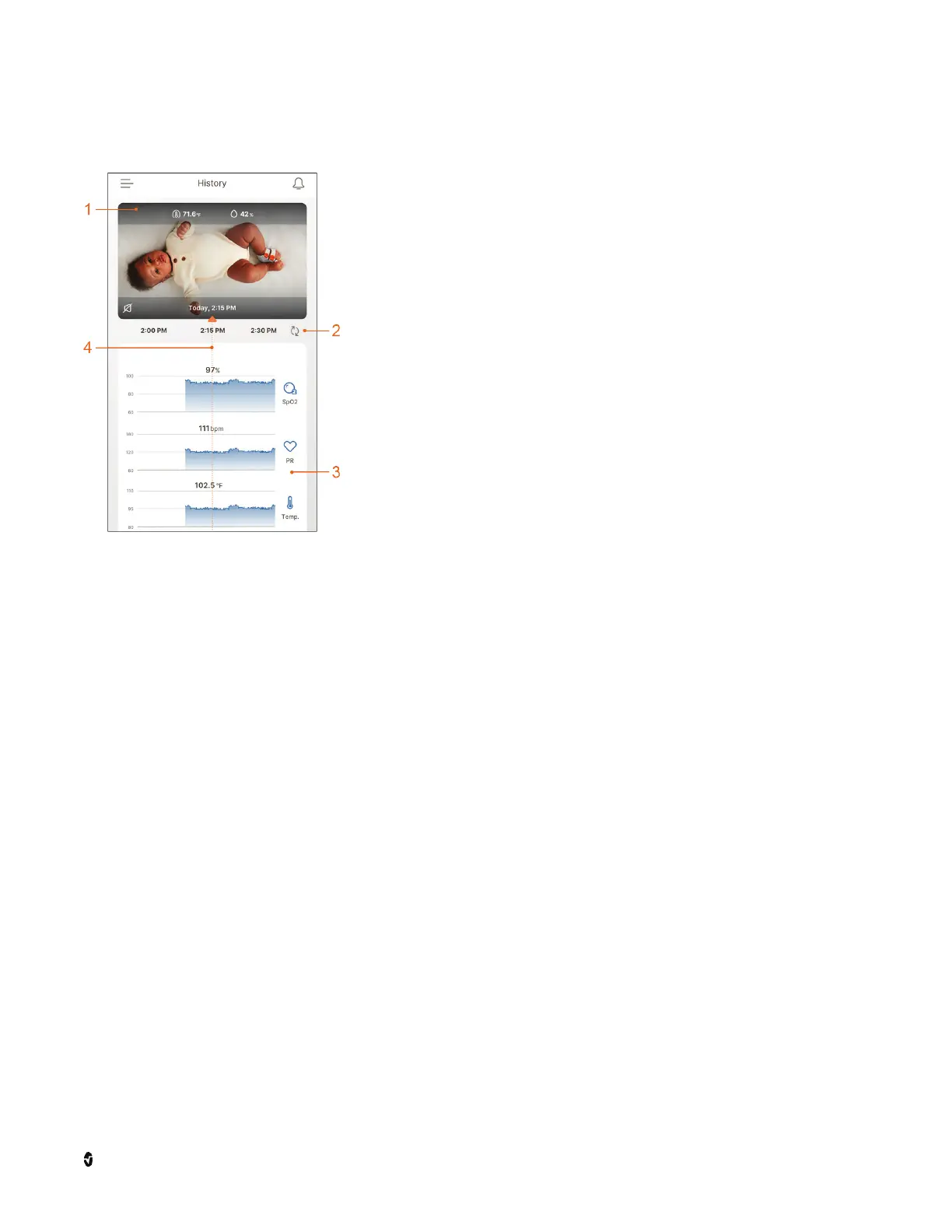
History
When
History
is selected, health data history displays. Up to 7
days (168 hours) of history can be recorded by Stork.
1 Ambient Readings - Displays the recorded camera view
and history of room temp and humidity levels.
2 Refresh History Data - Touch to refresh to the latest
recorded data.
3 Health Data History - Displays the recorded health data.
4 Health Data History Cursor - Drag left or right to scroll
through health data and video recording. A play/pause
button displays in the video window when scrubbing
through recording to play or pause the recording playback.
Sharing
When you have accepted to be a caregiver, downloaded the app and created a profile, the
baby you have been granted access to appears when on the
Sharing
screen. Select the
baby's name to see live health data as well as access history data.
Reject invitation - Select Deny on the invitation from the
Sharing
screen.
More than one baby - If you have been invited to be, or are the caregiver for more than one
baby, invitations and other babies are shown on the
Sharing
screen.
Stop being a Caregiver - Swipe left on the baby and select the remove icon.
Note:
Private Mode
can be enabled by the person who invited you to be a caregiver to stop
sharing health data at anytime, without revoking your caregiver access.
How to Turn Stork On and Off
Once the Stork System is connected to power during setup, and the sensor is charged, the
system is on. Neither the Stork Camera nor Stork Sensor have an On/Off switch or controls to
turn On or Off.
To turn the system Off:
1. Unplug the camera power adapter from the wall socket.



 To Next Page