Stork Vitals+ Advanced Use
Masimo Corporation 34 www.masimo.com
Silencing Alarms from the Stork app
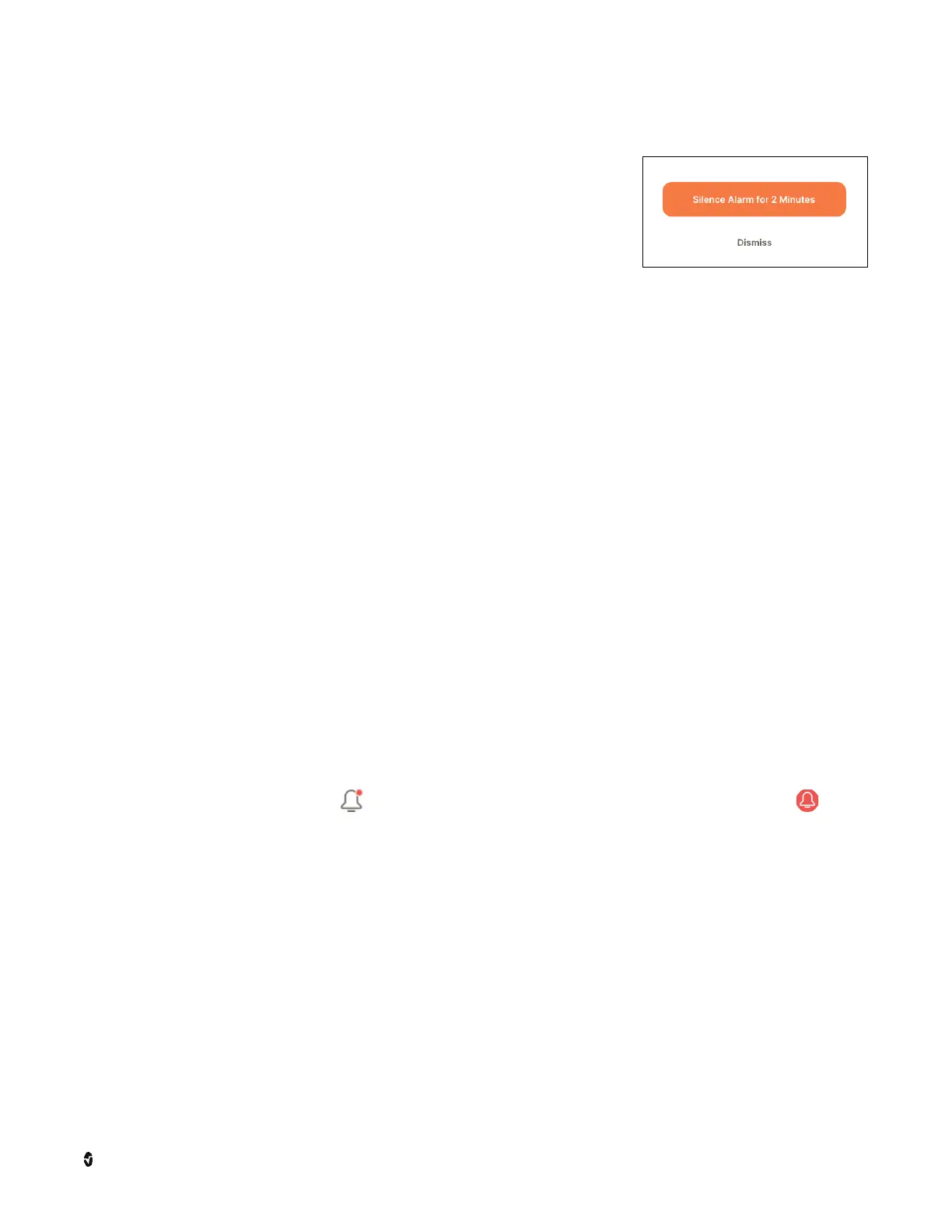
When the audible alarm sounds, a pop-up notification displays
allowing you to select the Silence Ala rm for 2 Minutes or
Dismiss button.
OR
Touch the notification bell to open the
Notification Center
. Select
the Alarms tab and the active alarm from the list to view the
alarm. Select the Silence Ala rm for 2 Minutes or Dismiss button.
Silencing Alarms from the Stork Camera
When alarms are silenced using the app, the alarms are also silenced on the Stork Camera.
Advanced Use
Notifications
App Notifications
Pop-Up Notifications
Notifications appear on the Stork app screen related to parameter alarms, the Stork Camera
and Stork Sensor. In many cases, an alarm or notification also appears on the Stork Camera.
Notifications Center Screen
The
Notification Center
screen is accessed by touching the notifications icon on the app
main screen. A dot on the icon means there are notifications available. A red icon
means alarms are active. Touch the icon to open the
Notification Center
screen and select
the Alarms or Notification tab. Touch an alarm or notification to view additional information
and acknowledge. Any "next steps" to address the alarm or notification may also be shown
(when available).
Alarms
Examples of alarms include:
Parameter Alarms - When a parameter goes above or below the set alarm limits.



 To Next Page