Stork Vitals+ Basic Setup and Use of Stork
Masimo Corporation 32 www.masimo.com
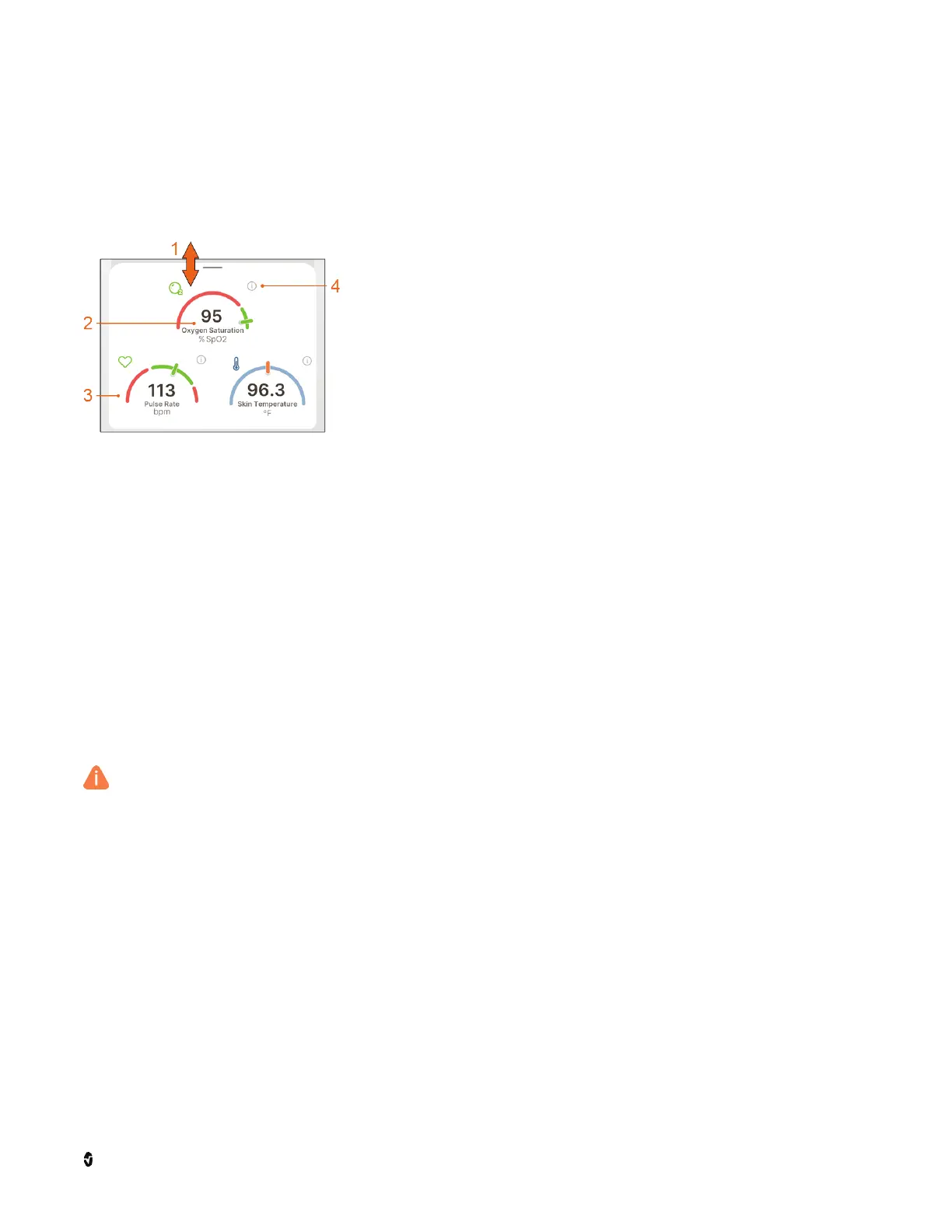
Health Data Dashboard
The
Health Data Dashboard
displays data from the Stork Sensor. Swipe up to open and
swipe down to close.
1 Show/Hide Health Data Dashboard - Swipe up on the
screen to show and swipe down to hide.
2 Reading Display* - Displays the name of the reading and
the reading value from the sensor.
3 Reading Gauge* - Displays the reading from the sensor in a
gauge style.
4 Information about the Reading/Reading Confidence
Indicator - Touch the icon to see a description about the
reading. This icon also informs about confidence in the
reading. See
C onfidence in Displa yed Rea dings
on page 32.
* If a sensor is not connected to Stork, dashes display for the
readings and the gauge pointers do not appear.
Confidence in Displayed Readings
The information icon provides an assessment of the confidence in the reading displayed
(also known as SIQ). A caution icon appears in its place with low confidence in the reading.
Touch the caution icon to display information about the low confidence condition.
Caution Icon (Low Confidence in the reading displayed)
Verify Sensor is Properly Applied
It is important to make sure your sensor is properly applied. The following items on the
Health
Data Dashboard
can help identify good sensor placement:
• Oxygen saturation is displayed
• Pulse Rate is displayed
• Temperature is displayed



 To Next Page