156 CONTENTS
Note
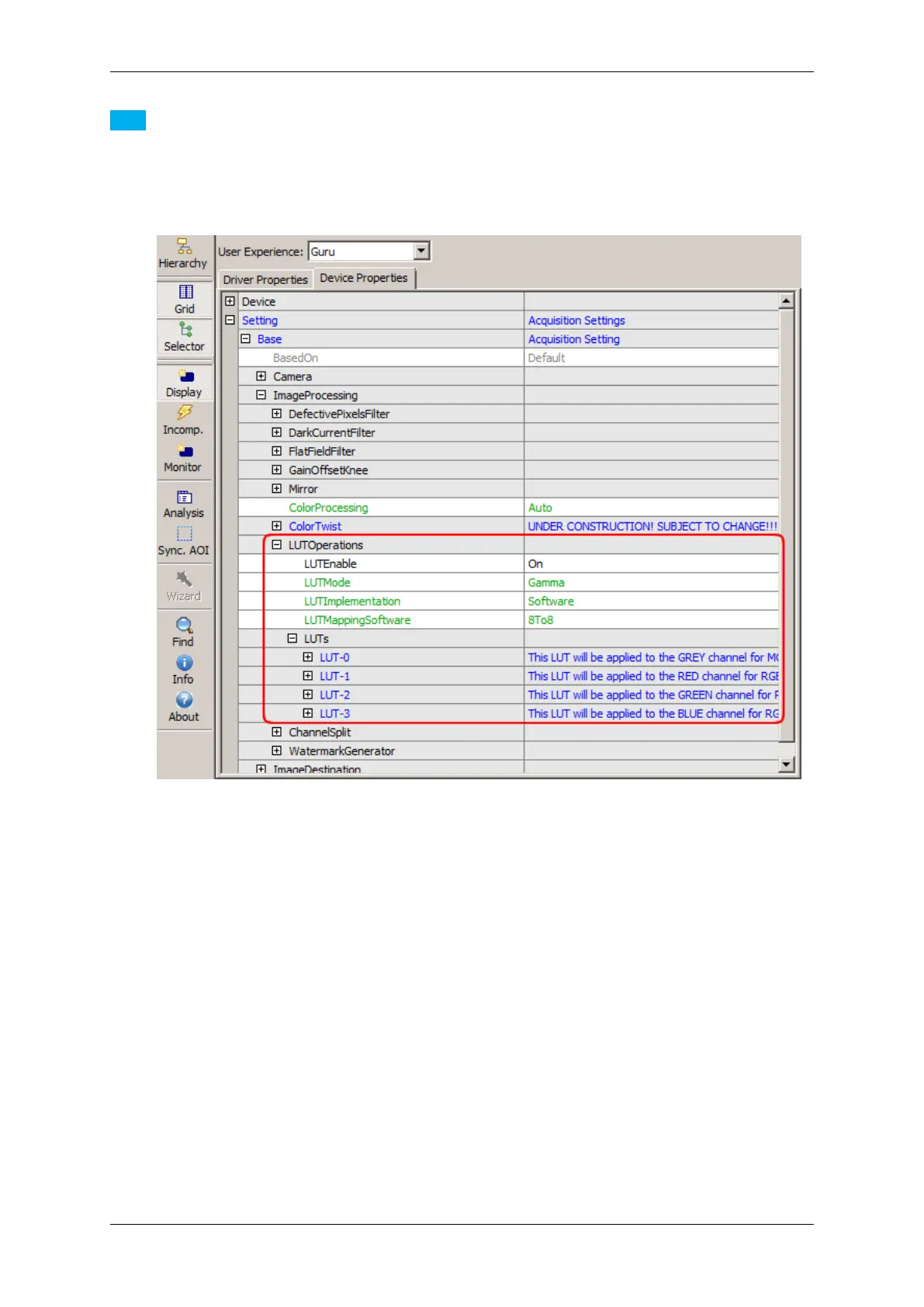
As mentioned above, you can do a gamma correction via ("Setting -> Base -> ImageProcessing -> LUT←-
Operations"):
Figure 8: LUTOperations dialog
Just set "LUTEnable" to "On" and adapt the single LUTs like (LUT-0, LUT-1, etc.).
19.2.2.2 Step 2: White Balance
As you can see in the histogram, the colors red and blue are below green. Using green as a reference, we can
optimize the white balance via "Setting -> Base -> ImageProcessing" ("WhiteBalanceCalibration"):
Please have a look at White balance of a camera device (color version) (p. 102) for more information for an
automatic white balance.
To adapt the single colors you can use the "WhiteBalanceSettings-1".
After optimizing white balance, the image will look like this:
MATRIX VISION GmbH


 To Next Page