7.1 Windows 29
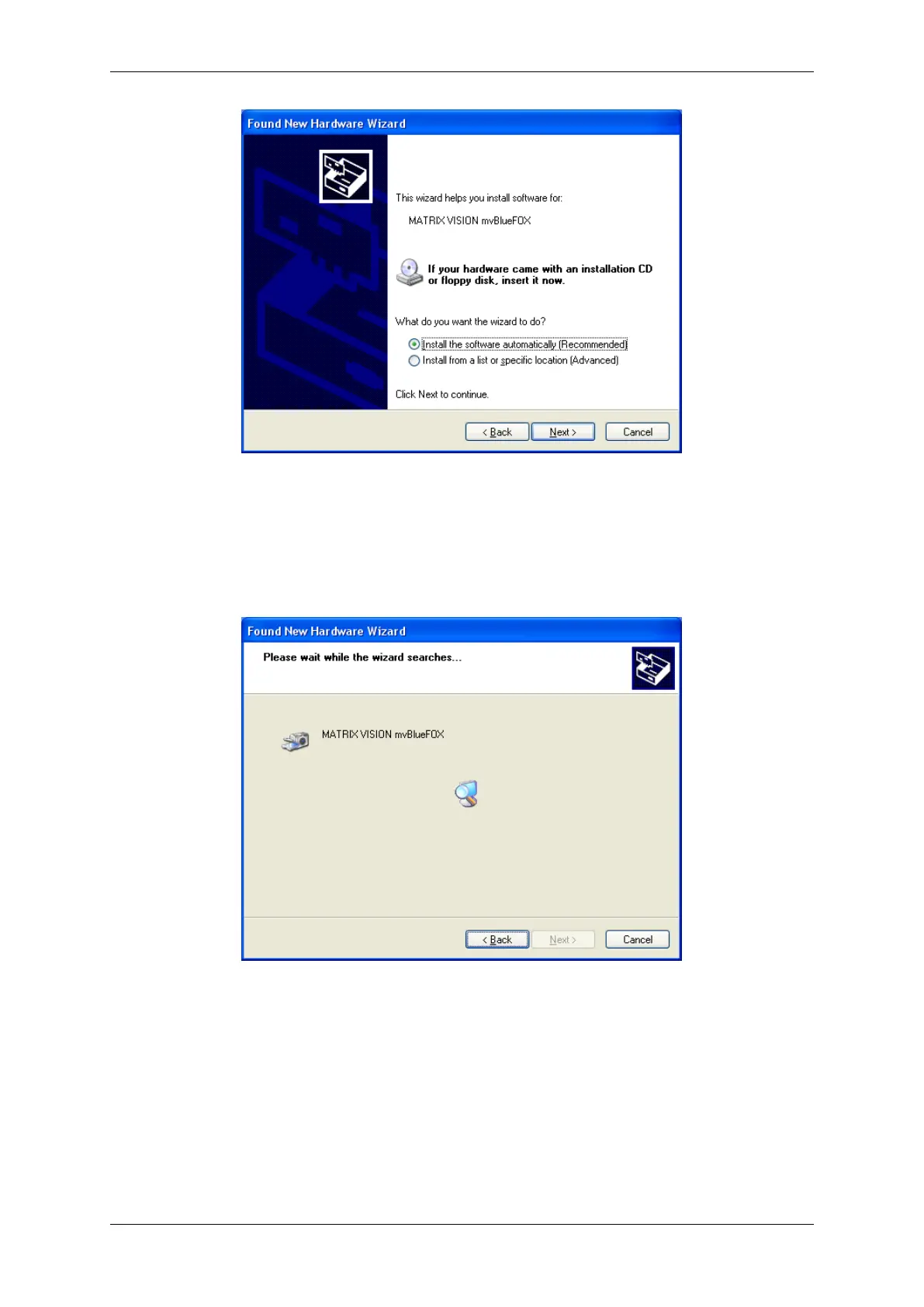
Figure 8: Windows Hardware Wizard - Driver location
The Hardware Wizard installs the driver.
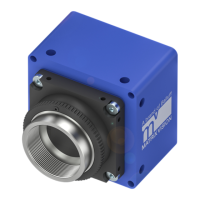
Figure 9: Windows Hardware Wizard - Driver location
The Hardware Wizard will search the registry for the device identification and after a while the Wizard prompts you
to continue the installation or to abort it. Also Windows® will display the following message to inform the user that
this driver digitally signed by Microsoft. You have to select 'Continue anyway' otherwise, the driver can't be installed.
If you don't want to install a driver that is not signed you must stop the installation but can't work with the mvBlueFOX
camera then.
Press "Continue Anyway" and finish the driver installation.
MATRIX VISION GmbH


 To Next Page