83
Using the vMix MultiCorder feature
Using the vMix MultiCorder feature
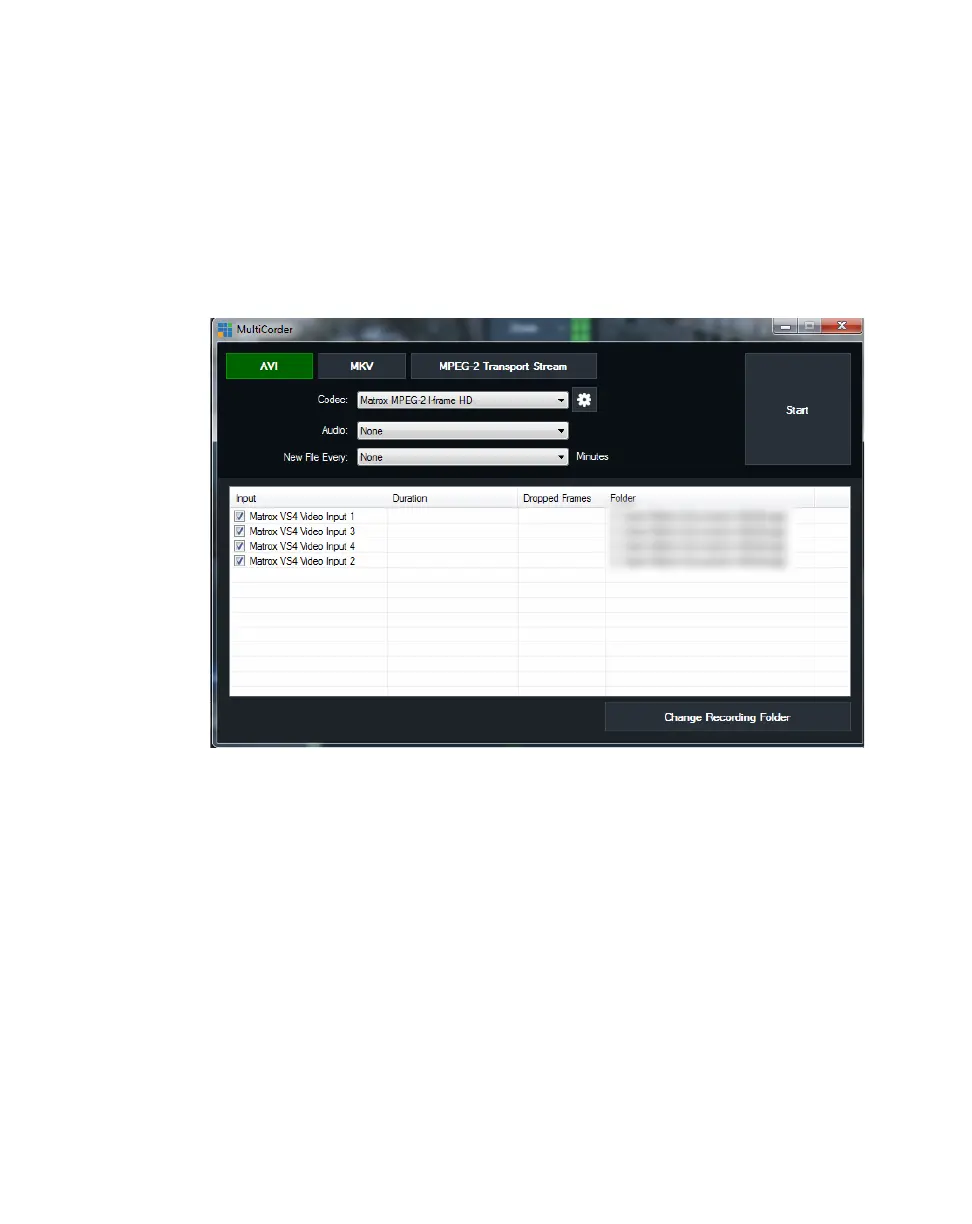
You can record up to four VS4 video input sources to Matrox MPEG-2 I-frame
.avi files using the StudioCoast vMix MultiCorder feature.
1 Select the VS4 inputs that you want to record as explained in “Selecting VS4
inputs in vMix” on page 81.
2 Click the MultiCorder button on the Input Bar at the bottom of the main
window.
3 In the MultiCorder dialog box, select AVI. This will be the output format.
4 From the Codec list, select the codec that you want to use.
Remarks
$ You must select Matrox MPEG-2 I-frame if your video inputs are SD, or
Matrox MPEG-2 I-frame HD if your video inputs are HD.
$ To change the settings of your selected Matrox codec, see “Selecting your
MPEG-2 I-frame settings” on page 85.
5 Select the inputs that you want to record, and if required, click Change
Recording Folder
to change the location for the output files.
6 Click Start to start recording. The duration and number of dropped frames
for each input are displayed in the
MultiCorder dialog box.
7 Click Stop when you are finished recording.
For more details on how to use the MultiCorder feature, see your vMix
documentation.



 To Next Page