17
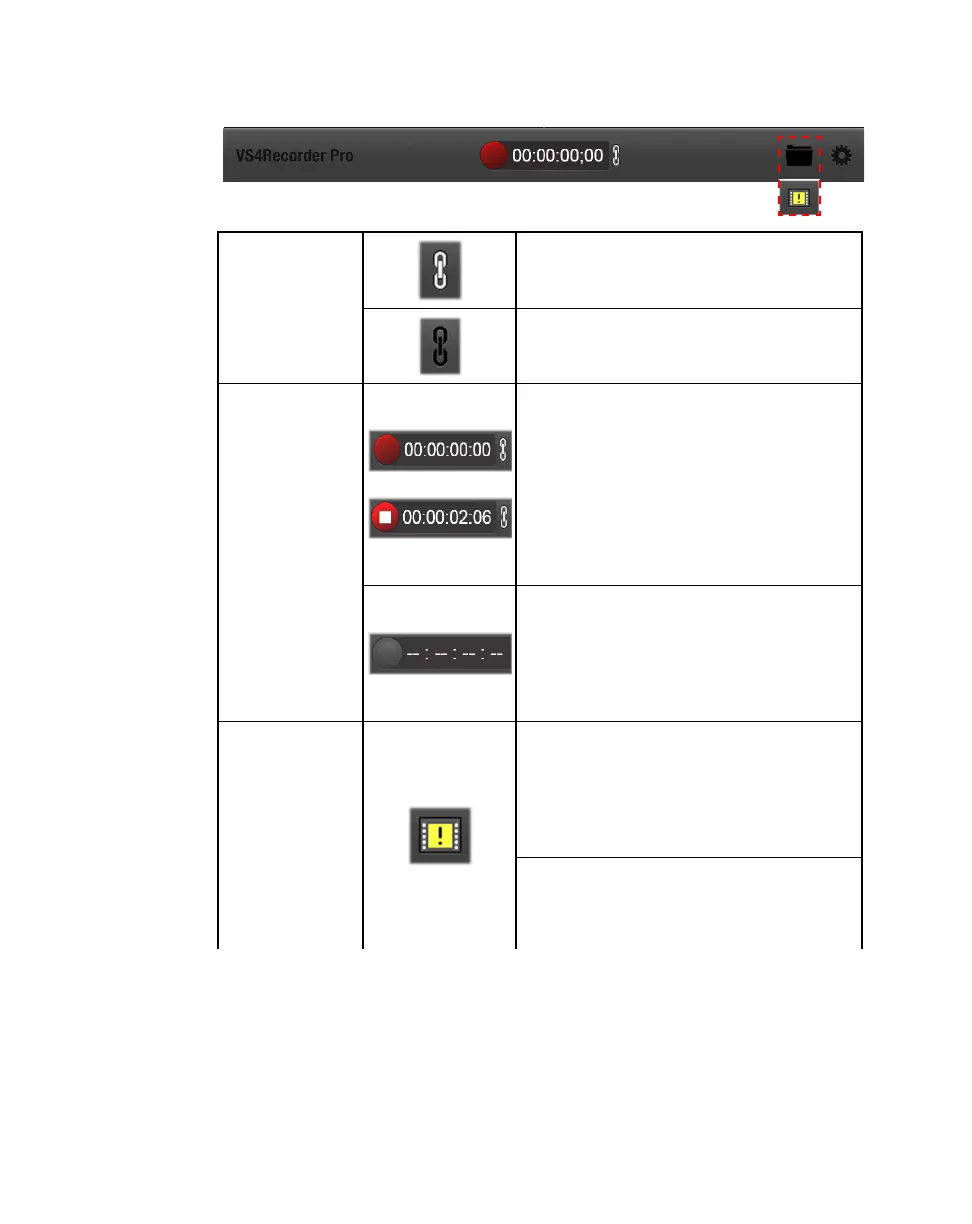
VS4Recorder Pro interface
Control bar
Record Mode
button
Indicates that VS4Recorder Pro is set to
Multi-Cam mode. For more information, see
“Multi-Cam mode” on page 25.
Indicates that VS4Recorder Pro is set to
Independent mode. For more information, see
“Independent mode” on page 25.
Session Record
button and
timer
(Multi-Cam mode)
In Multi-Cam mode and on the Master
machine when using VS4Control, the Session
Record button starts/stops the recording
session for all selected sources (see “Source
window” on page 19). The timer shows the
current session timecode for all source
recordings. For more information, see
“Recording sessions and timecodes” on page
26.
In Independent mode, the Session Record
button and timer are disabled. In this mode,
each source recording has its own session
timer, and is started/stopped using dedicated
Record buttons. For more information, see
“Source window popover” on page 20.
Dropped-Frame
indicator
(Multi-Cam mode)
In Multi-Cam mode and when using
VS4Control, the Dropped-Frame indicator
appears if dropped/skipped frames occur in
any of the source recordings during a recording
session. For more information, see “Record
status” on page 26.
In Independent mode, the Dropped-Frame
indicator appears in the source window
popover for the affected source recording only
(see “Source window popover” on page 20).



 To Next Page