18
Chapter 4, Using the VS4Recorder Pro Application
Record Path
button
(Multi-Cam mode)
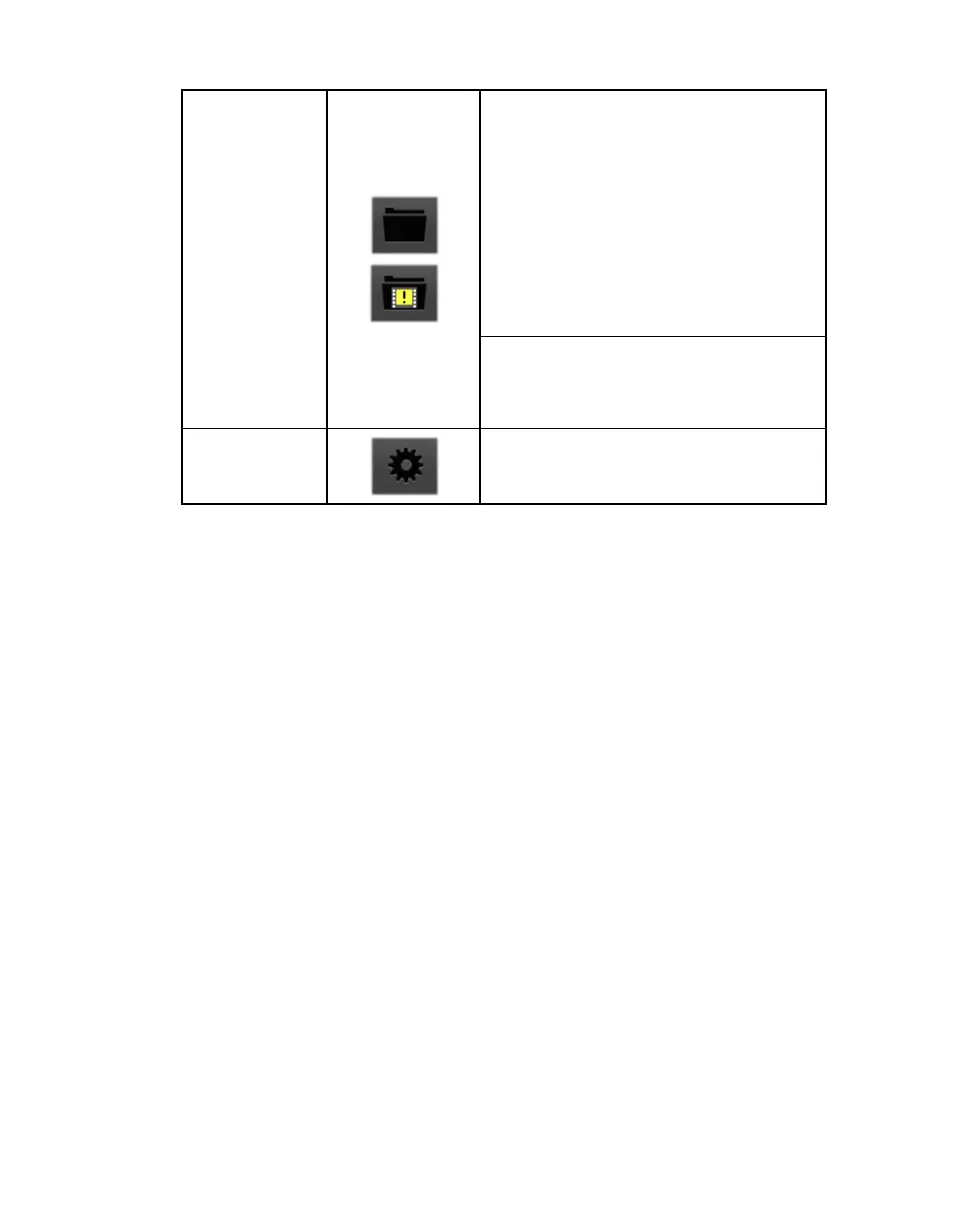
In Multi-Cam mode and when using
VS4Control, the Record Path button appears
once a recording session is stopped. Click this
button to open Windows Explorer at the
specified record path to view the recorded files
and record log file. If dropped/skipped frames
occurred in any source recording during the
recording session, the Dropped-Frame icon
appears within the Record Path button. For
more information, see “Record Path button” on
page 28.
In Independent mode, a separate Record Path
button appears in the source window popover
for each source recording (see “Source
window popover” on page 20).
Settings button
Opens and closes the VS4Recorder Pro
Settings window (see “Settings” on page 31).



 To Next Page