16
Chapter 4, Using the VS4Recorder Pro Application
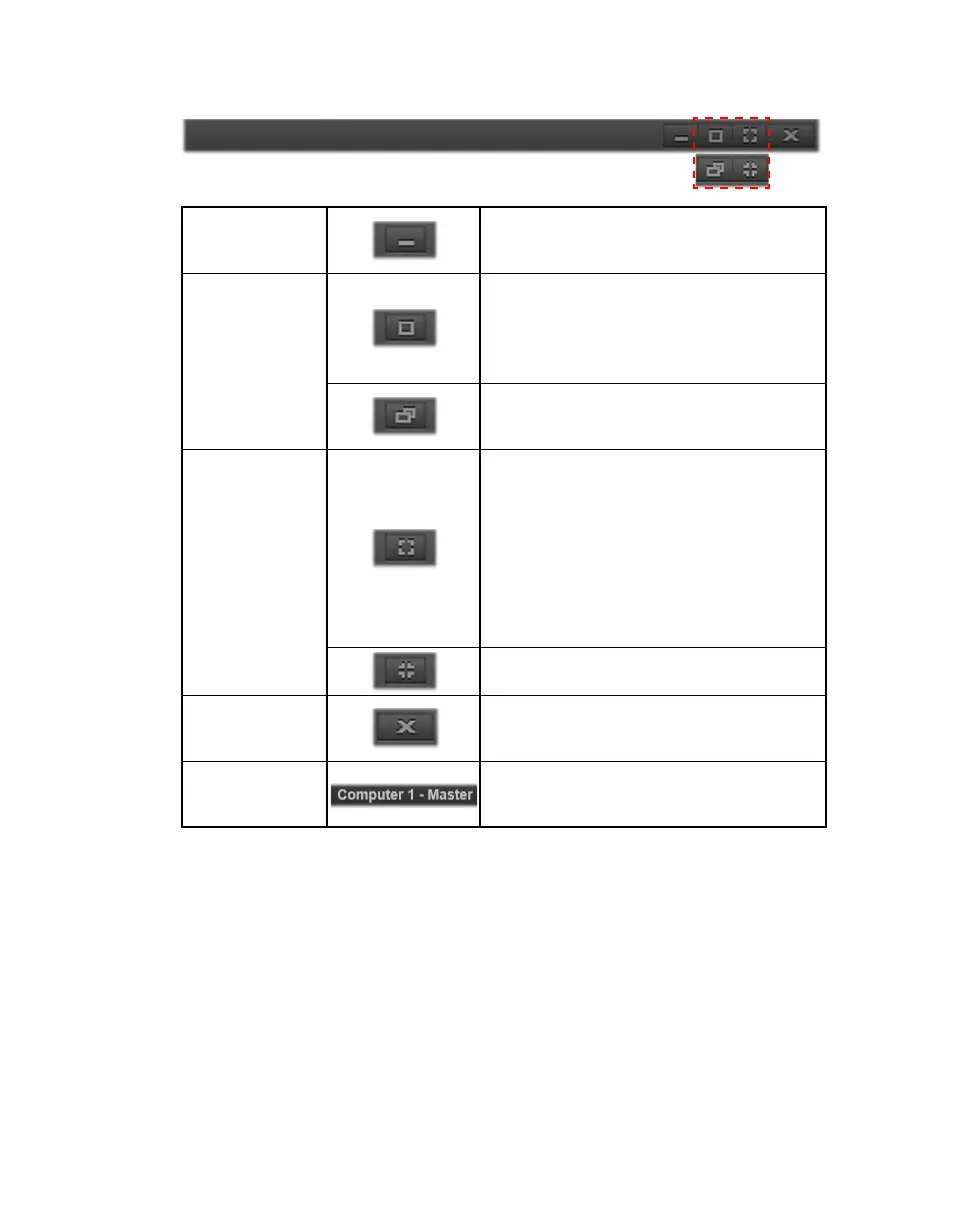
View bar
Minimize button
Hides the VS4Recorder Pro interface while
keeping the application running and
accessible.
Maximize/Restore
button
Expands the VS4Recorder Pro interface to the
maximum size allowable within the display
area of the monitor while maintaining the
interface aspect ratio. This option is not
available when in full-screen mode.
When the VS4Recorder Pro interface is
maximized, this button restores the
VS4Recorder Pro interface to its previous size.
Full-Screen button
Initiates full-screen mode whereby the
VS4Recorder Pro source windows occupy the
entire display area of the monitor. In this mode,
the View bar and Control bar areas of the
interface are visible only when mouse activity
occurs. You can, however, choose to lock the
Control bar so that it always remains on
screen. For more information, see “Full-screen
mode” on page 56.
Exits full-screen mode and restores the
VS4Recorder Pro interface to its previous size.
Close button
Closes the VS4Recorder Pro application. You
cannot close the application during a recording
session.
Machine
identification and
designation
(VS4Control only) Indicates the computer
name and its designation (Master or Slave)
when using VS4Control.



 To Next Page