80
Chapter 6, Using Matrox VS4 with StudioCoast vMix
¡ Important When running the Matrox Mtx.utils Setup, remember to select the
Matrox A/V Input DirectShow Filters option, otherwise you wont be able to
use your VS4 with StudioCoast vMix.
Overview
You can use your Matrox VS4 system as an input device to feed live video and
audio to StudioCoast vMix for streaming and ISO recording, such as for
broadcasting or recording live sports events, concerts, news, educational
seminars, and corporate meetings. For example, you can select any video and
audio source connected to the VS4 inputs as your A/V sources for use with vMix,
and stream your video and audio to a live streaming service.
¦NoteYou won’t be able to use vMix with VS4 if you’re currently running
another application that uses your VS4 hardware. You must close other
applications that use your VS4 hardware before starting vMix.
Setting the recording audio
Before you can use your Matrox VS4 system as an input device in StudioCoast
vMix, you must set the recording audio as follows:
1 Start StudioCoast vMix and click the Settings button at the top of the main
window.
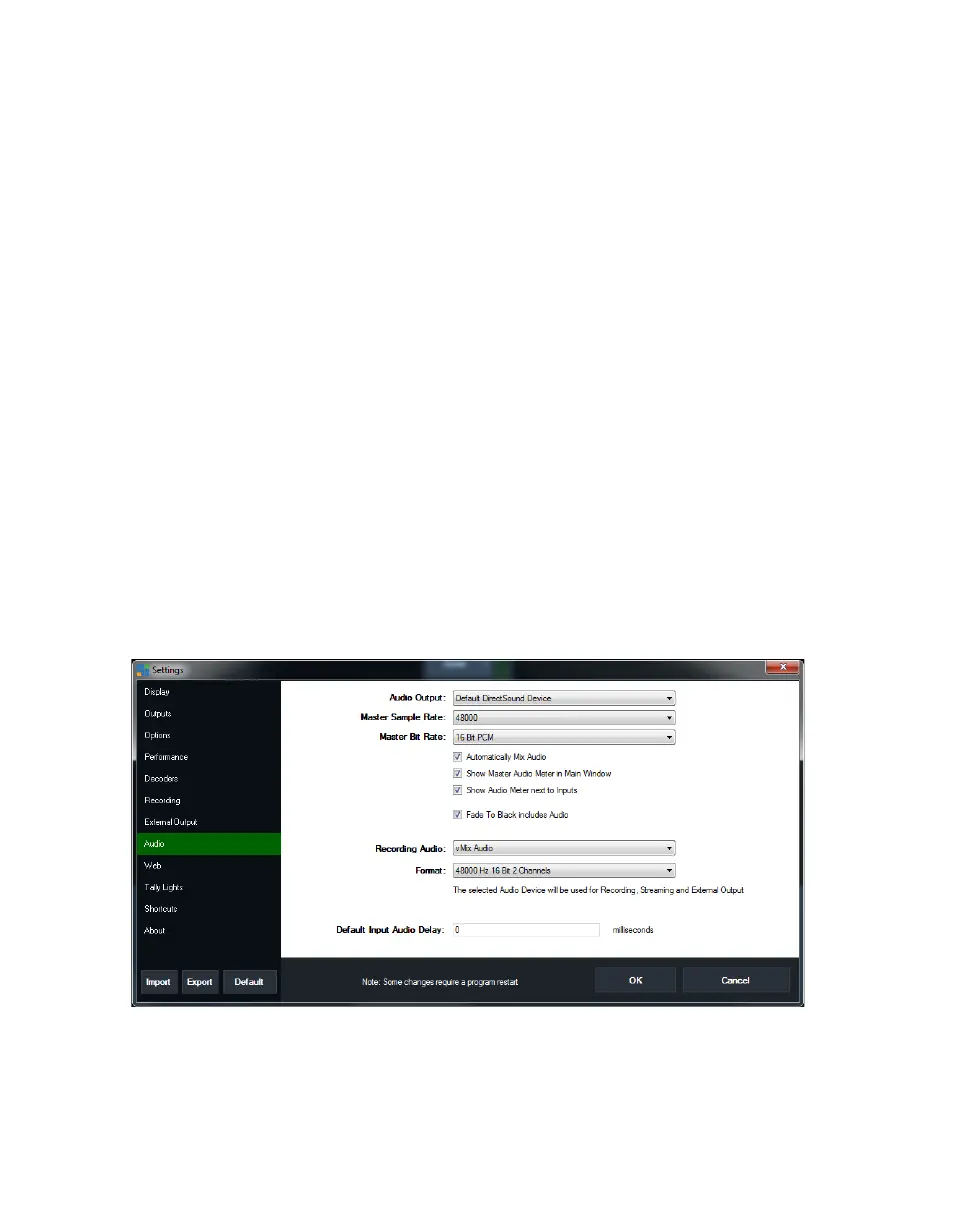
2 In the Settings dialog box, click Audio.
3 From the Recording Audio list, select vMix Audio.
All the other settings can be left at their default settings.
4 Click OK.



 To Next Page