45
Settings
Only the Target Data Rate will be available if you selected Constant bit rate
(CBR). If you select Variable bit rate (VBR), three other settable controls will be
available: The GOP size, the target and maximum data rates for the video
compression.
Audio settings
You can choose whether or not to record audio along with your video. The
following sections detail the audio settings for recording.
Enabling audio and selecting audio channels
If you enable a source’s audio for recording, the first two audio channels from the
input source are embedded in the video file as PCM or AAC audio, and separate
audio files are also created. The embedded audio in the video file and separate
audio files can be either stereo or mono, depending on your settings.
If you are using the MPEG-2 I-frame video codec, the embedded PCM audio in
the .avi video file is always stereo. You can choose to record the first two, four,
six, or eight audio channels as separate stereo or mono audio files. If you disable
a source’s audio for recording, audio will not be embedded in the source’s video
file, and separate audio files will not be created for the source recording.
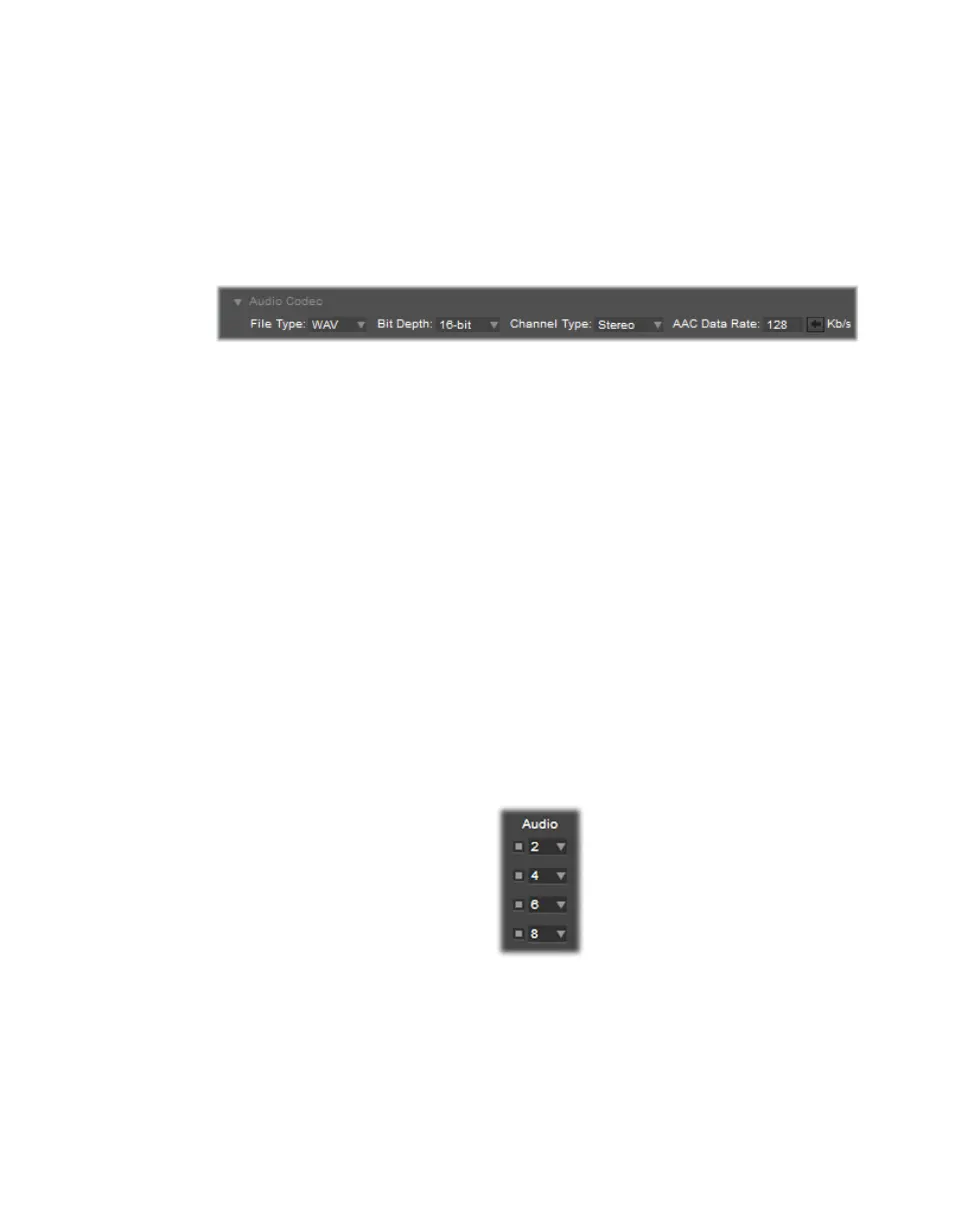
To enable source audio for recording, under
Session and File, select the
source’s corresponding
Audio box, and then select the number of audio channels
that you want to record as separate audio files (
2, 4, 6, or 8). To disable source
audio for recording, under
Session and File, clear the source’s corresponding
Audio box. Source audio is automatically enabled for recording when a source is
connected, and when starting the VS4Recorder Pro application with the source
already connected.
¦NoteA source’s audio channel setting also determines the number of audio
channels that are visible in the source’s VU meter. If source audio is disabled, the
source’s VU meter will not appear. See “VU meters” on page 50 for more
information.



 To Next Page