44
Chapter 4, Using the VS4Recorder Pro Application
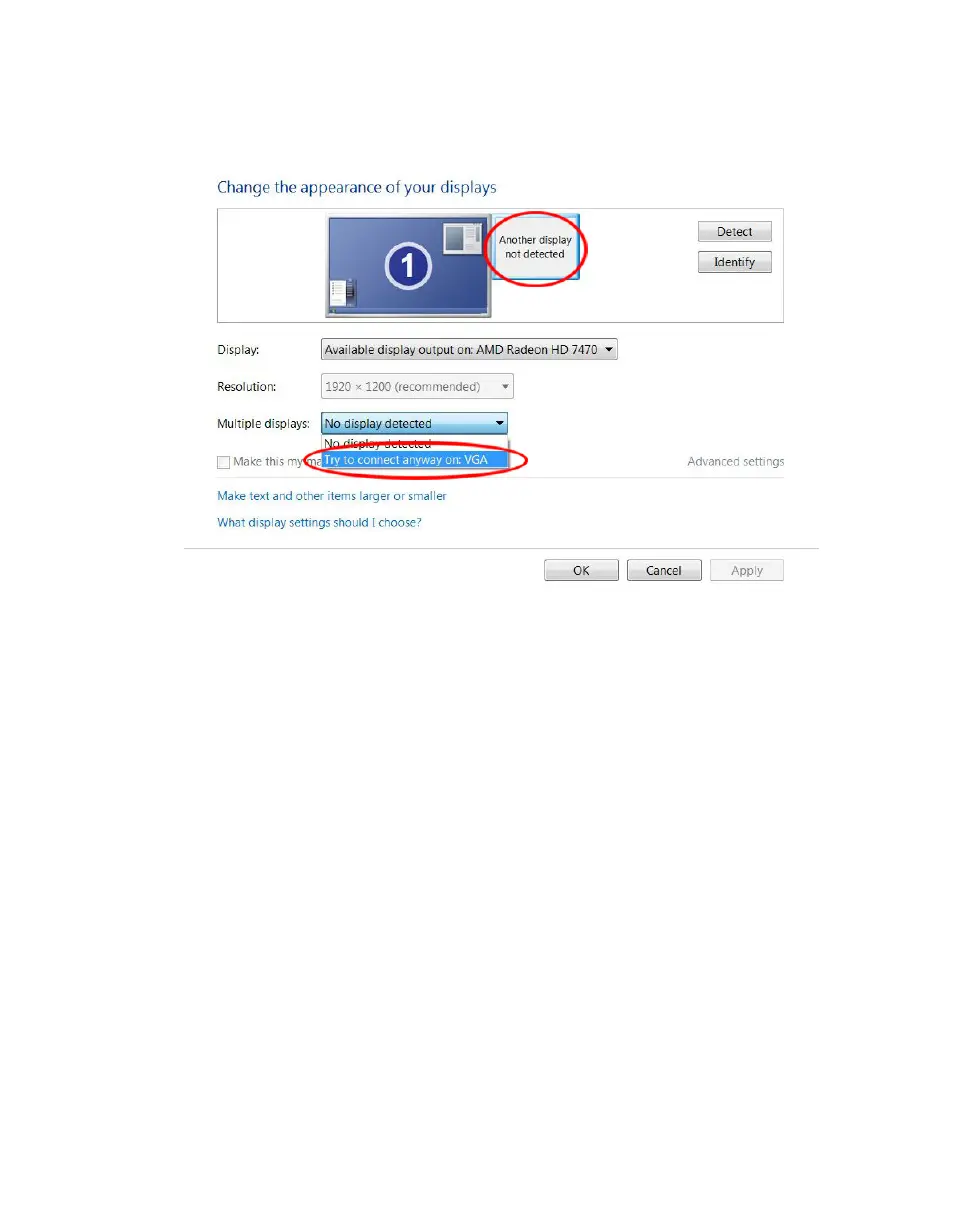
5 Select the detected “Available display output on: Intel
®
HD Graphics”. From
the Multiple displays drop-down, select “Try to connect anyway on: VGA”
and click
Apply.
6 Select your main display, and then from the Multiple displays drop-down,
select “Extend these displays”. Click
Apply, then Keep changes, and then
OK, to close the Screen Resolution settings.
7 Open your VS4Recorder Pro application, display the Settings and select an
H.264 file format in the
Video Codec section.
H.264 (MP4) and H.264 (MOV) should be available.
Advanced settings
Depending on your video codec selection, different advanced options are
available to suit your project requirements. The video codecs have applicable
encoding types. Depending on the codec selected, you can set the encoding to
either Constant or Variable:
• Constant bit rate (CBR) Video is compressed at your specified target data
rate, which is useful when you need to limit or predict the size of your video
file. However, if your video is very complex (such as scenes with many
colors, sharp edges, or transitions), you'll need to specify a high target data
rate to avoid having frames of blocky video in your file.
• Variable bit rate (VBR) Video is compressed at varying data rates based
on the complexity of the video and your specified maximum data rate. The
applicable codecs analyze and encode each frame to deliver the highest
possible quality at your target data rate.



 To Next Page