56
Chapter 4, Using the VS4Recorder Pro Application
Single-view mode
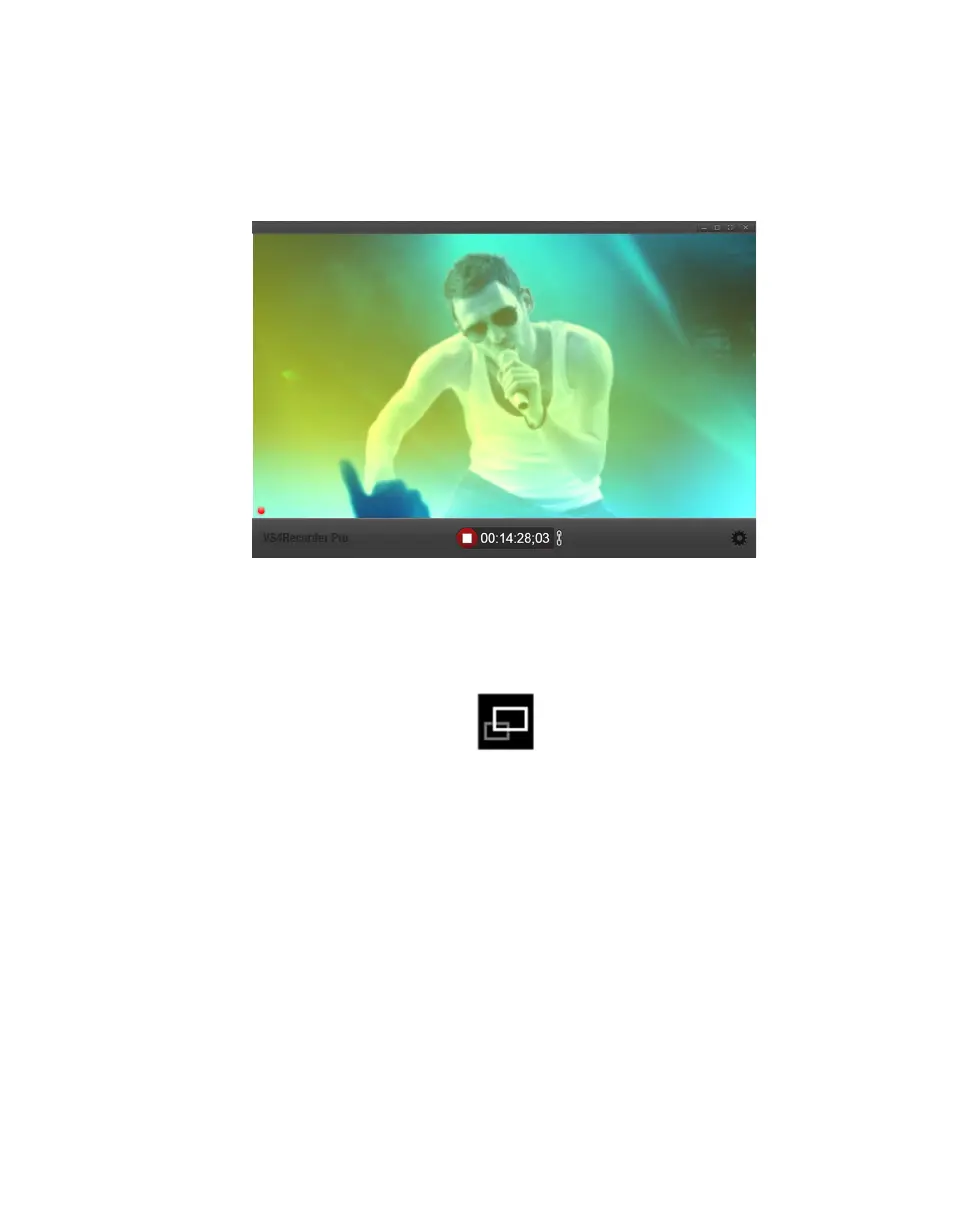
This mode displays only one source window by expanding the selected source
window to fill the entire VS4Recorder Pro window area. When in single-view
mode, you can cycle through the different inputs using the VS4Recorder Pro
shortcut keys (see “Keyboard shortcuts” on page 58).
To switch from quad-view mode to single-view mode, click the Source View
button in the source window popover for the source window that you want to
expand (see “Source window popover” on page 20). You can also double-click a
source window to switch to single-view mode for that source.
Full-screen mode
VS4Recorder Pro’s full-screen mode lets you expand the current source window
area (quad-view or single-view) so that it fills the entire screen. You can switch
between the two source-view modes (quad or single) and access all VS4Recorder
Pro functionality when in full-screen mode.
When in full-screen mode, the VS4Recorder Pro View bar and Control bar
appear only when mouse activity occurs on the screen, and disappear after a
period of mouse inactivity.
To enter/exit full-screen mode, click the Full-Screen button in the View bar (see
“View bar” on page 16).



 To Next Page