20
Chapter 4, Using the VS4Recorder Pro Application
Source window popover
In the
Settings dialog, you can lock the source window popovers so they stay
open. For more information, see “” on page 57.
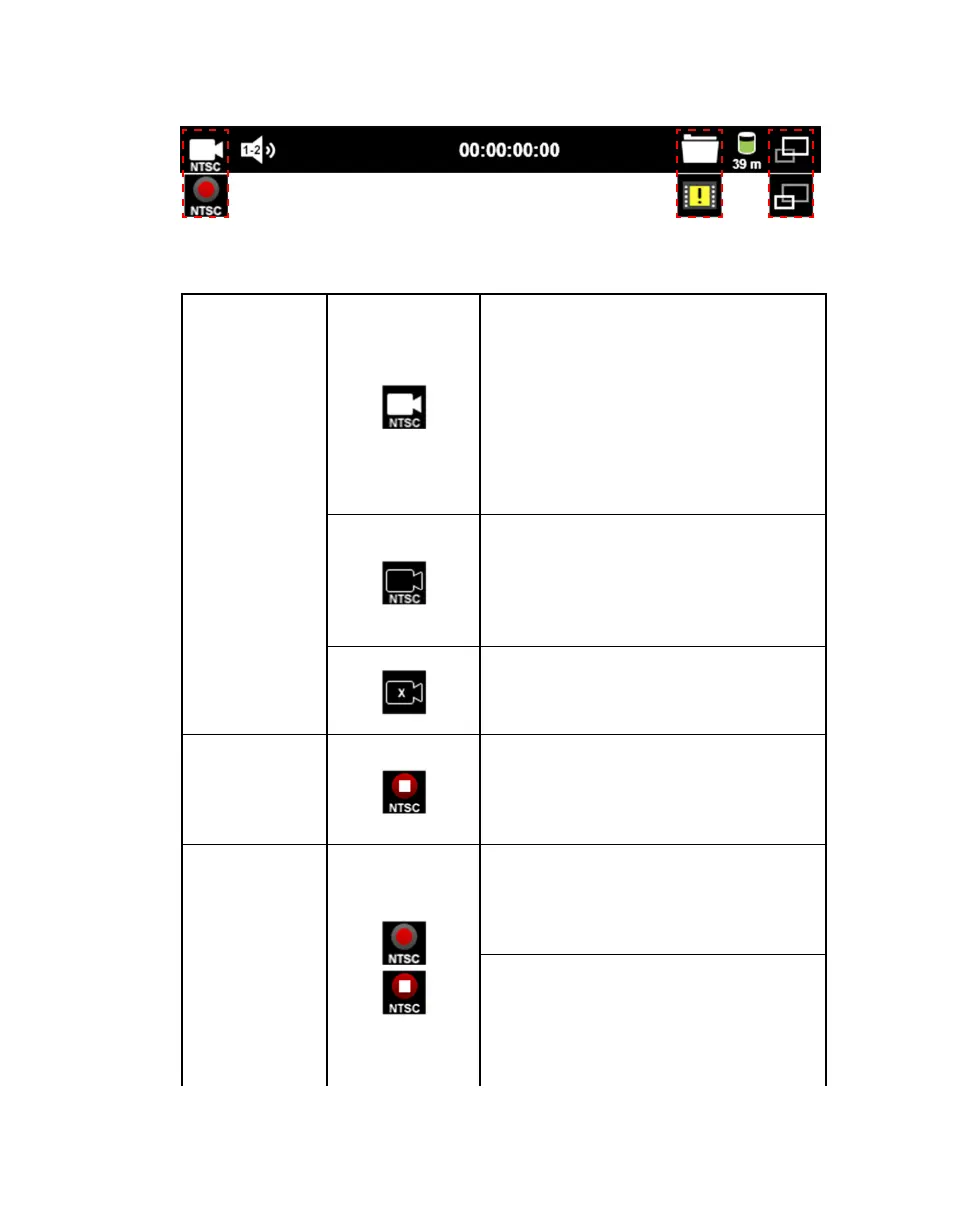
Source Selection
button
(Multi-Cam mode
only)
The source is enabled for recording. Starting a
recording session using the Session Record
button (see “Control bar” on page 17) starts the
recording for all enabled sources. If a
recording session is currently in progress,
enabling the source starts the recording for that
source. An input is automatically enabled for
recording when a source is connected, and
when starting the VS4Recorder Pro application
with the source already connected.
The source is disabled, and will not begin
recording when a recording session is started
using the Session Record button (see “Control
bar” on page 17). If a recording session is
currently in progress, disabling the source
stops the recording for that source.
Indicates that a video source is not connected
to the VS4 input, or the connected video input
source is invalid. The source cannot be
recorded in this state.
Source recording
button
(Multi-Cam mode
only)
Indicates that a quadrant is recording. Click
this button to stop a source from recording. In
order for that source to start recording again, it
must be re-enabled (see “How to record” on
page 22),
Record button
(Independent
mode only)
In Independent mode, the Record button
starts/stops the recording session for that
source only. For more information, see
“Recording sessions and timecodes” on page
26.
In Multi-Cam mode and on the Master
machine when using VS4Control, the
recording session for all selected sources is
started/stopped using the Session Record
button on the Control bar (see “Control bar” on
page 17).



 To Next Page