21
VS4Recorder Pro interface
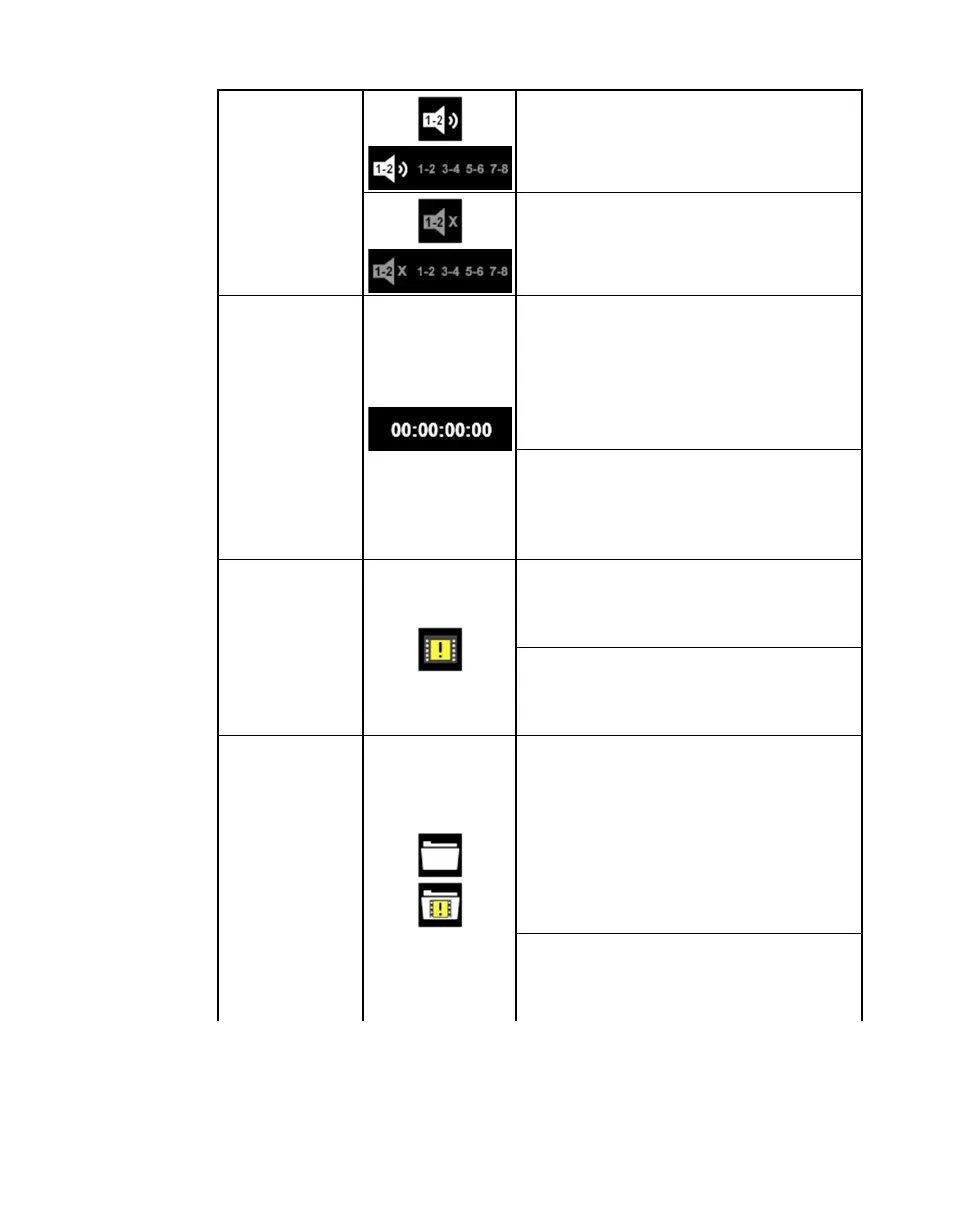
Audio Monitoring
button
Source audio monitoring is currently enabled
for the selected audio pair. For more
information see “Audio monitoring” on page
54.
Source audio monitoring is currently disabled.
For more information see “Audio monitoring”
on page 54.
Source record
timer
In Multi-Cam mode and when using
VS4Control, the timer represents the duration
of the current source recording only. The
overall recording session timer is displayed on
the Control bar. For more information, see
“Recording sessions and timecodes” on page
26.
In Independent mode, the timer represents the
duration of the current source recording and
recording session. For more information, see
“Recording sessions and timecodes” on page
26.
Dropped-Frame
indicator
(Independent
mode)
In Independent mode, the Dropped-Frame
indicator appears if dropped/skipped frames
occur during the source recording. For more
information, see “Record status” on page 26.
In Multi-Cam mode and when using
VS4Control, the Dropped-Frame indicator
appears on the Control bar (see “Control bar”
on page 17).
Record Path
button
(Independent
mode)
In Independent mode, the Record Path button
appears once a recording session is stopped.
Click this button to open Windows Explorer at
the specified record path to view the recorded
files and record log file. If dropped/skipped
frames occurred during the source recording,
the Dropped-Frame indicator appears within
the Record Path button. For more information,
see “Record status” on page 26.
In Multi-Cam mode and when using
VS4Control, the Record Path button appears
on the Control bar (see “Control bar” on page
17).



 To Next Page