57
View modes
Locking the Control bar and the Source window popover
By default, the Control bar and the Source window popover behave as follows:
• In full-screen mode, the VS4Recorder Pro Control bar and Source window
popover will appear when you move the mouse on the screen, and will
disappear after a few seconds of mouse inactivity.
• When not in full-screen mode, the VS4Recorder Pro Control bar is always
visible, and only the Source window popover appears and disappears with
mouse activity/inactivity.
To lock the Control bar and the Source window popover so that they are always
visible in either viewing mode (full-screen or not), go to
Settings and then select
Lock the source window popover.
¦NoteWhen in Multi-Cam mode or using VS4Control, if dropped or skipped
frames are detected during a recording session when in full-screen mode, the
Control bar locks automatically to display the Dropped-Frames indicator (see
“Record status” on page 26).
Label and filename overlay
For easy identification of sources in the VS4Recorder Pro user interface, you can
choose to display the
Label, Filename, or Both in each quadrant of the Source
window (see “Source window popover” on page 20). The following sections
detail how to customize the label and filename overlay.
Enabling the overlay
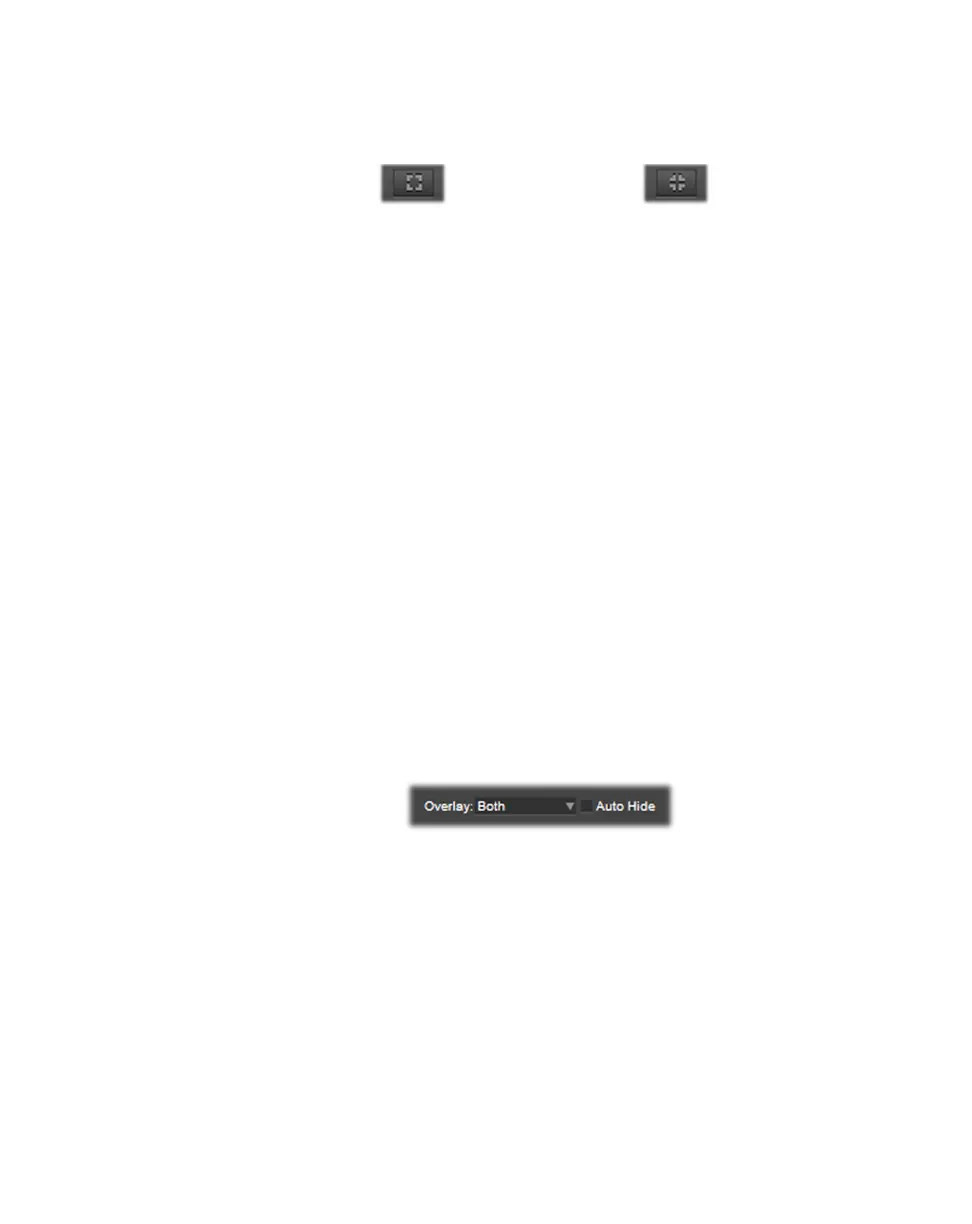
To overlay the source label and/or filename in each of the source windows, select
either
Label, Filename, or Both from the Overlay menu. Select None to
disable the overlay.
Auto hide
When
Auto hide is selected, the overlay appears only when mouse activity
occurs over the VS4Recorder Pro source windows, and disappears after a period
of mouse inactivity.
Enter full-screen
mode
Exit full-screen
mode



 To Next Page