55
View modes
View modes
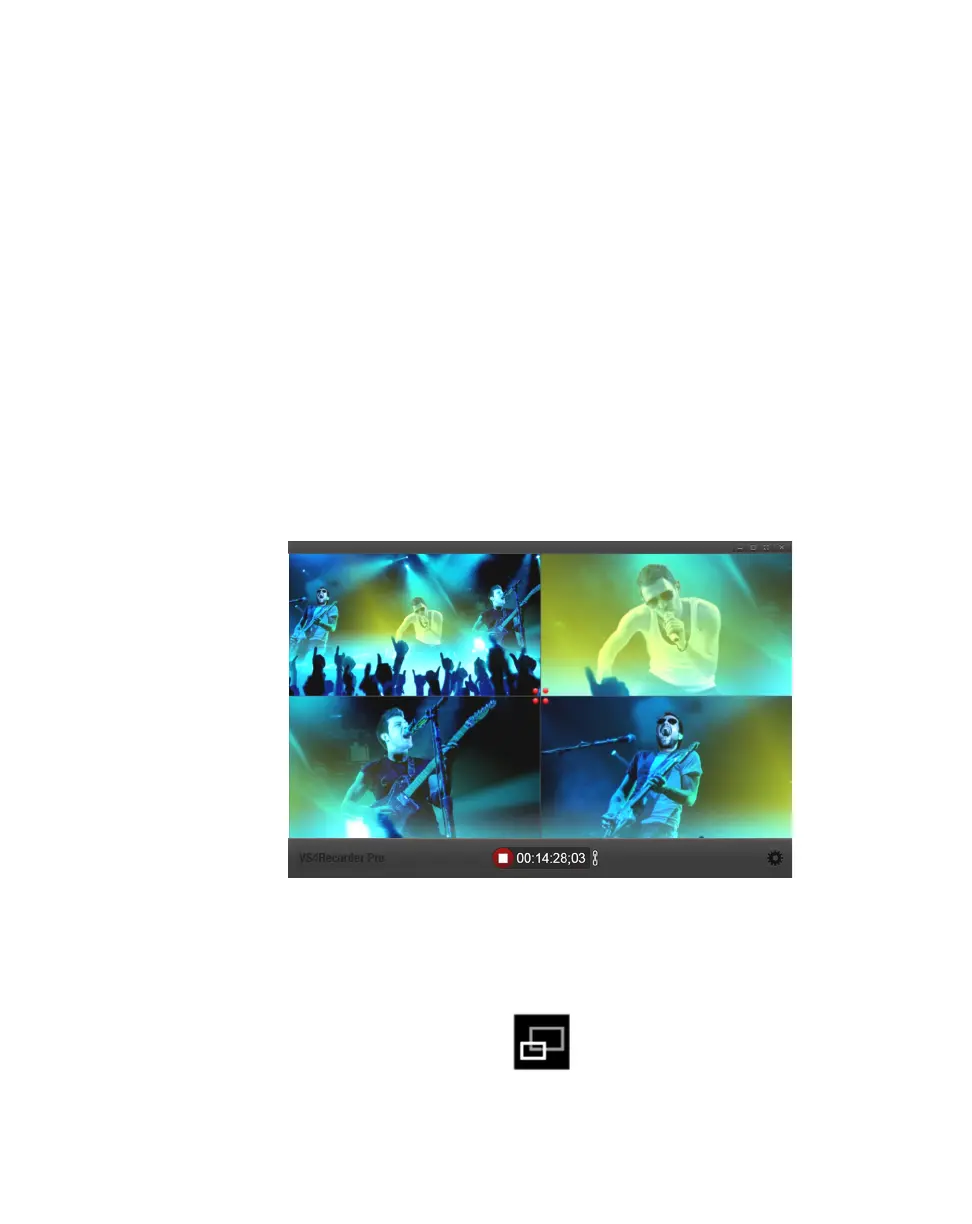
The VS4Recorder Pro interface offers different modes for viewing your input
sources. You can choose to view all four input sources simultaneously in
quad-view mode, or cycle through isolated inputs for viewing in single-view
mode. VS4Recorder Pro also includes a full-screen option for both source-view
modes. You can switch between the VS4Recorder Pro view modes at any time
without affecting the recording, and all view modes offer the same on-screen
display and record functionality.
¥Tip You can use the VS4Recorder Pro shortcut keys to switch between the
various view modes (see “Keyboard shortcuts” on page 58).
Source view
VS4Recorder Pro offers two modes for viewing your input sources: quad-view
mode and single-view mode.
Quad-view mode
This mode displays all four source windows within the current VS4Recorder Pro
interface.
To switch from single-view mode to quad-view mode, click the Source View
button in any of the source window popovers (see “Source window popover” on
page 20). You can also double-click the source window in single-view mode to
switch to quad-view mode.



 To Next Page