25
Record functionality
Record functionality
This section describes the VS4Recorder Pro record functionality.
Recording sessions
VS4Recorder Pro offers two modes for recording and a multiple-VS4 networking
workflow: Multi-Cam mode, Independent mode and VS4Control.
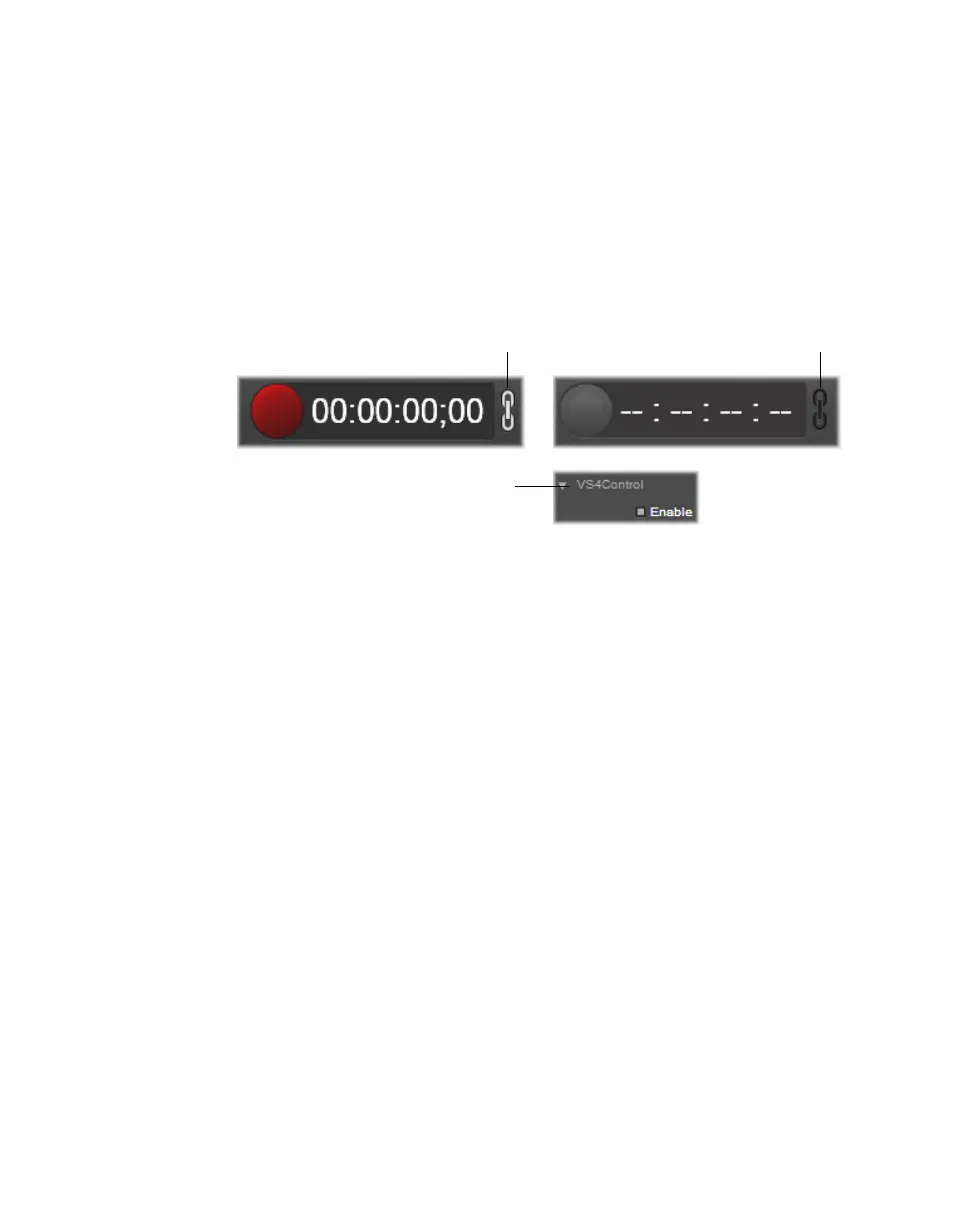
To select a record mode, click the Record Mode
button on the Control bar. To
record using VS4Control, select the
Enable button in the VS4Control section:
Multi-Cam mode
Allows you to start and stop the recording of up to four sources at the same time
using a single record button. This mode is ideal for recording multi-camera live
events. Recording in this mode initiates a session timer whereby each source
recording shares the same event timecode. The Control bar timer displays frames
only when all selected sources are the same frame rate, however, the embedded
timecode in each recorded file always contains frames.
You can start and stop individual source recordings separately during a recording
session without interrupting the event run-time. In addition, the current duration
of each recording is displayed in the corresponding source window popover.
Independent mode
Allows you to start and stop the recording of up to four sources independently
using dedicated record buttons. Each source recording is its own recording ses-
sion. This mode is ideal for quickly recording content for the archiving or repur-
posing of video assets.
Rather than sharing a unified session timecode, the timecode for each source
recording is based on its own duration, which is displayed in the corresponding
source window popover. If you choose to embed the VS4Recorder Pro
Session
timecode in your video files, the timecode values are taken from the timer in the
respective source window popovers.
¦NoteFor information on recording using VS4Control, see “VS4Control” on
page 51).
Set to Multi-Cam mode Set to Independent mode
VS4Control enabled



 To Next Page