24
Chapter 4, Using the VS4Recorder Pro Application
$ Independent mode Click the Record button in the source window
popover (see “Source window popover” on page 20) for each source that
you want to record.
¦NoteIf dropped/skipped frames are detected during a source recording, the
Record Status LED in the corresponding source window turns yellow, and a
Dropped-Frame indicator appears (see “Record status” on page 26). If you
experience a loss of signal, causing a disconnection, a new file is not created
and the recording will continue in the original video file. In this case, black
video is recorded between connections.
7 To stop a recording session:
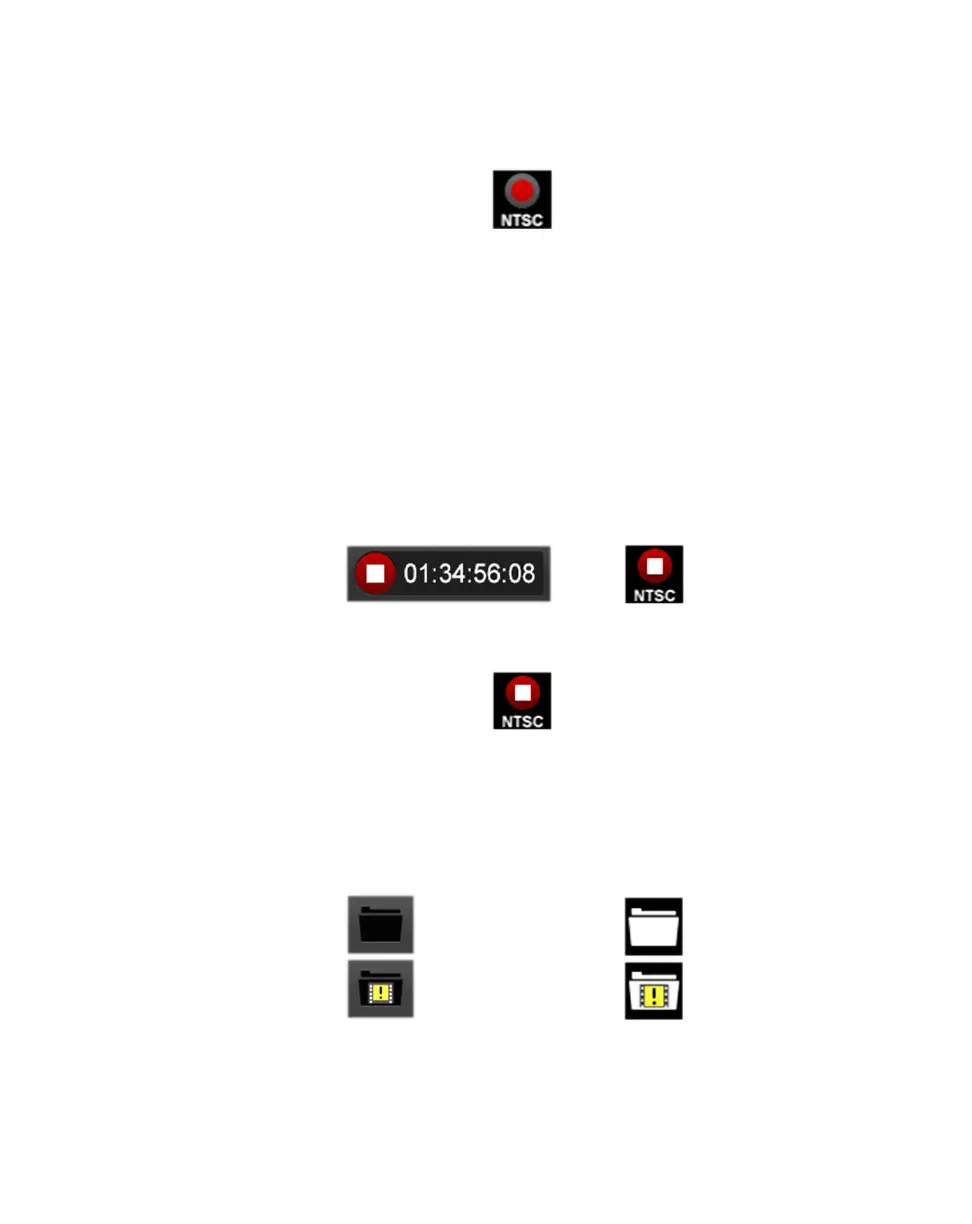
$ Multi-Cam mode and when using VS4Control Click the Session
Record button to stop the recording session for all sources.
¦NoteYou can click any Source recording button in a quadrant to stop just that
source.
$ Independent mode Click the Record button corresponding to the
source recording that you want to stop.
8 Once you've stopped recording, a Record Path button appears. Click the
Record Path button to open Windows Explorer at the specified source record
path to view the recorded files, and the record log file. For more information,
see “Record Path button” on page 28.
¦NoteFor more information on recording using VS4Control, see “VS4Control”
on page 51).
Multi-Cam mode
(on Control bar)
Independent mode
(in source window popover)



 To Next Page