28
Chapter 4, Using the VS4Recorder Pro Application
Record Path button
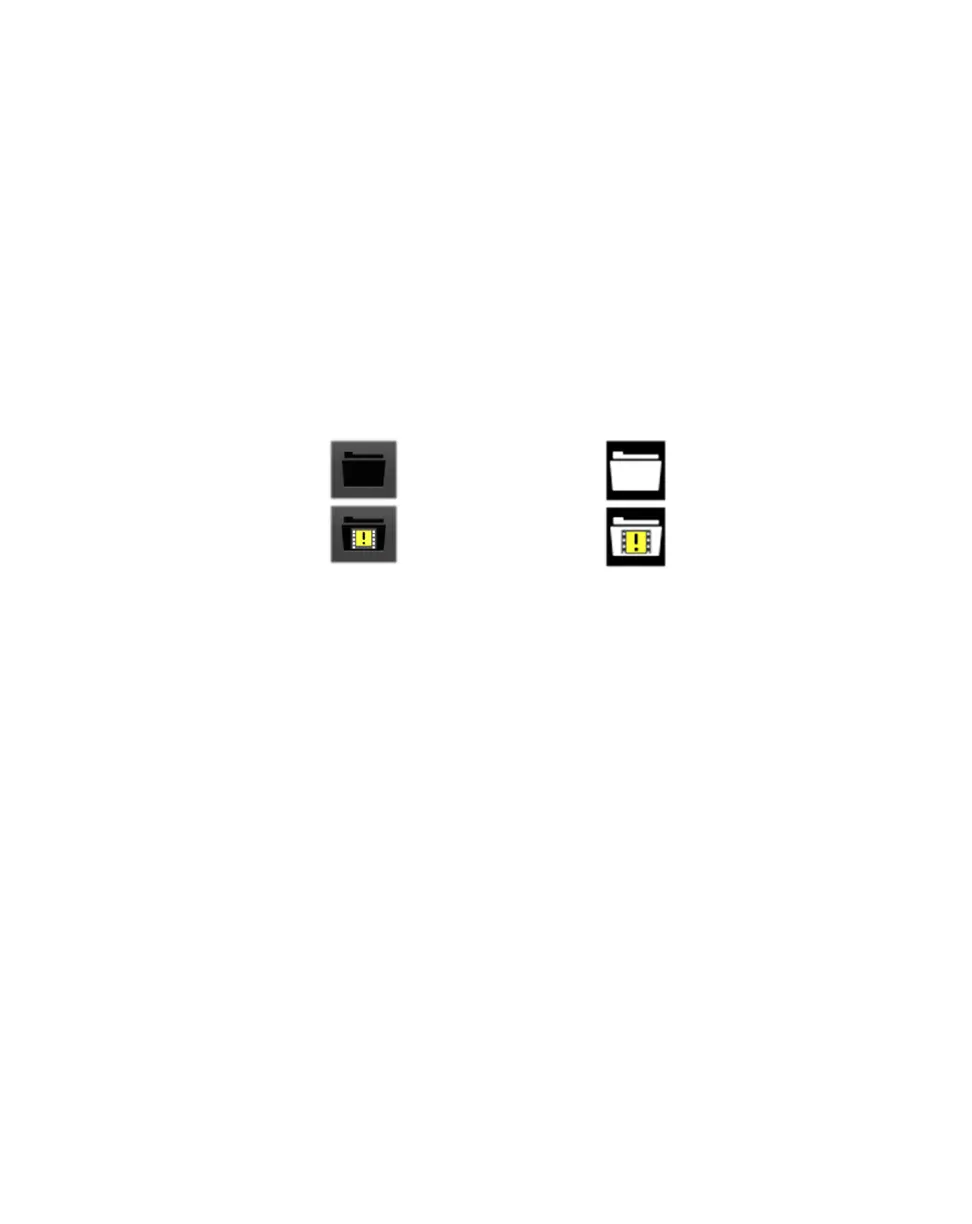
At the end of a recording session, a Record Path button appears either on the
VS4Recorder Pro Control bar when in Multi-Cam mode (see “Control bar” on
page 17), or in the recording’s source window when in Independent mode (see
“Source window popover” on page 20). Click the Record Path button to open
Windows Explorer at the specified source record path to view the recorded video
and audio files, and the record log file. For information on the specific location of
the record log file, see “Record log file". In Multi-Cam mode, if different record
paths were specified for the source recordings, a separate window will open for
each record path. If dropped/skipped frames were detected at any time during a
recording session, the Dropped-Frame icon appears within the Record Path
button. The button disappears when a new recording session is initiated.
Record log file
The record log file provides a breakdown of recording events per source, such as
dropped and black frames, file splitting, capture duration (when applicable), and
the timecode of when the events occurred. The recording session determines
when the record file is generated and where the file is saved.
• Multi-Cam mode One record log file is created per recording session, and
is generated once the entire recording session is stopped. The record log file
includes the breakdown of events for all sources that were recorded during
the recording session. The location of the record log file depends on the
record path selected:
$ If the Use same path option is selected in the VS4Recorder Pro settings,
the record log file is located in the same session folder that contains all the
video and audio files for the recording session.
$ If the Use same path option is cleared, a different session folder is
created for each source recording within a recording session. In this case,
the record log file is located in the session folder corresponding to Input 1.
• Independent mode A separate record log file is generated after each
source recording, and is saved in the same session folder that contains the
video and audio files for the source recording.
Multi-Cam mode
(on Control bar)
Independent mode
(in source window popover)



 To Next Page