65
Using Matrox VS4 for streaming
¦NoteFor a VS4 input or system audio source to appear in the list of audio
sources, a shot must have been added for that VS4 input or system audio
source.
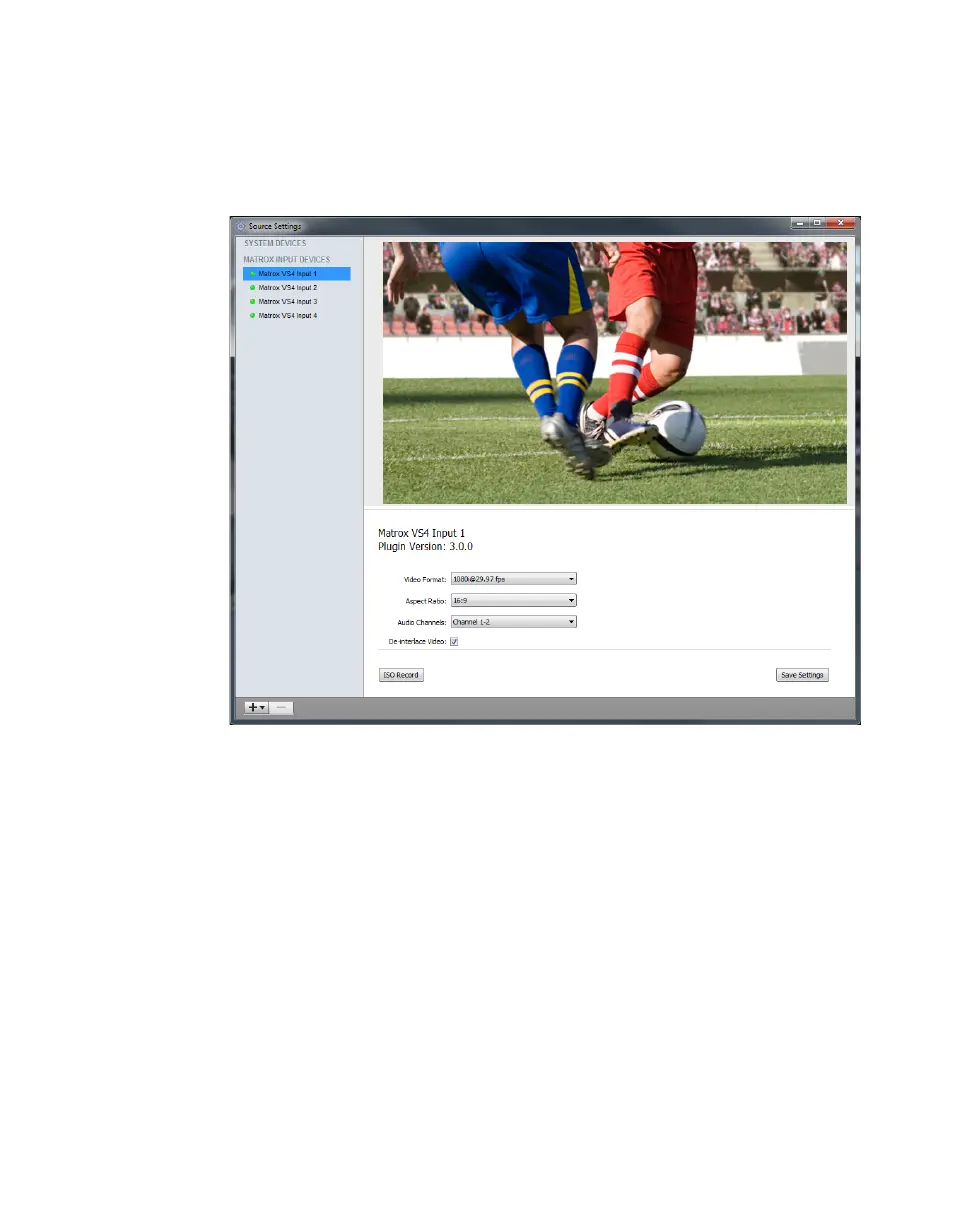
4 To configure your video source settings, choose Sources > Show Sources
Settings
.
5 In the Source Settings dialog box, under MATROX INPUT DEVICES,
select the Matrox VS4 input that you want to configure for streaming, and
then specify the following settings:
$ Video Format For interlaced (i) and progressive segmented frame
(PsF) sources, select the video format that matches your source video. For
progressive (p) sources, Matrox VS4 automatically detects the video
format. This setting also applies when recording your source video using
the Matrox ISO recording tool (see “Recording your source video to disk”
on page 66).
$ Aspect Ratio Specify the aspect ratio of your SD source video. For HD
sources, this option is automatically set to 16:9. This setting also applies
when recording your source video using the Matrox ISO recording tool
(see “Recording your source video to disk” on page 66).
$ Audio Channels Based on the audio source selected for your shot (see
step 3), select the audio pair that you want to stream with your source
video. This option does not apply if you selected a system audio source



 To Next Page