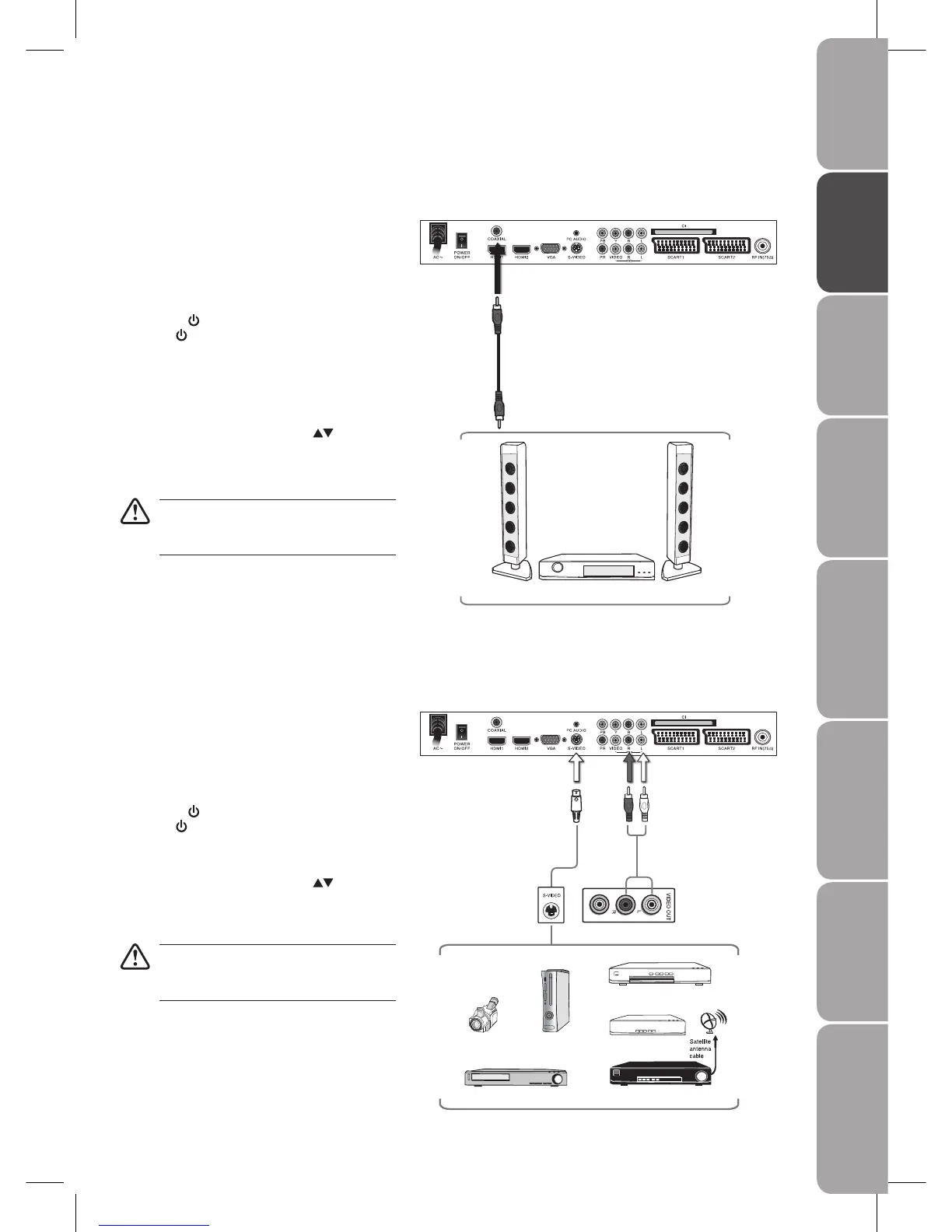
Connecting an A/V Device with S-Video Cable
Use a S-Video cable and audio cable to connect 1.
the A/V device’s S-VIDEO and audio output jack to
the LCD TV’s S-Video IN jacks.
Plug the connected devices into the mains socket 2.
before switching on the POWER ON/OFF switch
at the back of the TV.
Press the3.
/ I button on the side panel of the TV
or the
button on the remote control to turn on
your LCD TV.
Press the 4. SOURCE button on the remote control
to display the Source List. Use the
buttons to
select S-VIDEO, and then press the OK button.
Not all A/V devices have the ability to connect
to a TV through S-Video. Please check your A/V
devices user guide for compatibility.
Connecting a Coaxial Audio Receiver
For better sound quality, you may want to play the DVD audio through your multi-channel audio receiver. (DVD mode)
Use an audio cable to connect the audio receiver’s 1.
audio LINE IN jacks to LCD TV’s COAXIAL OUT jack.
Plug the connected devices into the mains socket 2.
before switching on the POWER ON/OFF switch
at the back of the TV.
Press the3.
/ I button on the side panel of the TV
or the
button on the remote control to turn on
your LCD TV and your audio receiver and then set
it to Coaxial mode.
Press the 4. SOURCE button on the remote control
to display the Source List. Use the
button to
select DVD, and then press the OK button.
The TV’s volume control will have no effect.
You may control the audio level via the Audio
Receiver.
Rear View of TV
Audio Cable
(not included)
Audio Receiver
Rear View of TV
S-Video Cable
(not included)
Satellite Receiver
Audio Cable
(not included)
Video Camera
VCR
DVD Player
Set-top Box
Game Console
LR


 To Next Page