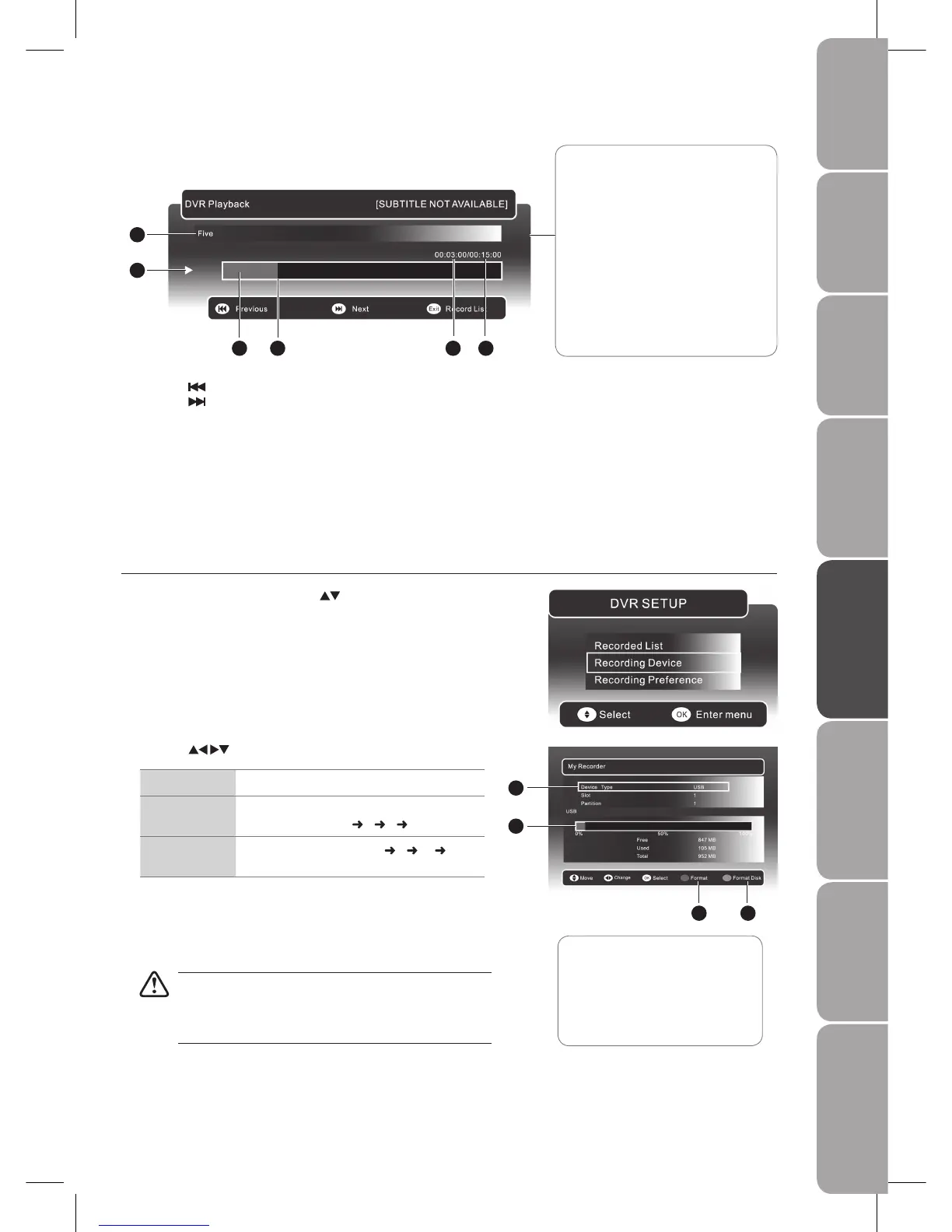
Press the 6. button to play the previous movie.
Press the
button to play the next movie.
Press the 7. MENU / MEDIA button to save the settings and return to the
previous menu.
Press the 8. EXIT button to exit the menu.
Recording Device
You can view the status of the storage device and select the device you wish to record to if there is more than one device
connected.
In the 1. DVR SETUP menu, press the
buttons and the OK button
to select Recording Device.
The ‘DVR Playback Progress Bar’
1 Indicates the programme’s name
2 Indicates the playback status of the
recorded programme
3 Indicates the status of the
programme’s runtime
4 Indicates the current playback
position
5 Indicates the elapsed playback time
6 Indicates the total playback time
1
2
3 4 5 6
Press the 2. buttons to adjust the settings.
Device Type
Select between USB and card reader.
Slot
Select the active USB storage device connected
to the USB hub slot (1
2 3 4)
Partition
Select the active partition (1 2 …
max.15) on the selected USB device.
Press the 3. RED button to select Format. Press the OK button to
confirm. All data will be lost from the formatted partition.
Press the GREEN button to select Format The Disk. Press the OK
button to confirm. All data will be lost from the disk.
Formatting may be needed occasionally due to a hard disk
malfunction. In most cases, this will restore normal operation
of the hard disk, however all data previously stored will be
lost.
Press the 4. MENU / MEDIA button to save the settings and return to the
previous menu.
Press the 5. EXIT button to exit the menu.
1 USB Storage device type
2 Storage capacity of the active
USB storage device
3 Format
4 Format disk
1
2
3 4
During playback, press the 5. DISPLAY button to display the DVR Playback
Progress Bar.


 To Next Page